Edit Word documents online, right in your browser
Open a .docx file, click into the page and start typing. Change text and formatting, work with lists, tables and pictures, then save a Word file that still looks right in Microsoft Word, or export a PDF.
- Free account, no credit card
- Nothing to install
- Saves back to .docx
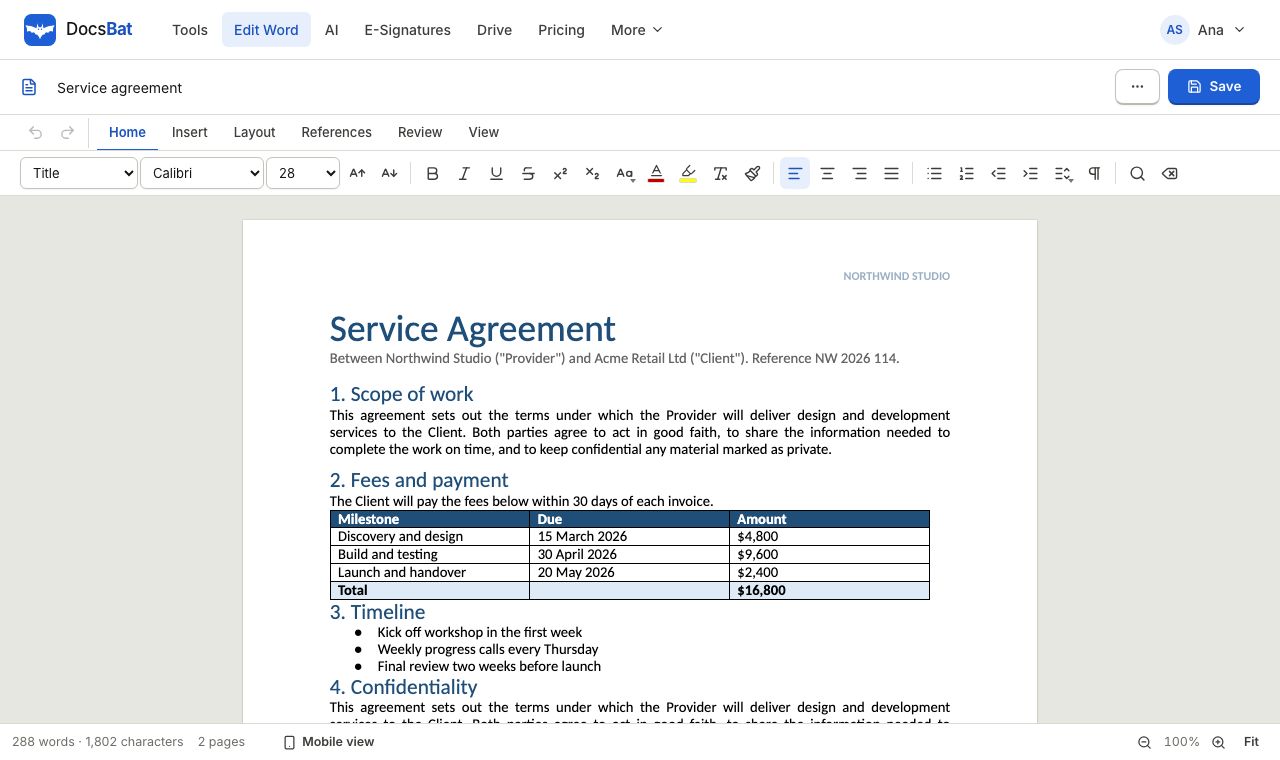
A Word editor for the moments you do not have Word
Someone sends you a .docx and you need to fix a date, add a paragraph or update a table, but you are on a borrowed laptop, a Chromebook or a computer without Office. The DocsBat Word editor opens the file in the browser and shows it as pages, using the document's own fonts, styles, lists, tables, pictures, headers, footers and footnotes.
You edit the body of the document directly: type, delete, format and rearrange. When you save, DocsBat writes your changes back into the original .docx. Parts you did not touch, such as styles, headers, footers, comments and document settings, are kept as they were, so the file still opens cleanly in Microsoft Word, LibreOffice or Google Docs.
The editor needs a free DocsBat account, which keeps every document you save in your private Drive. Sign up takes a moment and needs no credit card.
Why edit Word files in DocsBat
Keeps your document intact
Only the blocks you change are rebuilt. Everything else in the .docx is kept byte for byte, so your styles and layout survive the round trip.
Real text formatting
Bold, italic, underline, strikethrough, superscript, subscript, font, size, colour and highlight, plus headings and paragraph alignment.
Lists, tables and pictures
Work with bulleted and numbered lists, edit table cells, insert pictures and links, and add page breaks where a new page should start.
Word or PDF out
Save as .docx to keep editing later, or export a PDF to send or print. Both are saved to your Drive.
Opens protected files
Password protected .docx files open after you type the password, so you can edit documents you already have access to.
Any device
Runs in Chrome, Edge, Safari and Firefox on Windows, Mac, Linux, Chromebook, iPhone, iPad and Android. Nothing to install.
How to edit a Word document online
- 1
Open your .docx
Sign in, then drop a Word file into the editor or open one from your Drive. If the file has a password to open, enter it when asked.
- 2
Make your changes
Click into the page to type. Use the toolbar for formatting, headings, lists, tables, pictures, links and page breaks.
- 3
Save as Word or PDF
Save the edited .docx back to your Drive, download it, or export a PDF of the finished document.
What the Word editor can do
- Faithful page view
- Documents are shown on their own page size and margins, with the fonts, paragraph spacing, indents, list numbering, table borders and shading from the file.
- Fonts with free twins
- Common Office fonts are shown with metric compatible free fonts, for example Carlito for Calibri and Caladea for Cambria, so line breaks stay close to the original.
- Text formatting
- Bold, italic, underline, strikethrough, superscript and subscript, font family, font size, text colour and highlight colour.
- Headings and paragraphs
- Turn a paragraph into a heading, change alignment and add new paragraphs anywhere in the document.
- Bulleted and numbered lists
- Edit existing lists or start new ones. Numbering is written back into the Word file as real list numbering.
- Tables
- Change the text in table cells, including lists inside cells. Table structure from the original document is kept.
- Pictures
- Insert JPG or PNG pictures into the document. Existing pictures are shown in place and kept in the saved file.
- Links
- Add a web link to selected text. Existing links in the document keep working after you save.
- Page breaks
- Insert a page break so the next part of the document starts on a new page, exactly as Word does.
- Headers, footers and footnotes
- Headers, footers and footnotes are displayed and preserved. To change the header or footer on every page, use Add Header and Footer.
- Save back to .docx
- Your edits are merged into the original file. Styles, headers, footers, comments and settings outside the body are left untouched.
- Export to PDF
- Create a PDF of the edited document with the same layout engine as Word to PDF, including page numbers in headers and footers.
- Saved in Drive
- Saved documents go to the Edited documents folder in your Drive. Saving again updates the same file instead of creating copies.
- Writing help with AI
- If you have AI credits, the AI assistant can rewrite, shorten, expand or fix the grammar of text you select. See AI for documents.
What people use the Word editor for
- Fixing a document someone sent you: correct a name, a date or a figure and send the .docx straight back.
- Updating a template: change the details in a letter, a quote or a CV you reuse, then save a fresh copy.
- Finishing work on another computer: open the file from Drive at home, on a work laptop or on a tablet.
- Preparing a document to sign: make the last edits, export a PDF and send it with e signatures.
- Quick edits on a phone: change a line in a document while away from your desk. See editing .docx on iPhone and Android.
Good to know before you start
- The editor works with .docx files. Old .doc files from Word 97 to 2003 are not supported: open them in Word or LibreOffice and save as .docx first.
- Edits are made to the document body. Headers, footers, comments and tracked changes are kept but not edited in the editor. To accept all changes and remove comments, use Accept Changes and Remove Comments.
- Very complex layouts, such as text boxes, floating shapes and multi column magazine pages, may look simpler on screen than in Word. Parts you do not edit are still saved unchanged.
- For jobs across a whole document, the tools can be faster: Find and Replace, Add Page Numbers and Watermark.
Frequently asked questions
Is the DocsBat Word editor free?
Yes. Editing needs a free DocsBat account, with no credit card. The free plan includes 1 GB of Drive storage and files up to 25 MB. Pro is $4 a month for files up to 100 MB, 10 GB of storage and unlimited tool tasks.
Will my document still look right in Microsoft Word?
That is the goal of the design. DocsBat only rebuilds the paragraphs and tables you changed and keeps the rest of the .docx as it was, including styles, headers, footers and settings.
Can I open .doc files?
No. The editor opens .docx files (and macro enabled .docm and .dotx templates). Save an old .doc as .docx in Word or LibreOffice first, then open it in DocsBat.
Can I edit a password protected Word document?
Yes, if you know the password. Enter it when the editor asks and the document opens. To remove the password for good, use Unlock Word.
Can I see and accept tracked changes in the editor?
The editor does not review tracked changes one by one. To accept every change at once and delete comments, run Accept Changes and Remove Comments.
Can I save my edited document as a PDF?
Yes. Export a PDF from the editor, or convert any .docx with Word to PDF. The PDF is saved to your Drive too.
Does it work on a phone or tablet?
Yes. The editor runs in mobile browsers on iPhone, iPad and Android. A larger screen is more comfortable for long documents.
Where are my edited documents stored?
In the Edited documents folder of your private DocsBat Drive. Only you can see them unless you create a share link.
Related features and tools
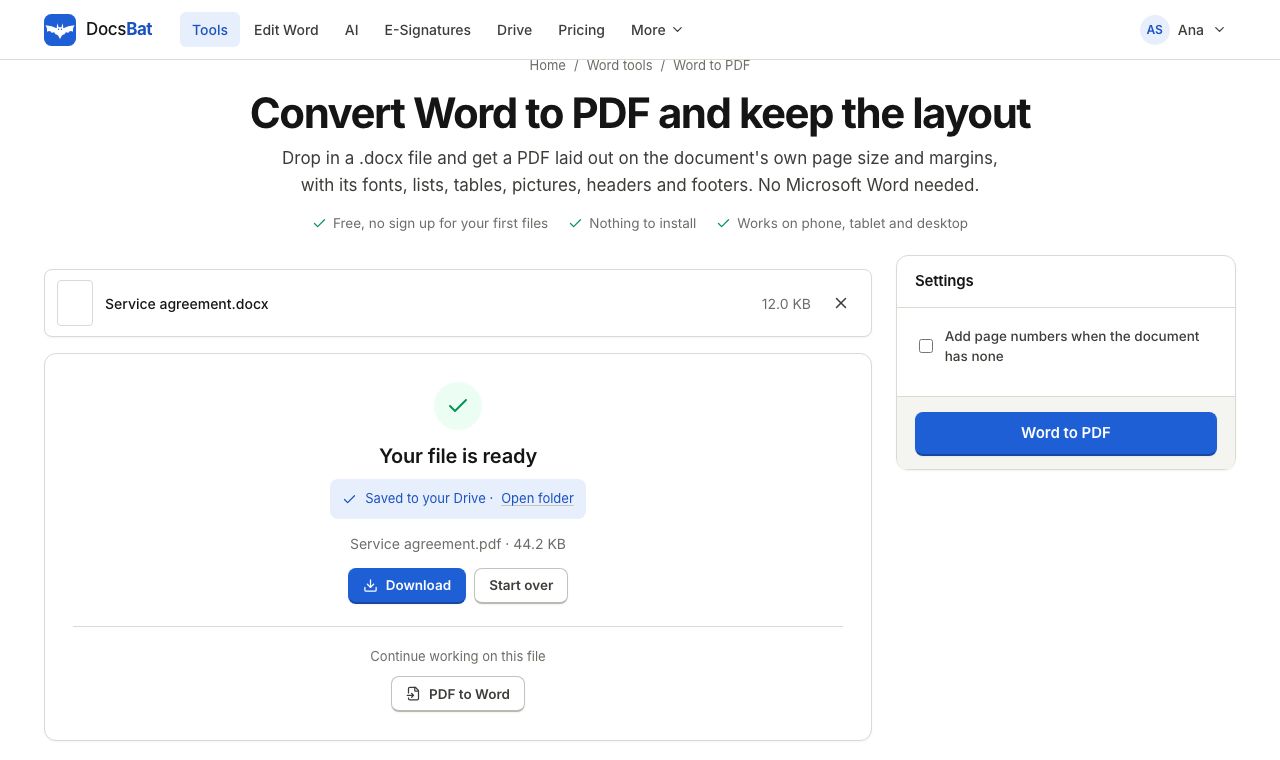 Word to PDFTurn a .docx into a PDF that keeps its fonts, lists, tables, pictures, headers, footers and page numbers.
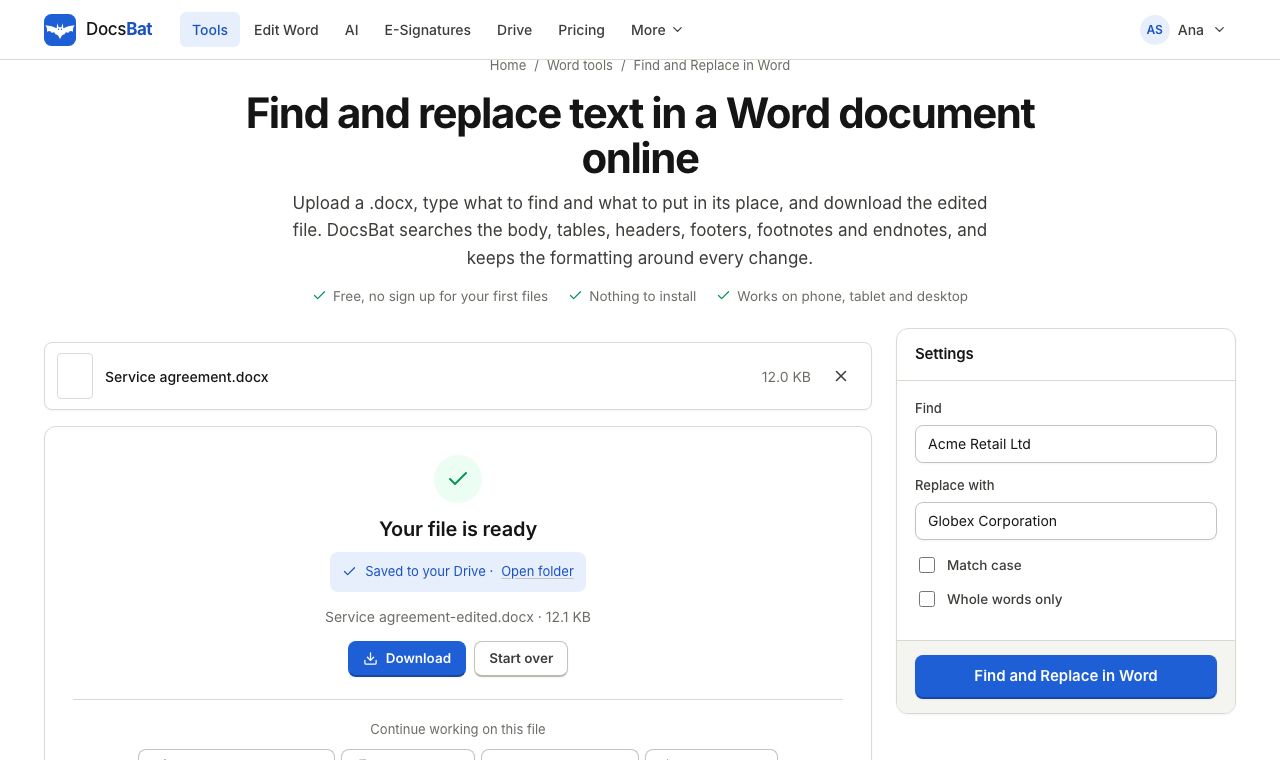 Find and Replace in WordReplace a word or phrase everywhere in a Word file, including headers, footers, tables and footnotes, keeping the formatting.
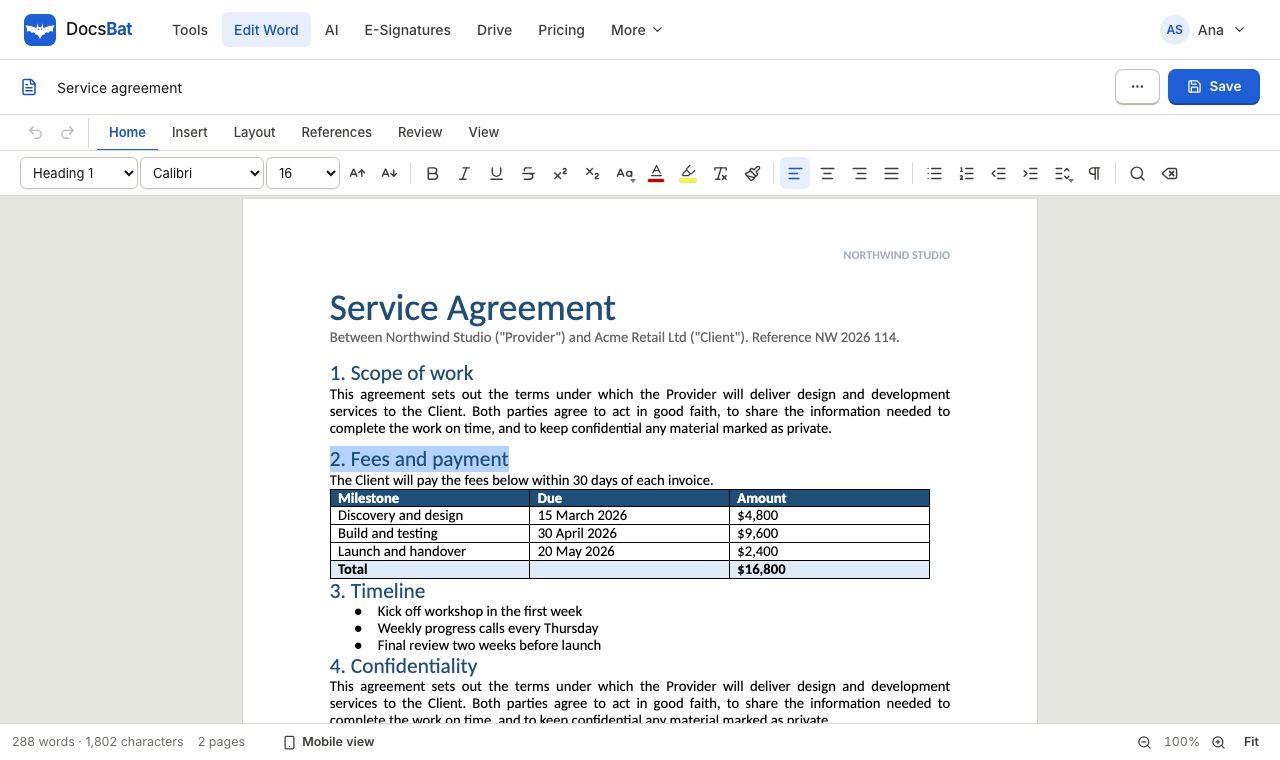 Edit Word online freeOpen a .docx in your browser, change the text, tables and pictures, and save it back as a Word file or a PDF.
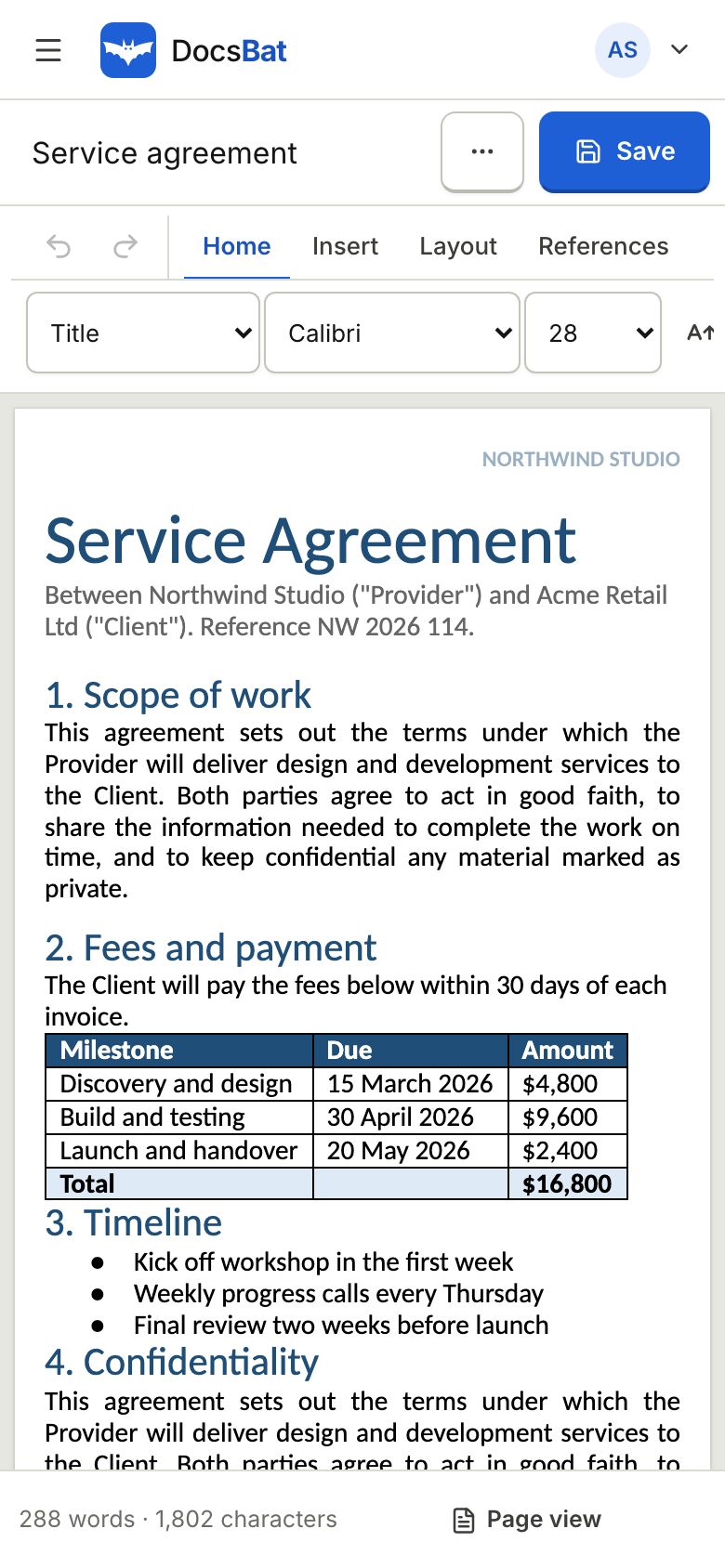 Edit DOCX on iPhone and AndroidEdit Word files on your phone or tablet in Safari or Chrome, then save them as .docx or PDF. No app to install.
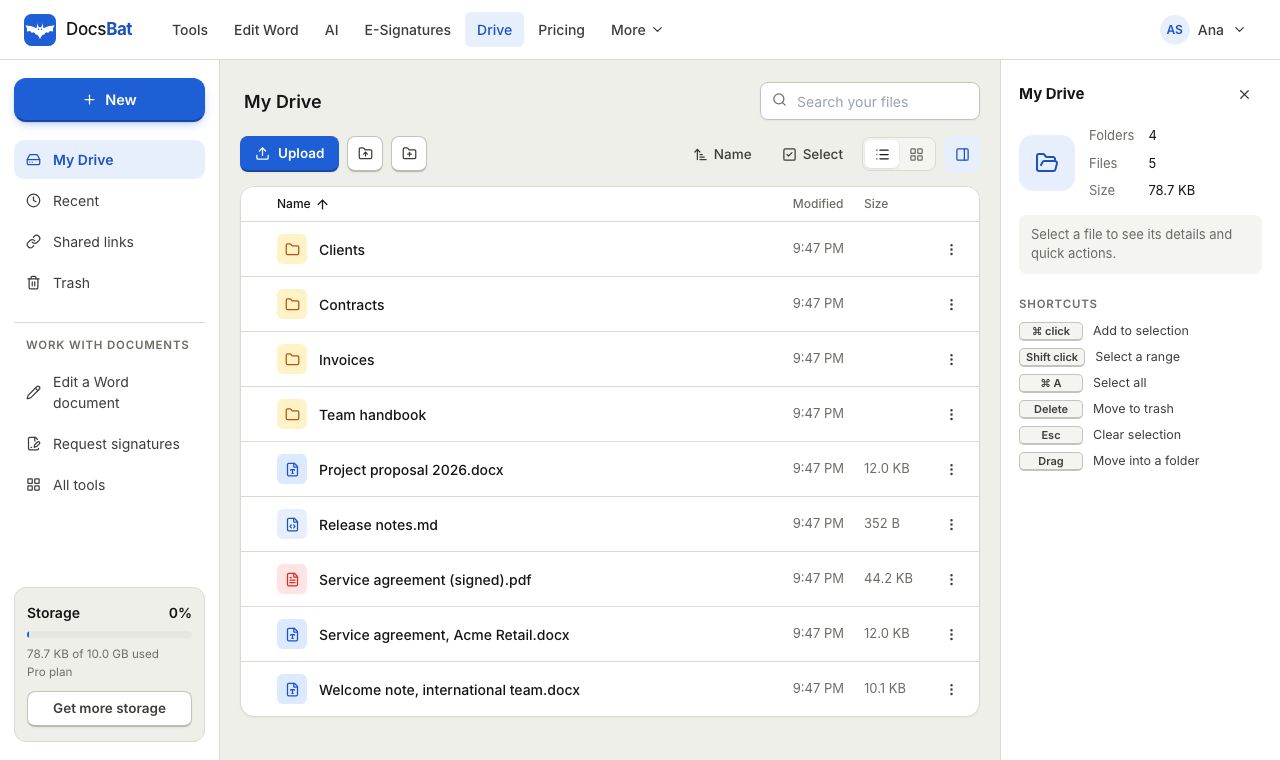 Cloud DrivePrivate cloud storage for Word documents and PDFs, with folders, share links and every tool result saved automatically.
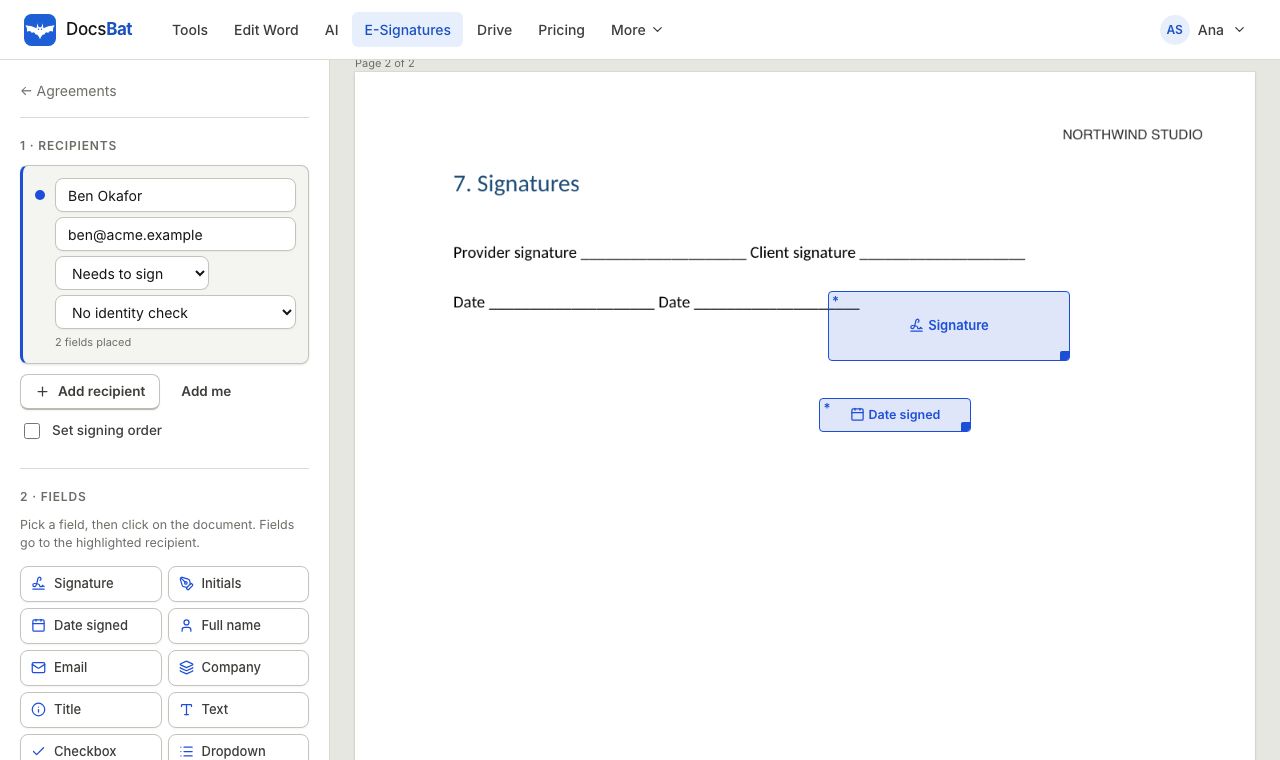 E-SignaturesSend Word and PDF documents for legally binding e signatures with signing order, identity checks, reminders and a sealed final PDF.
Edit your first Word document free
Create a free account, open a .docx and save it back as Word or PDF. No credit card and nothing to install.