Add a watermark to a Word document
Type DRAFT, CONFIDENTIAL, SAMPLE or your company name, pick a colour and opacity, and DocsBat places it behind the text on every page. It is a real Word watermark, so it can still be changed or removed in Word later.
- Free, no sign up for your first files
- Nothing to install
- Works on phone, tablet and desktop
Mark a document as a draft before you send it
A watermark tells every reader what state a document is in before they read a single line. DRAFT stops a proposal being mistaken for the final version, CONFIDENTIAL reminds people not to forward it, and SAMPLE makes a template obviously not the real thing.
DocsBat adds the watermark the same way Microsoft Word does: as a WordArt text shape anchored in the page header, centred on the page and sitting behind the text. Because it lives in the header, it appears on every page of every section, and anyone with Word can still edit or remove it through the usual watermark settings.
Why watermark with DocsBat
Real Word watermark
Not a picture pasted on top. It is the same kind of watermark Word creates, so it behaves as Word users expect.
Behind the text
The watermark sits behind your words, so the document stays readable and printable.
Your colour and opacity
Pick any colour and set the opacity in percent, from a faint grey hint to a strong red stamp.
Diagonal or horizontal
Choose the classic diagonal watermark across the page or a straight horizontal one.
Saved to your Drive
The watermarked file is stored in your private Drive, ready to download or turn into a PDF.
How it works
- 1
Upload the document
Drop a .docx, .docm or .dotx file onto the page, or choose it from Drive. Password protected files ask for their password first.
- 2
Set the watermark
Type the Watermark text, then choose the Colour, the Opacity (%) and a Diagonal or Horizontal Layout.
- 3
Download
DocsBat adds the watermark to every page and gives you the new Word file, with a copy saved to Drive.
Options explained
- Watermark text
- Defaults to CONFIDENTIAL. Type any text up to 60 characters, such as DRAFT, SAMPLE, DO NOT COPY or a company name. Short words look best.
- Colour
- Light grey by default. Pick any colour with the colour picker.
- Opacity (%)
- 50 by default. Lower values make the watermark fainter; the tool keeps it between 5 and 100 percent.
- Layout
- Diagonal places the text at an angle across the page. Horizontal keeps it level in the middle of the page.
- Every section covered
- The watermark is added to the existing headers of every section, and a header is created where a section has none, so all pages get it.
- Your header content stays
- Existing header text, logos and page numbers are kept. The watermark is added alongside them.
When a watermark helps
- Drafts for review: mark proposals, reports and contracts as DRAFT until they are signed off.
- Confidential documents: label HR letters, financial reports and board papers as CONFIDENTIAL.
- Samples and templates: stamp SAMPLE on example documents you share publicly.
- Branding: put a subtle company name behind internal documents.
- Before sending as PDF: watermark first, then convert with Word to PDF so the mark is part of the PDF pages.
Limits worth knowing
- This tool adds text watermarks. Picture watermarks, such as a logo image, are not offered.
- A watermark in a Word file is easy to remove for anyone who edits the file in Word. To make it harder to remove, send a PDF instead, or use Protect Word to make the file read only.
- Running the tool twice adds a second watermark. Start from the original file if you want to change the text.
- If a document uses a separate even page header, those even pages keep their own header without the watermark.
- Old .doc files are not supported. Save them as .docx first.
Frequently asked questions
How do I add a watermark to a Word document online?
Upload the file to Watermark Word, type the text, choose colour, opacity and layout, and download the result. No Word installation is needed.
Can I remove the watermark later?
Yes. It is a normal Word watermark in the header, so in Word you can remove it from the watermark menu or delete the shape from the header.
Will the watermark appear on every page?
Yes, on every page of every section that uses the default header. Documents with a special even page header keep that header unchanged on even pages.
Can I use a logo as a watermark?
Not with this tool, which adds text watermarks only. You can insert a picture into the header yourself in the Word editor or in Word.
Does the watermark cover my text?
No. It sits behind the text and you control how faint it is with the opacity setting.
Is Watermark Word free?
Yes. Run it 3 times a day without an account, or 10 times a day with a free account. Pro is $4 a month for unlimited use and files up to 100 MB.
Related features and tools
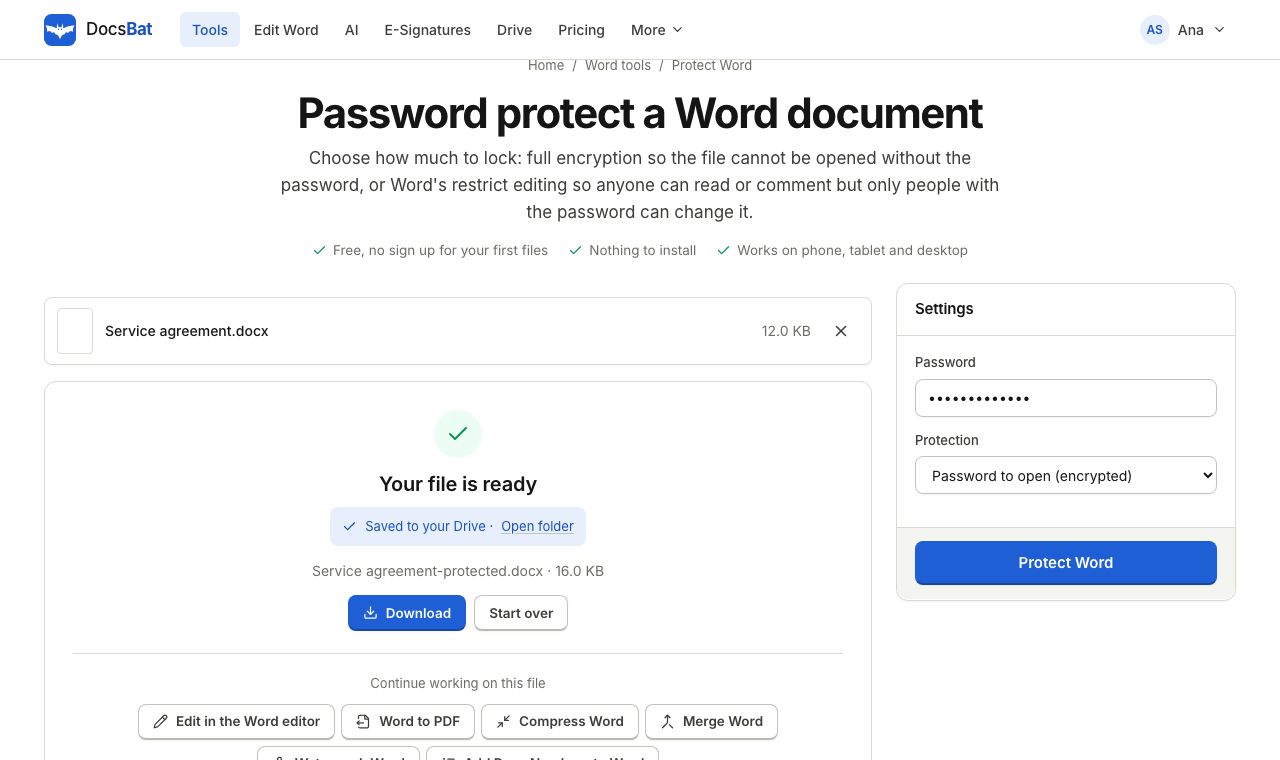 Protect WordLock a Word document with a password to open, or make it read only or comments only with a password to edit.
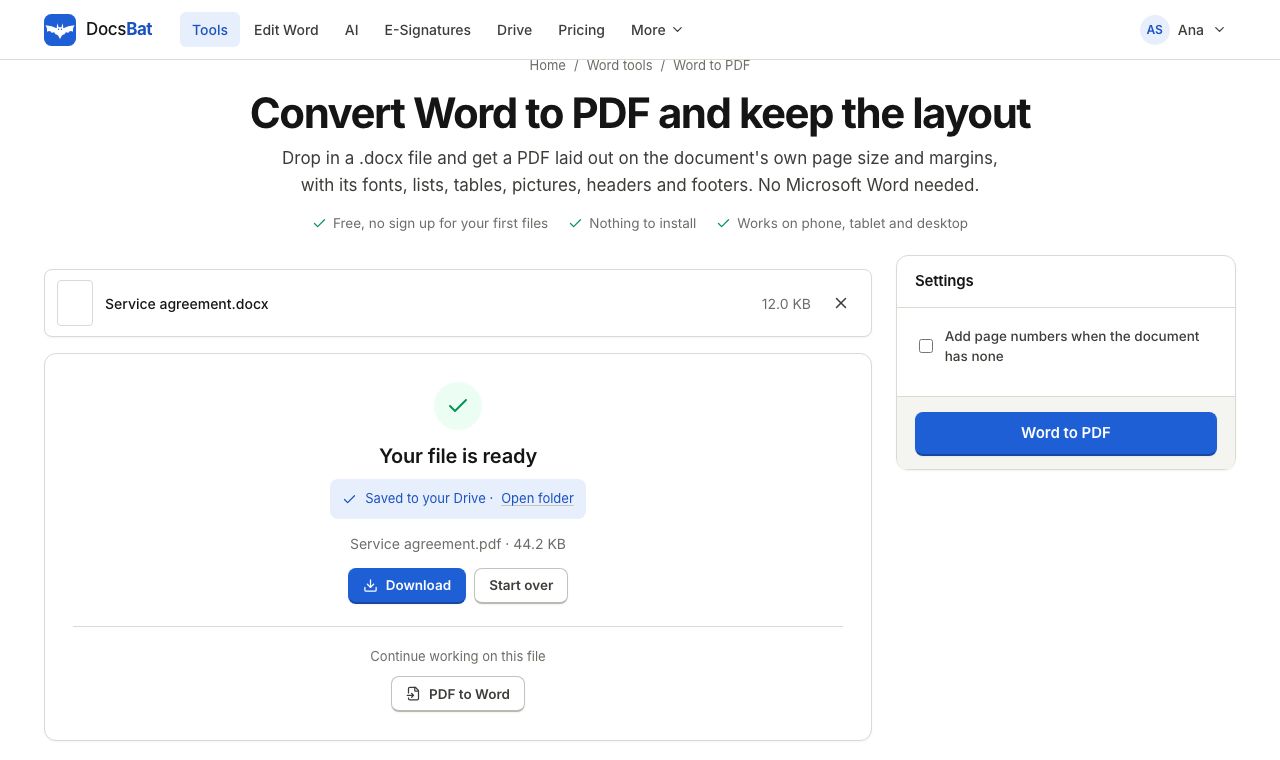 Word to PDFTurn a .docx into a PDF that keeps its fonts, lists, tables, pictures, headers, footers and page numbers.
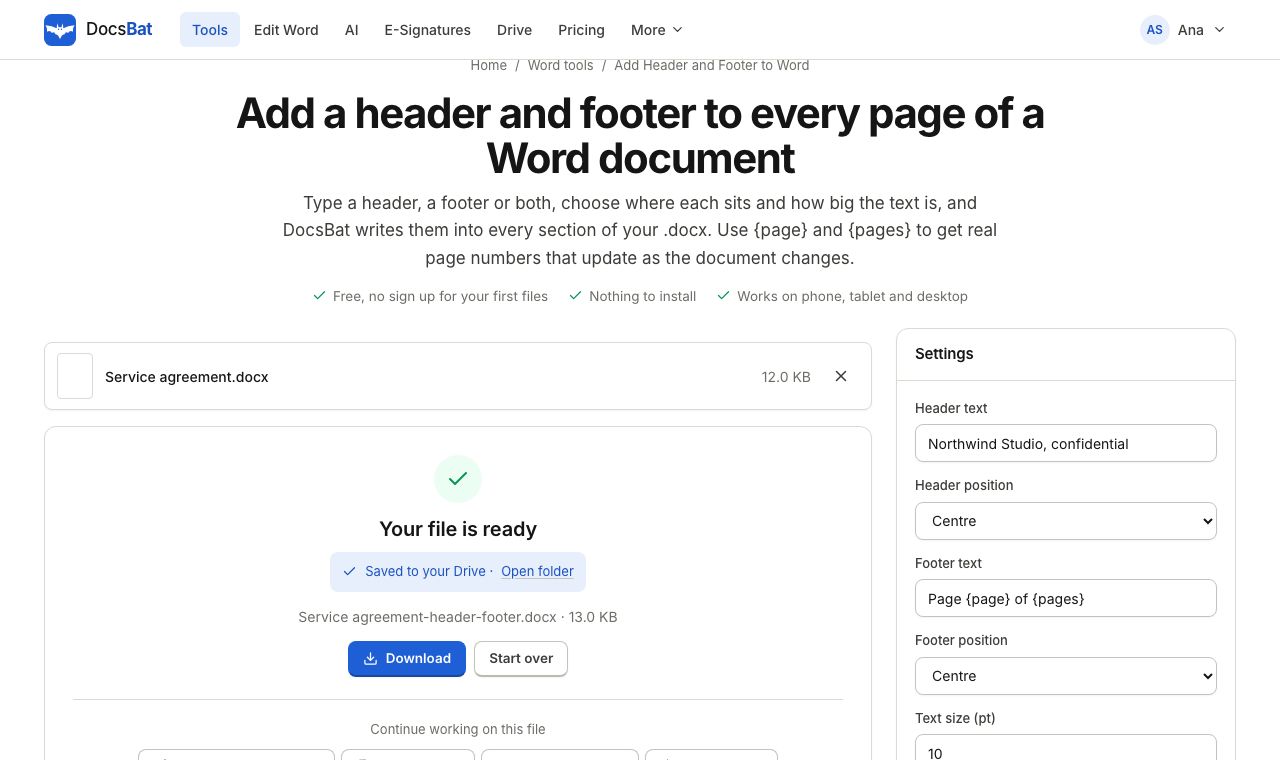 Add Header and Footer to WordPut the same header and footer on every page of a Word document, with live page numbers using {page} and {pages}.
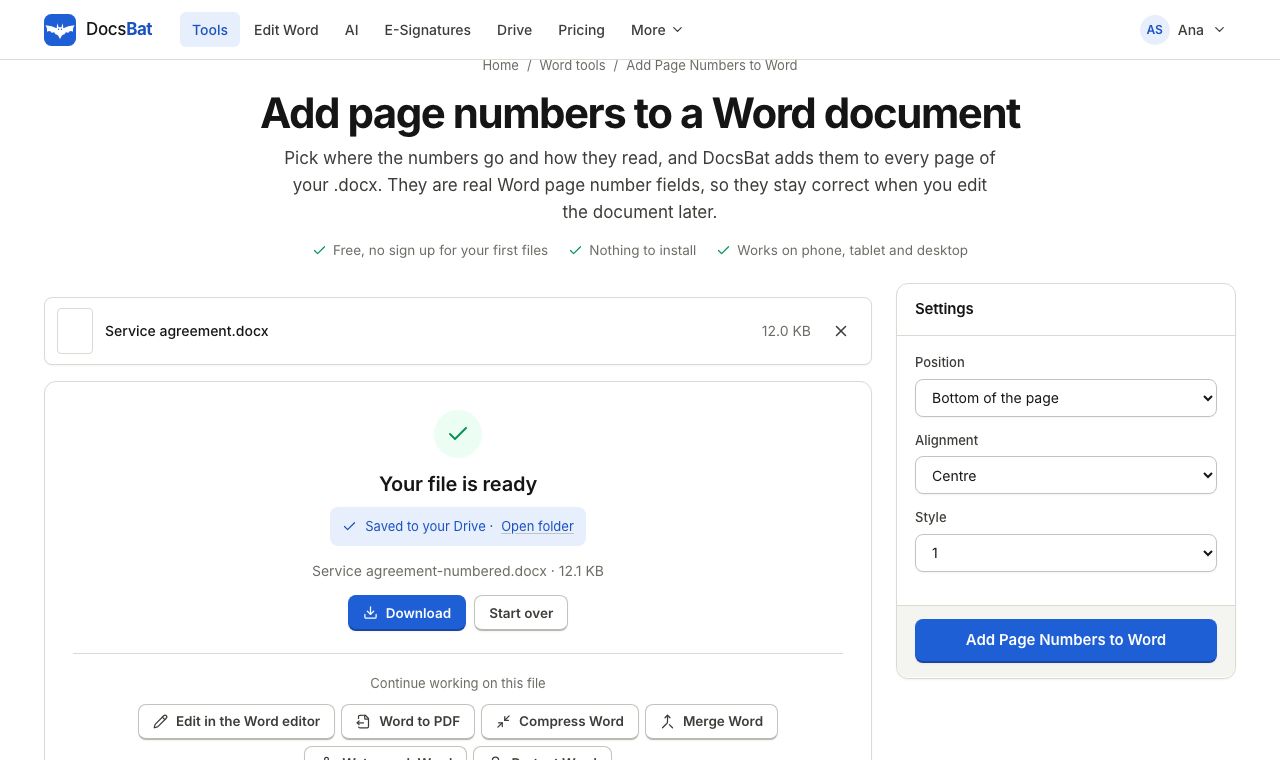 Add Page Numbers to WordNumber the pages of a Word document with real page number fields, top or bottom, left, centre or right.
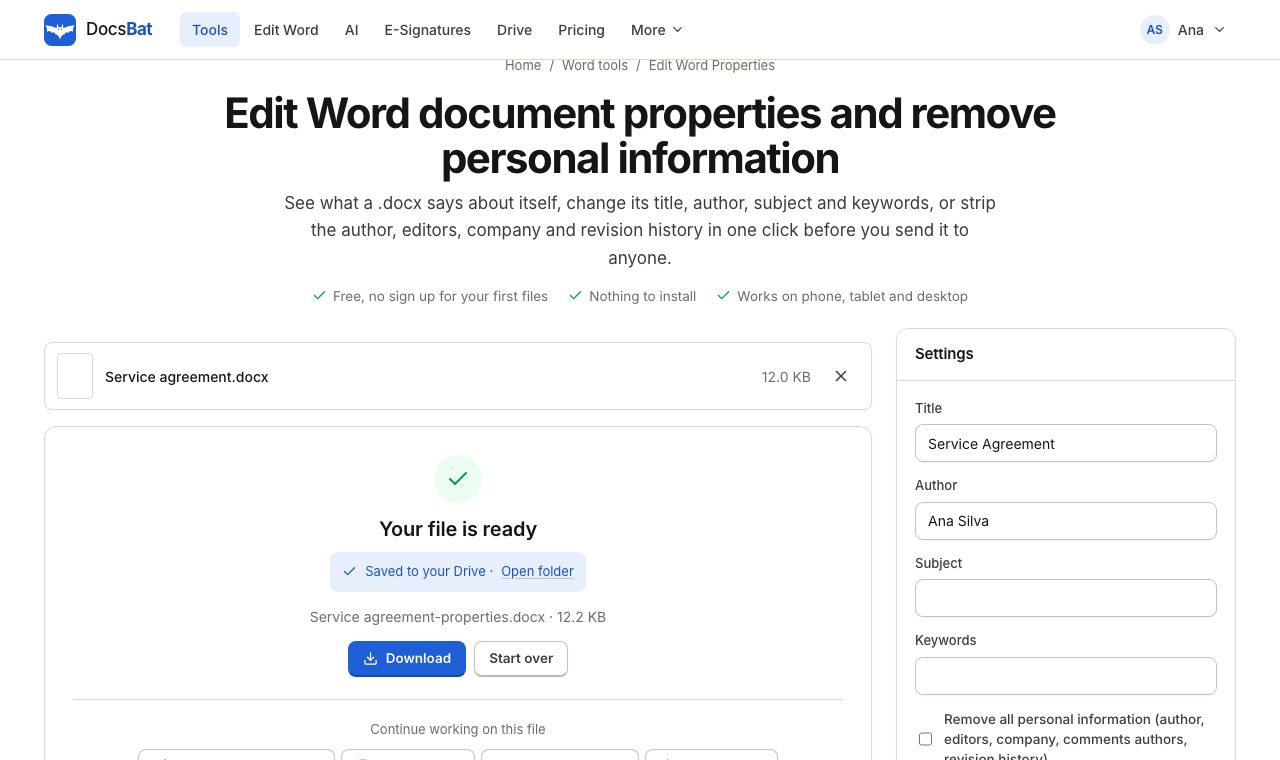 Edit Word PropertiesChange the title, author, subject and keywords of a Word file, or remove personal information before you share it.
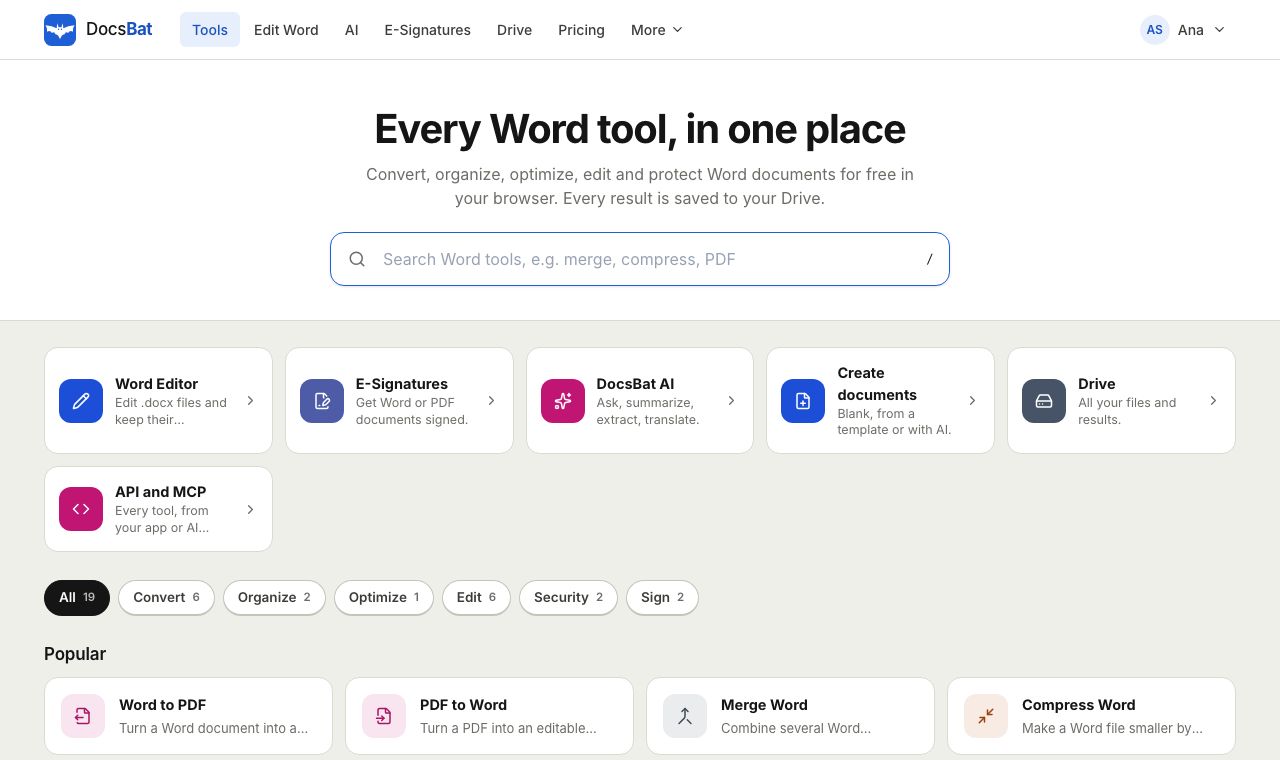 Free Word Tools17 free tools to convert, merge, split, compress, edit and protect Word documents in your browser.
Ready? Your file is one click away
Free, in your browser. Create a free account to get 10 tasks a day and keep every result in your own Drive.