Add page numbers to a Word document
Pick where the numbers go and how they read, and DocsBat adds them to every page of your .docx. They are real Word page number fields, so they stay correct when you edit the document later.
- Free, no sign up for your first files
- Nothing to install
- Works on phone, tablet and desktop
Numbered pages without hunting through Word menus
Page numbers make long documents easier to read, discuss and print. Teachers ask for them on essays, lawyers expect them on contracts, and anyone printing a report wants to put dropped pages back in order.
DocsBat inserts the numbers as Word PAGE and NUMPAGES fields in the header or footer. Unlike numbers typed by hand, fields recalculate whenever pages move, so you can keep editing in Word, Google Docs, LibreOffice or the DocsBat Word editor and the numbering stays right. Anything already in your header or footer, such as a title or a logo, is kept.
Why number pages with DocsBat
Real Word fields
Numbers update by themselves when you add or remove pages, exactly like numbers inserted in Word.
Four styles
Plain 1, Page 1, Page 1 of 9 or 1 / 9, so you can match a style guide or a client template.
Top or bottom, any side
Place numbers in the header or the footer, aligned left, centre or right.
Keeps your footer
The numbers are added to the existing header or footer, so titles and logos already there stay put.
Saved to your Drive
The numbered file goes to your private Drive, ready to download, share or convert to PDF.
How it works
- 1
Upload your document
Drop a .docx, .docm or .dotx file onto the page, or choose it from Drive. Password protected files ask for the password.
- 2
Choose the look
Set Position, Alignment and Style. The defaults put a plain number at the bottom centre of each page.
- 3
Download
DocsBat adds the numbers to every section and returns the Word file, with a copy in Drive.
Options explained
- Position
- Bottom of the page puts the numbers in the footer, Top of the page puts them in the header. Bottom is the default.
- Alignment
- Left, Centre or Right. Centre is the default.
- Style
- 1 shows only the number, Page 1 adds the word Page, Page 1 of 9 adds the total page count, and 1 / 9 is a compact version of the same.
- Added, not replaced
- The number goes into the existing header or footer of each section as a new line. A section without one gets a new header or footer.
- Text size
- Numbers are set in 10 point text, a common size for page numbers.
- All sections
- Every section of the document is numbered, so you do not have to repeat the step for each one.
Tips for page numbering
- If your footer already shows old numbers typed by hand, delete them first in the Word editor or with Find and Replace, so you do not end up with two numbers.
- Want a title or a custom phrase next to the number, such as "Annual report, page 3"? Use Add Header and Footer to Word with the {page} placeholder.
- Merging chapters into one file? Merge Word documents first, then number the result so numbering runs across the whole document.
- Need a PDF with numbers? Number the Word file, then convert it with Word to PDF. Word to PDF also has an option to add numbers itself when the document has none.
What this tool does not do
- It does not start numbering from a different number or skip the first page. Those settings are kept if the file already has them, and can be set in Word.
- Roman numerals and chapter based numbering such as 2.1 are not offered.
- Running it twice adds a second set of numbers. Start from the original file to change the style.
- Old .doc files are not supported. Save them as .docx first.
Frequently asked questions
How do I add page numbers to a Word document without Word?
Upload it to Add Page Numbers to Word, choose position, alignment and style, and download. It works in any browser, on desktop or phone.
Will the numbers update if I edit the document?
Yes. They are Word page number fields, so they recalculate in Word and other word processors that support fields.
Can I show "Page 1 of 10"?
Yes. Choose the Page 1 of 9 style, which shows the current page and the total number of pages.
Will it delete my existing footer?
No. The numbers are added to the existing header or footer, and what was there is kept.
Can I start numbering on page 2?
Not in this tool. If the document already has a different first page or a custom start number set in Word, those settings are kept.
Is it free?
Yes. 3 runs a day without an account and 10 a day with a free account. Pro is $4 a month for unlimited runs and larger files.
Related features and tools
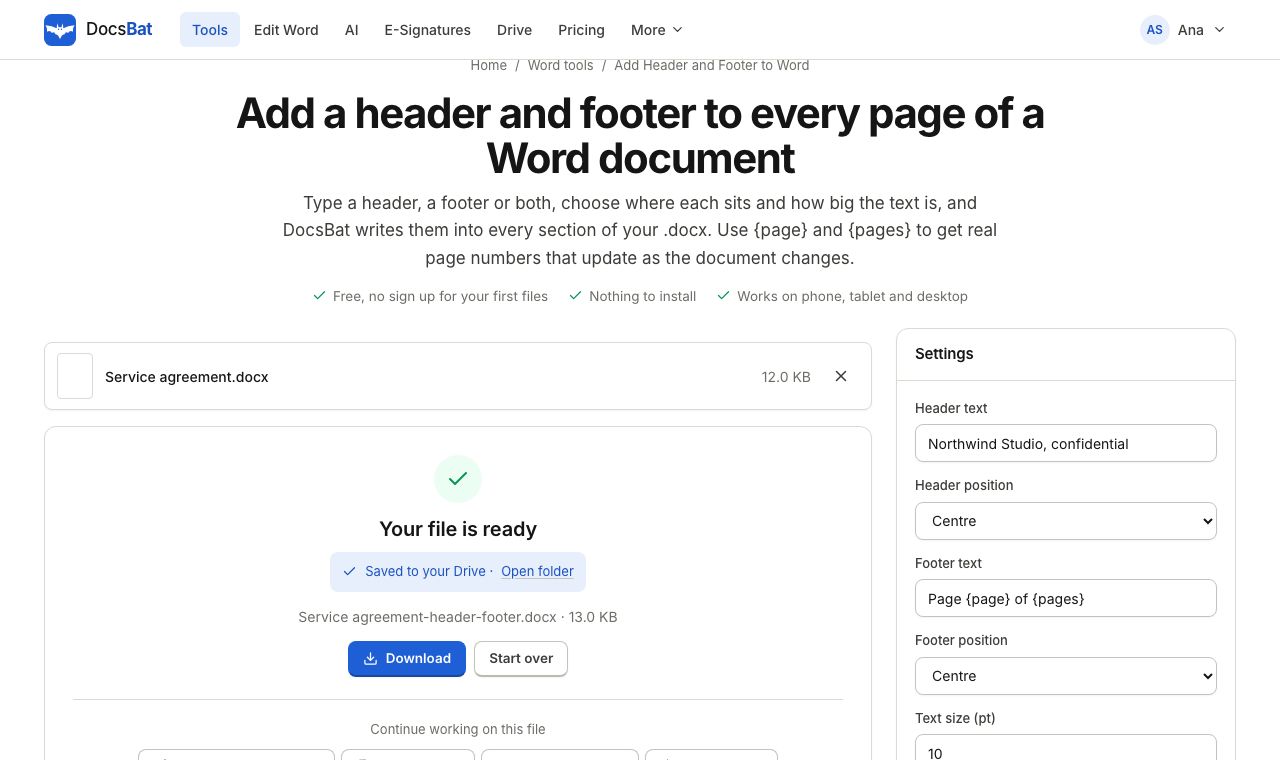 Add Header and Footer to WordPut the same header and footer on every page of a Word document, with live page numbers using {page} and {pages}.
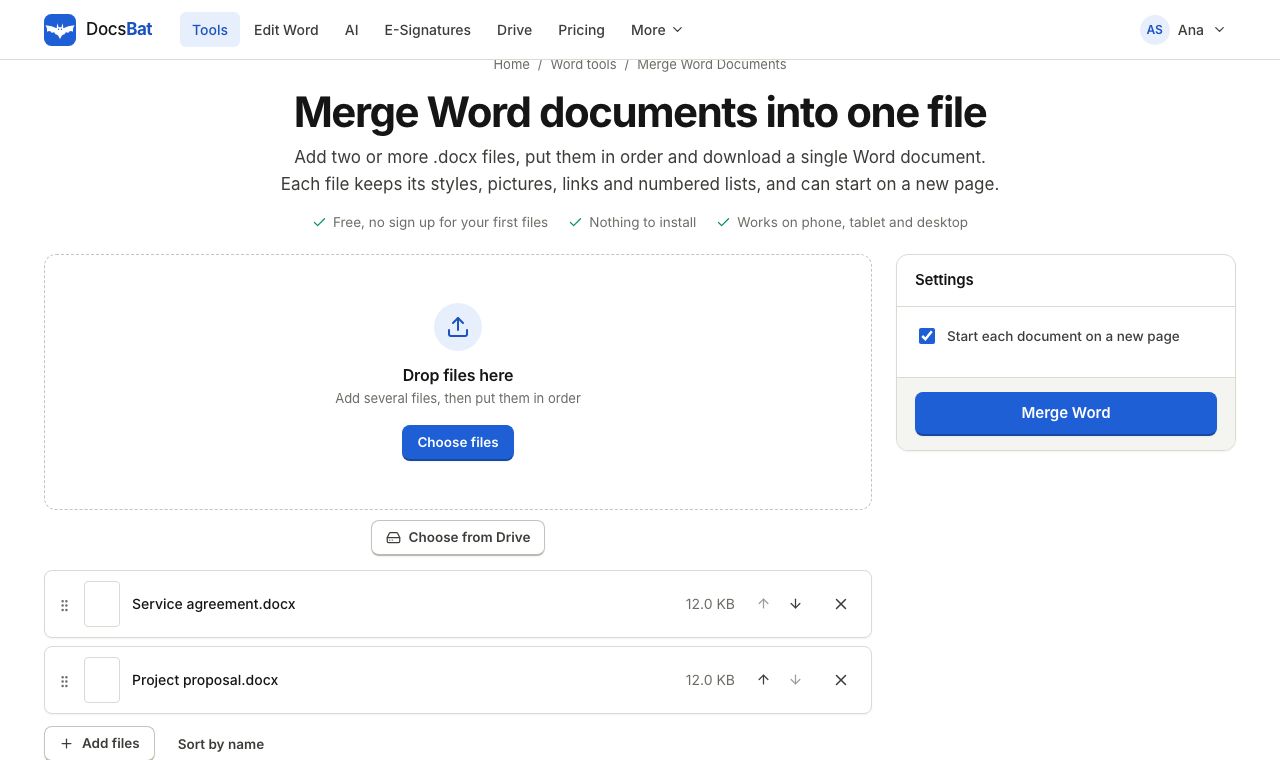 Merge Word DocumentsCombine several Word documents into one .docx in the order you choose, keeping formatting, pictures and lists.
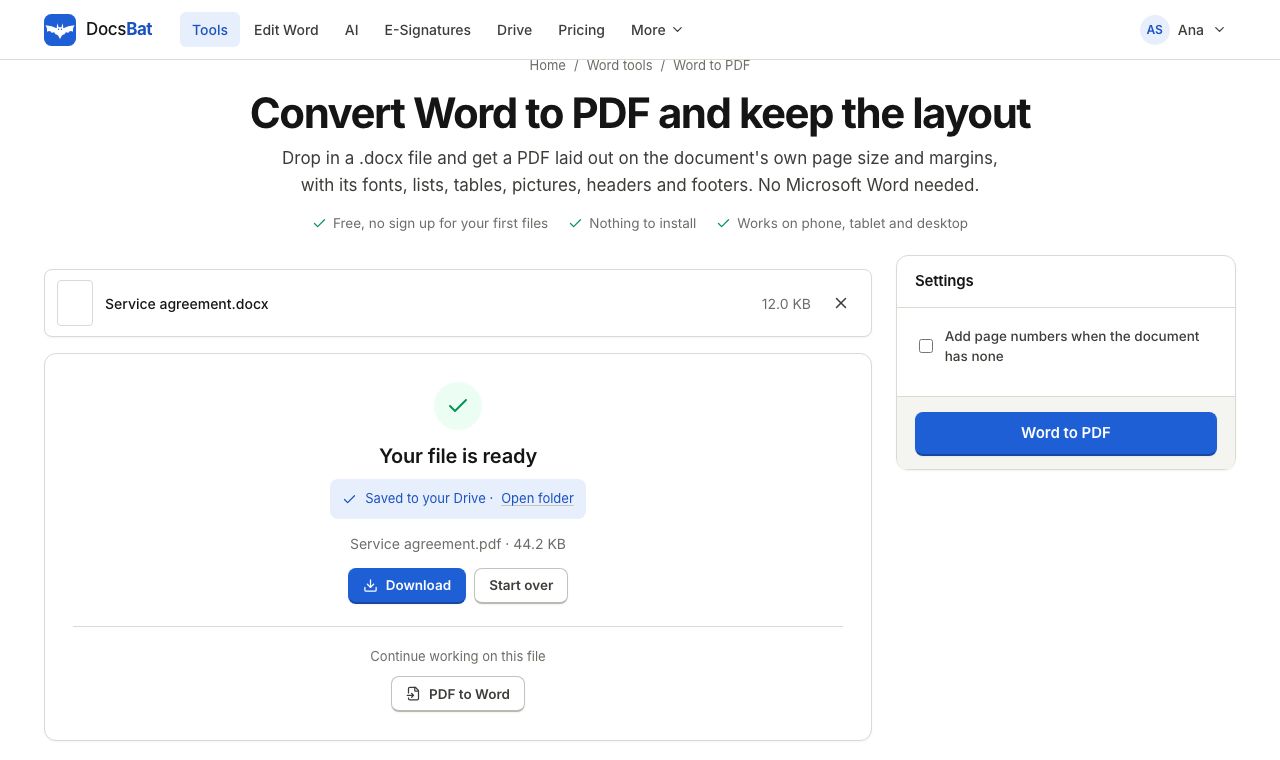 Word to PDFTurn a .docx into a PDF that keeps its fonts, lists, tables, pictures, headers, footers and page numbers.
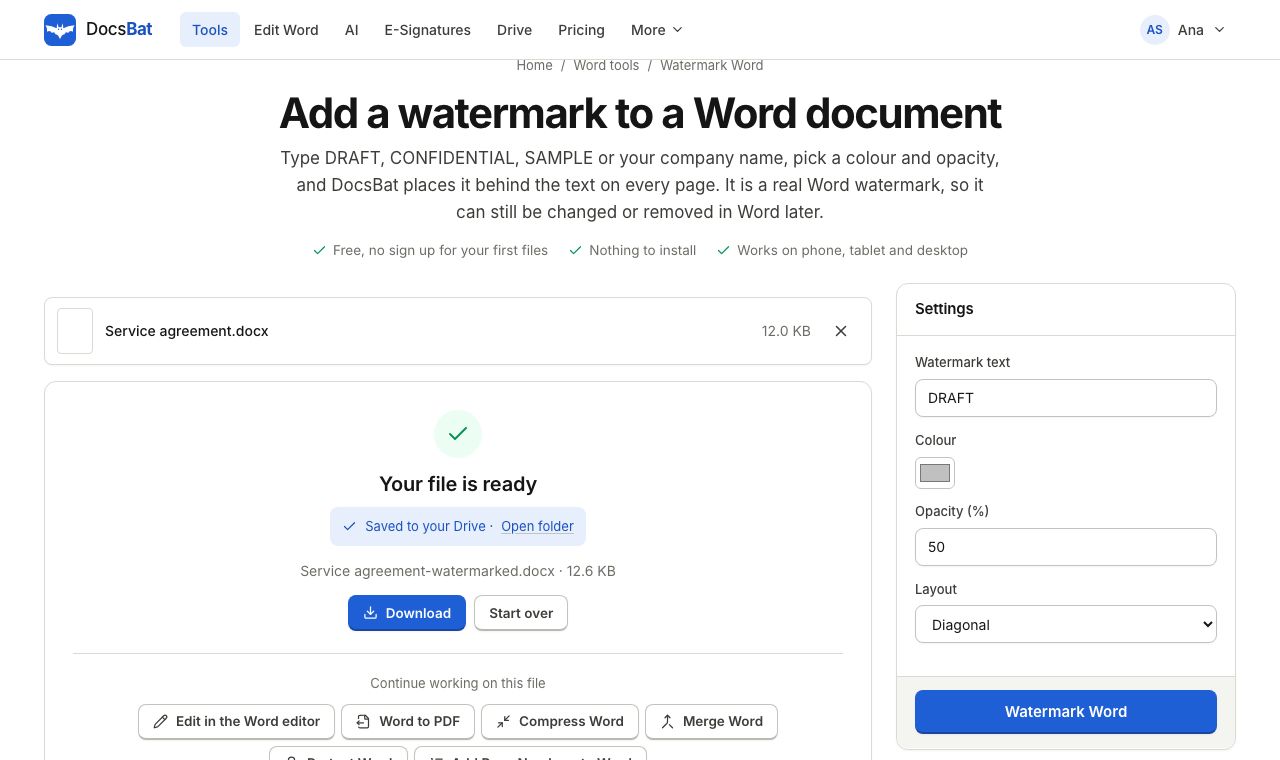 Watermark WordAdd a DRAFT or CONFIDENTIAL text watermark behind the text on every page of a Word document, the way Word does it.
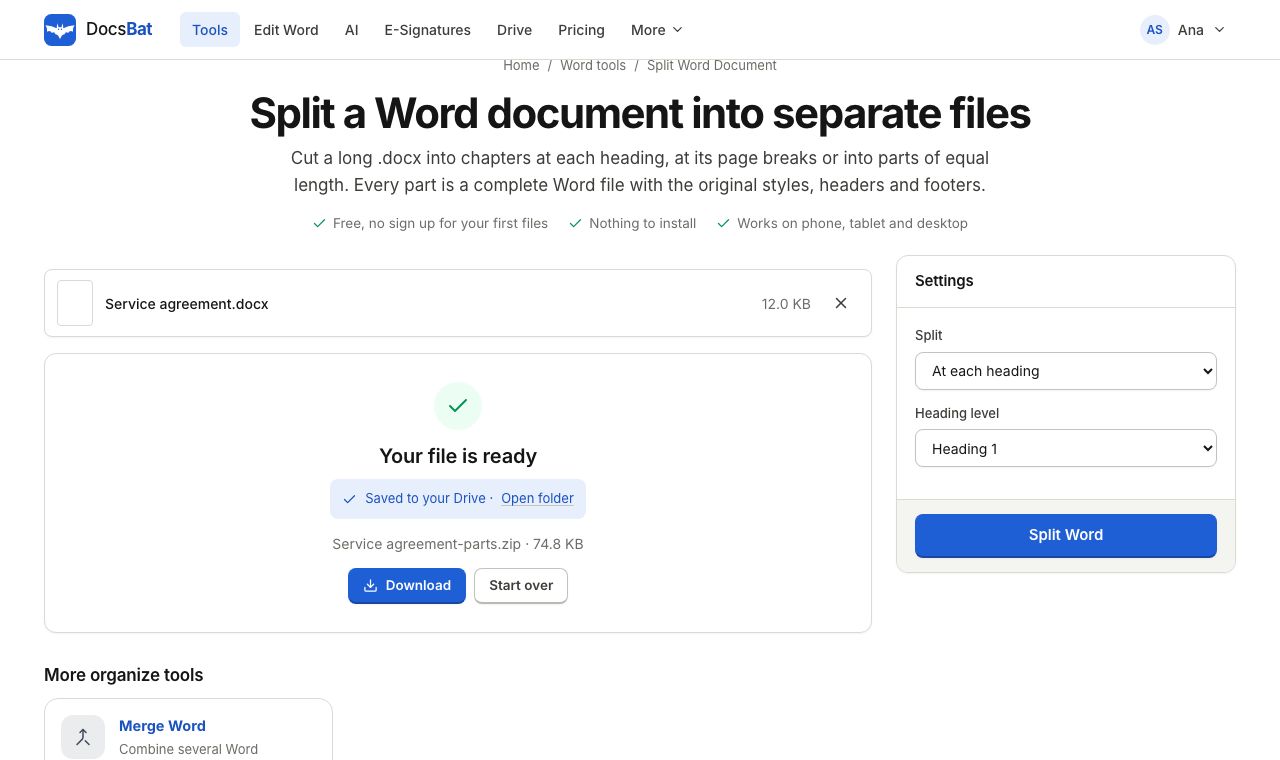 Split Word DocumentSplit a Word document into several .docx files at each heading, at page breaks or into equal parts.
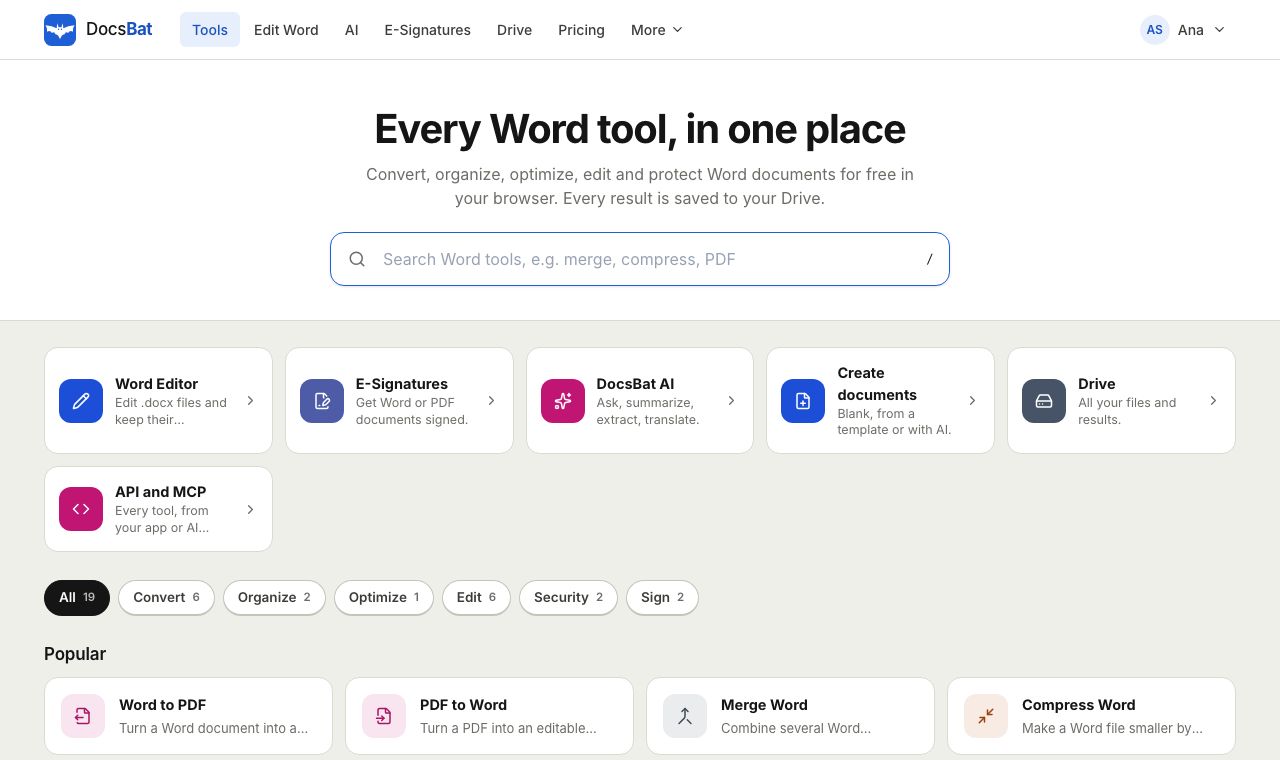 Free Word Tools17 free tools to convert, merge, split, compress, edit and protect Word documents in your browser.
Ready? Your file is one click away
Free, in your browser. Create a free account to get 10 tasks a day and keep every result in your own Drive.