Find and replace text in a Word document online
Upload a .docx, type what to find and what to put in its place, and download the edited file. DocsBat searches the body, tables, headers, footers, footnotes and endnotes, and keeps the formatting around every change.
- Free, no sign up for your first files
- Nothing to install
- Works on phone, tablet and desktop
Change a name, a price or a date in every place at once
A client renames their company, a product changes its price, a contract template needs a new party name. Opening Word and stepping through every match works, but only when you have Word to hand. DocsBat does the same job in the browser: it reads the whole document, replaces every match and gives you back a normal Word file you can keep editing anywhere.
Word often splits a single word over several pieces of formatted text behind the scenes, for example after spell checking or a partial edit. DocsBat joins those pieces before it searches, so a phrase is found even when it is stored in fragments, and the replacement takes the formatting of the place where the match starts. Text around the change keeps its own bold, italic, colour and font.
Why use DocsBat to find and replace
Searches the whole file
Body text, tables, headers, footers, footnotes and endnotes are all included, so nothing is missed in a page footer or a small print note.
Formatting stays put
Only the matched characters change. Styles, fonts, lists and layout around them are left exactly as they were.
Match case when it matters
Turn on Match case to replace "Apple" without touching "apple", or leave it off to catch every spelling.
Whole words only
Replace "cat" without changing "category" or "concatenate". Word boundaries work for every script, not only English.
Saved to your Drive
The edited document lands in your private Drive automatically, ready to download, share or open in another tool.
How it works
- 1
Upload your Word file
Drop a .docx, .docm or .dotx file onto the page, or pick one from your Drive. If the file has a password to open, DocsBat asks for it.
- 2
Type the text
Enter the text in Find and the new text in Replace with. Leave Replace with empty to delete every match. Tick Match case or Whole words only if you need them.
- 3
Replace and download
Click the button. DocsBat replaces every match and gives you the edited .docx, with a copy in your Drive.
Options explained
- Find
- The text to look for. It is matched literally, so characters such as dots, brackets and question marks are treated as ordinary text.
- Replace with
- The text to put in place of each match. Leave it empty to remove the matches completely.
- Match case
- Off by default, so "Invoice", "invoice" and "INVOICE" all match. Turn it on to replace only the exact capitalisation you typed.
- Whole words only
- Matches only where the text stands on its own, not inside a longer word. Letters and digits in any language count as part of a word.
- Headers, footers and notes
- Every header and footer part, plus footnotes and endnotes, is searched along with the main text and tables.
- Tracked deletions are skipped
- Text that is marked as deleted with Track Changes is left alone, so you do not rewrite words that are about to disappear anyway.
- Clear result when nothing matches
- If the text does not appear in the document, DocsBat tells you instead of returning an unchanged copy.
Common ways people use it
- Contract and letter templates: swap a placeholder such as CLIENT NAME for the real name throughout the document.
- Rebranding: replace an old company or product name in proposals, manuals and policies.
- Price and date updates: change a figure or a year that appears in many places, including the footer.
- Fixing a repeated typo: correct a misspelt name everywhere in one pass.
- Removing a word: leave Replace with empty to delete a word or phrase wherever it appears.
Good to know before you start
- The search is plain text. Wildcards, regular expressions and formatting searches, such as finding all bold text, are not supported.
- Each run replaces one word or phrase. For several different replacements, run the tool again on the result; your file is already in Drive, so there is nothing to upload twice.
- Text inside pictures, charts and embedded objects cannot be searched.
- If a document still has tracked changes you want to keep, the replacement itself is not tracked. Finalise first with Accept Changes and Remove Comments if you want a clean result.
- Old .doc files from Word 97 to 2003 are not supported. Open them in Word, LibreOffice or Google Docs and save as .docx first.
- For hands on edits, open the file in the Word editor instead.
Frequently asked questions
How do I find and replace in Word without Microsoft Word?
Upload the .docx to DocsBat Find and Replace in Word, type the old and new text and click replace. It runs in any browser, including on a phone, and gives you back a Word file.
Does it replace text in headers and footers?
Yes. Headers, footers, tables, footnotes and endnotes are searched as well as the main text.
Will my formatting be lost?
No. Only the matched characters change. The new text takes the formatting of the spot where the match begins, and everything around it keeps its own formatting.
Can I use wildcards or regular expressions?
No. The search is literal text, with options for Match case and Whole words only. Special characters are treated as plain characters.
Can I replace several different words at once?
One word or phrase per run. Run the tool again on the result for each extra replacement.
Is it free?
Yes. You can run it 3 times a day without an account, and a free account gives you 10 tool tasks a day with files up to 25 MB. Pro is $4 a month for unlimited tasks and files up to 100 MB.
Does it work with .doc files?
No, only .docx, .docm and .dotx. Save an old .doc file as .docx in your word processor first.
Related features and tools
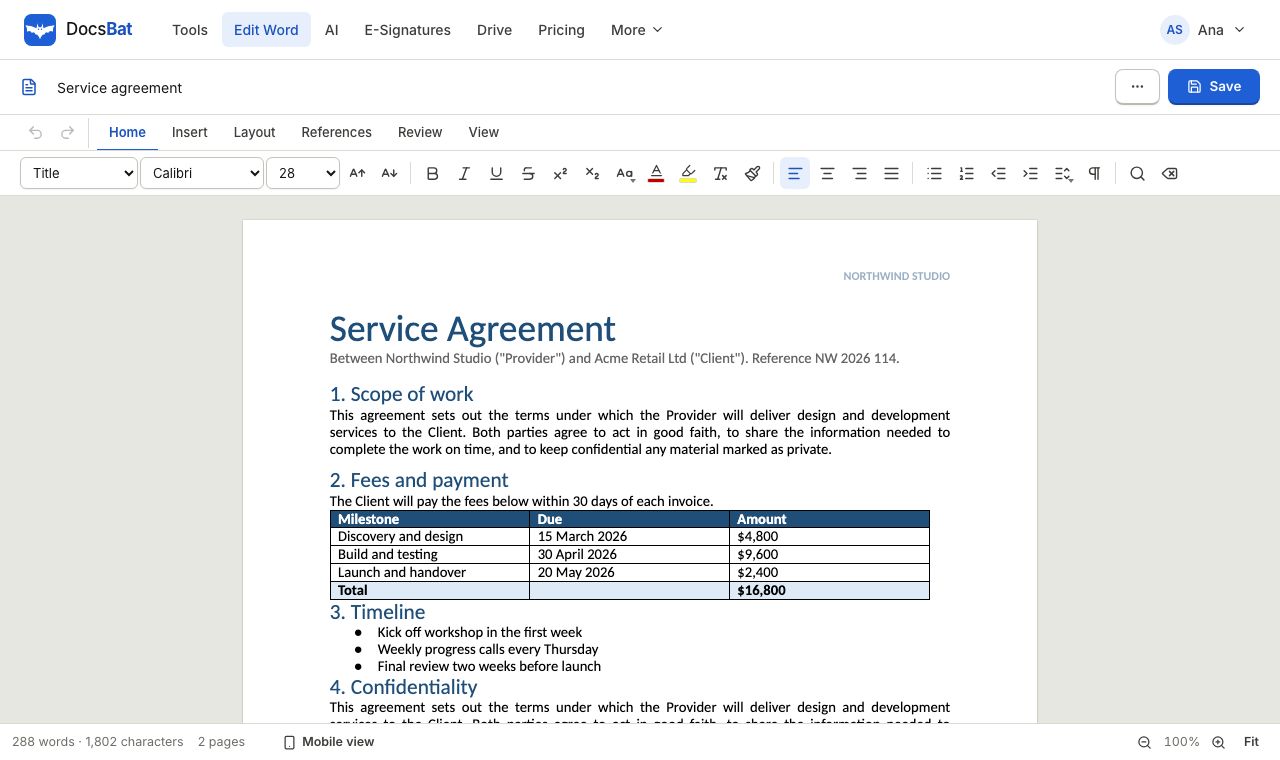 Word EditorOpen a .docx in your browser, edit text, lists, tables and pictures, and save it back as Word or PDF.
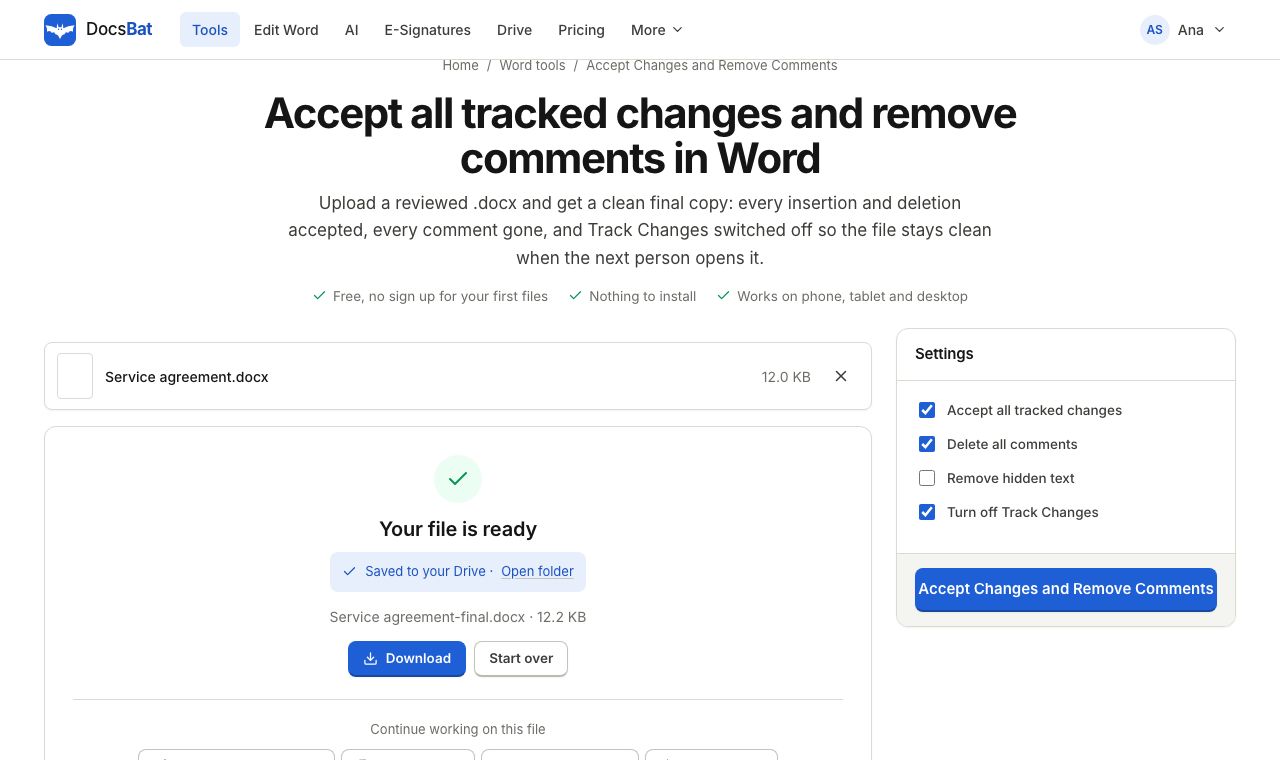 Accept Changes and Remove CommentsFinalise a Word document: accept every tracked change, delete all comments and remove hidden text in one go.
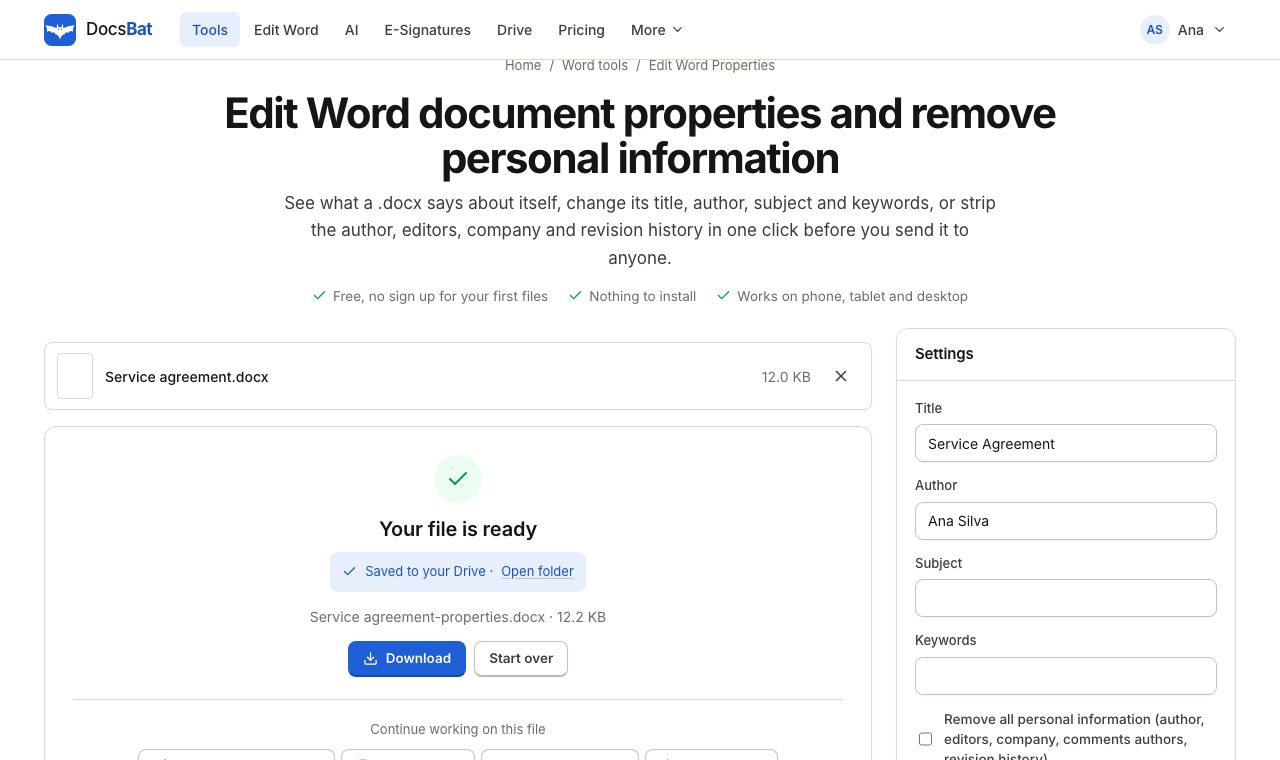 Edit Word PropertiesChange the title, author, subject and keywords of a Word file, or remove personal information before you share it.
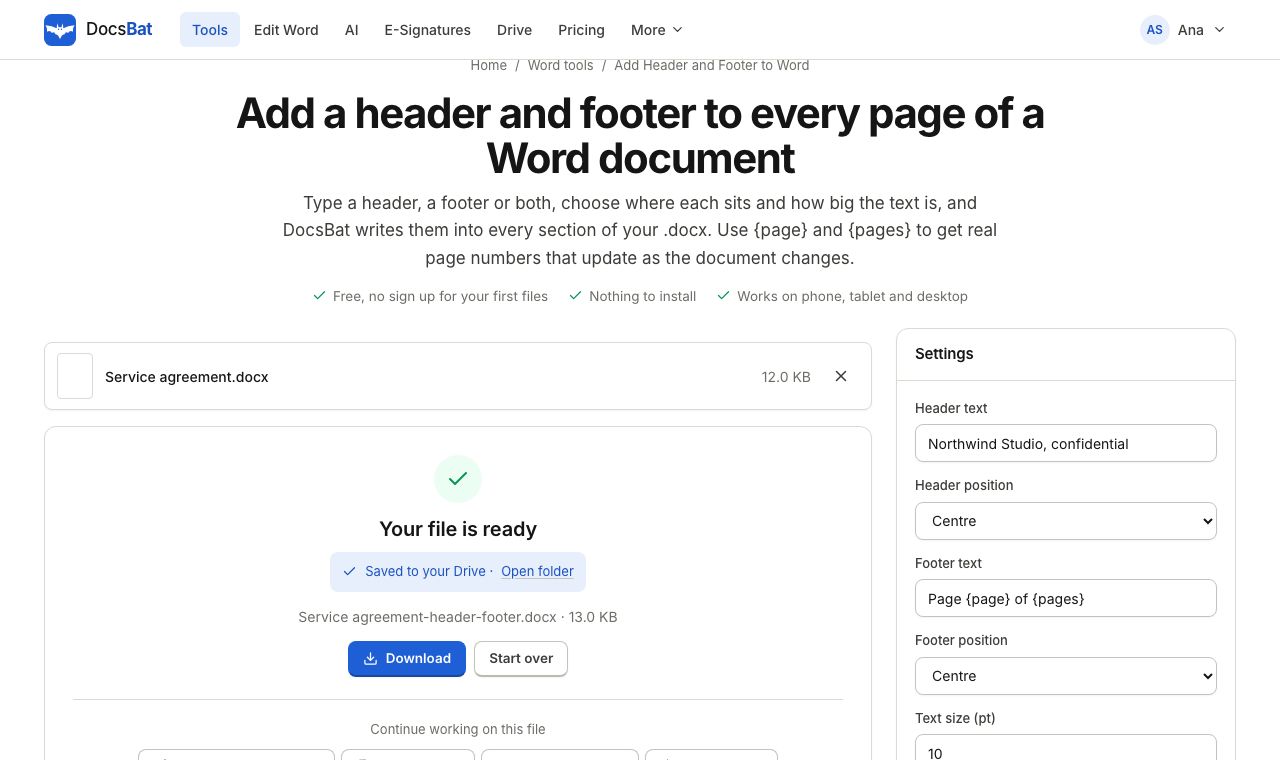 Add Header and Footer to WordPut the same header and footer on every page of a Word document, with live page numbers using {page} and {pages}.
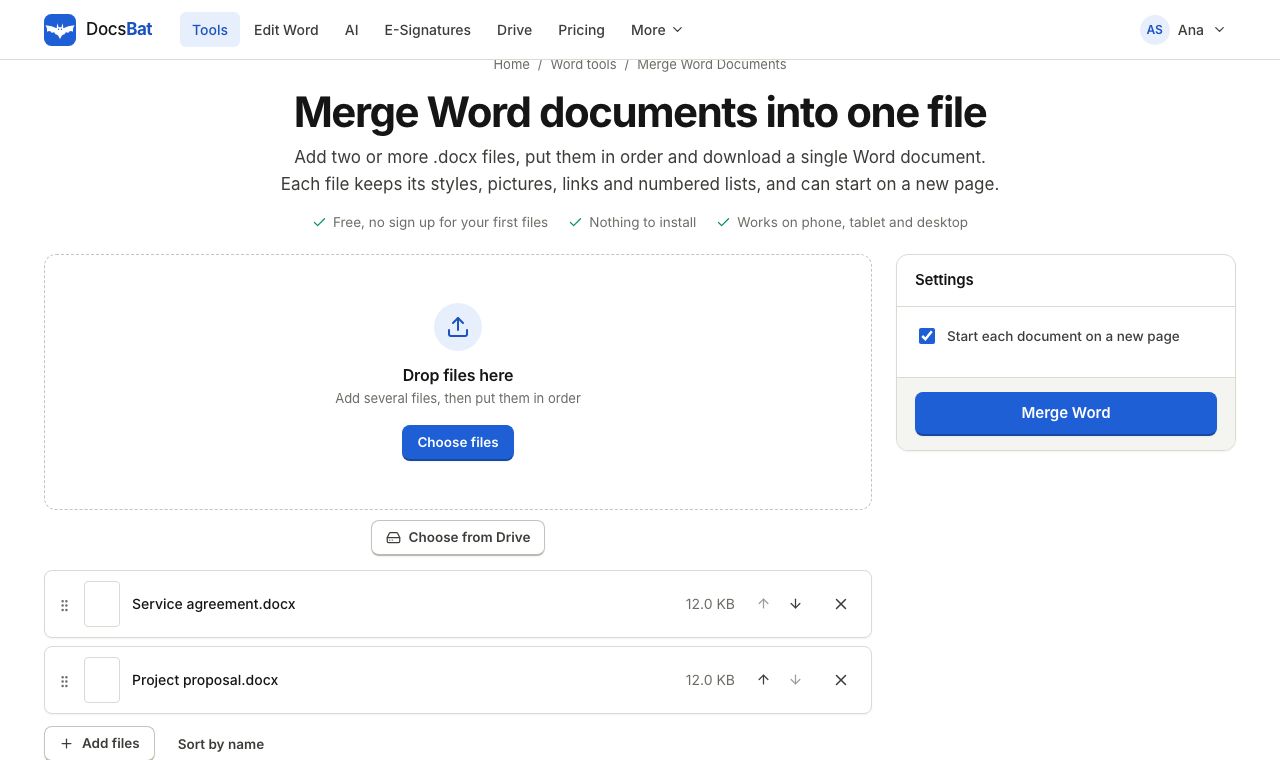 Merge Word DocumentsCombine several Word documents into one .docx in the order you choose, keeping formatting, pictures and lists.
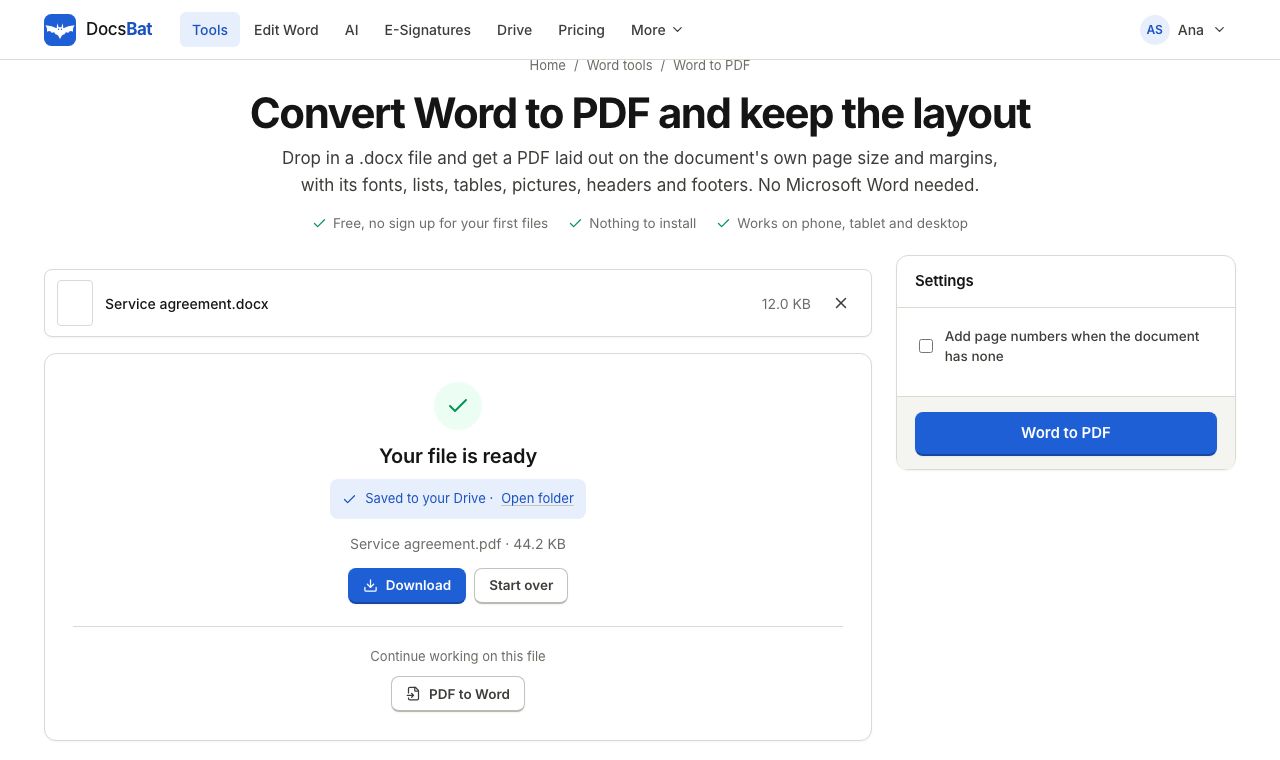 Word to PDFTurn a .docx into a PDF that keeps its fonts, lists, tables, pictures, headers, footers and page numbers.
Ready? Your file is one click away
Free, in your browser. Create a free account to get 10 tasks a day and keep every result in your own Drive.