Remove the password from a Word document
Tired of typing the same password every time you open a file? Enter it once and DocsBat saves an unlocked copy. Read only and restrict editing protection is lifted too, so the document can be edited again.
- Free, no sign up for your first files
- Nothing to install
- Works on phone, tablet and desktop
An unlocked copy of a file you already have access to
Password protection is useful while a document is travelling, but once it is safely on your own computer or in your Drive, the password often just gets in the way. It also blocks other tools: many converters and online editors cannot read an encrypted Word file at all.
Unlock Word handles both kinds of Word protection. For an encrypted file, type the current password and DocsBat decrypts it and saves a copy without one. For a file that opens normally but is locked against editing, set to read only, comments only or forms only with Word's restrict editing, DocsBat removes the restriction. You do not need the editing password for that, because restrict editing does not encrypt the file.
Why unlock with DocsBat
Removes the open password
Enter the password once and get a copy that opens without it in Word and every other app.
Lifts restrict editing
Read only, comments only and forms only protection is removed, along with Word's write protection setting.
Your password stays yours
The password is used only to open the file for this task and is not stored.
Content unchanged
Text, formatting, pictures, comments and tracked changes are kept exactly as they were.
Saved to your Drive
The unlocked copy goes to your private Drive, ready to edit, convert or share.
How it works
- 1
Upload the locked file
Drop a .docx, .docm or .dotx file onto the page or choose it from Drive.
- 2
Enter the current password
Type it in Current password if the file asks for one to open. For files that are only restricted from editing, leave it empty.
- 3
Download the unlocked copy
DocsBat removes the protection and returns the .docx, with a copy in Drive.
What gets removed
- Password to open
- Encrypted Word files are decrypted with the password you enter and saved without encryption.
- Read only and comments only
- Word's restrict editing protection is removed, so the document can be edited freely.
- Forms only
- Documents restricted to filling in form fields become fully editable.
- Write protection
- The setting that makes Word suggest opening a file as read only is removed as well.
- Clear message when nothing is locked
- If the document has no password and no editing restrictions, DocsBat tells you instead of returning an identical copy.
- Wrong password check
- If the password does not match, you are told straight away and can try again.
Only for files you are allowed to open
Unlock Word is not a password cracker. It cannot guess, recover or bypass a forgotten open password. Without the right password an encrypted Word file cannot be decrypted, by DocsBat or anyone else. If you have forgotten it, check your password manager, the email the file came with, or ask the sender for an unprotected copy.
Only remove protection from documents you own or have permission to change. Someone may have set restrict editing to prevent accidental edits to an approved version.
What to do next
- Edit the unlocked file in the Word editor or run any other Word tool on it.
- Convert it with Word to PDF for sharing.
- Merge it with other documents; merging needs files without an open password.
- Lock it again later with a new password using Protect Word.
Frequently asked questions
How do I remove a password from a Word document?
Upload the file to Unlock Word, type the current password and download the unlocked copy. It opens without a password from then on.
Can I unlock a Word file if I forgot the password?
No. DocsBat cannot recover or crack open passwords. You need the current password to decrypt the file.
How do I turn off read only in a Word document?
Upload it to Unlock Word and leave the password empty if the file opens without one. Restrict editing and write protection are removed.
Do I need the editing password to remove restrict editing?
No. Restrict editing does not encrypt the document, so it can be lifted without that password.
Will unlocking change my document?
No. Only the protection is removed. Text, formatting, comments and tracked changes stay the same.
Does it work with old .doc files?
No. Only .docx, .docm and .dotx files are supported.
Is it free?
Yes. 3 runs a day without an account and 10 a day with a free account. Pro is $4 a month for unlimited runs.
Related features and tools
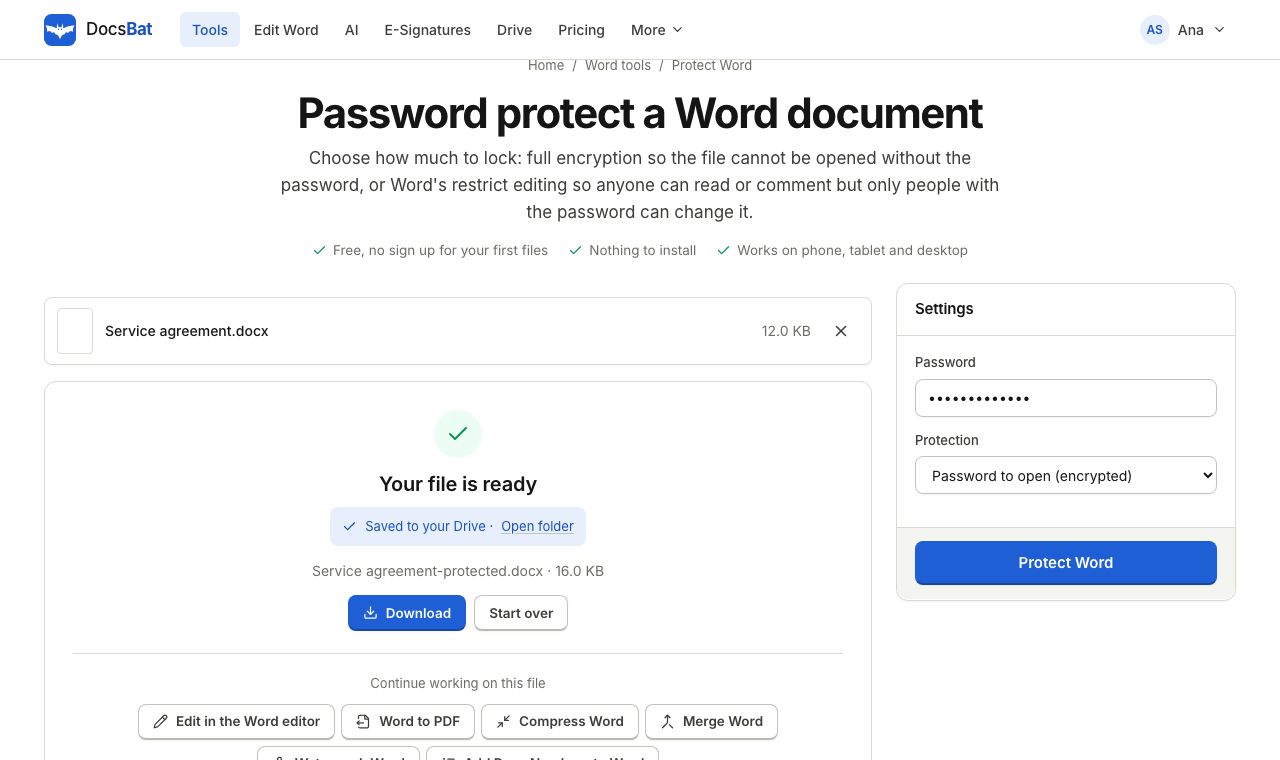 Protect WordLock a Word document with a password to open, or make it read only or comments only with a password to edit.
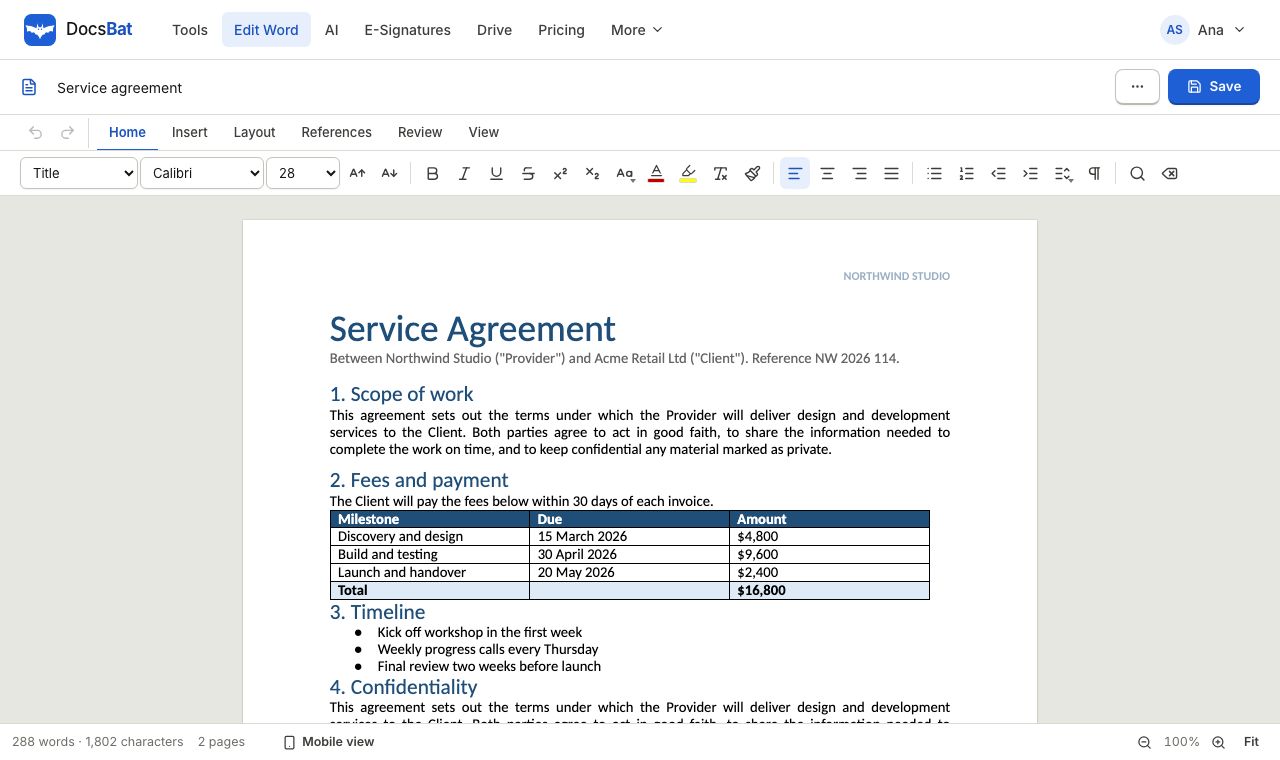 Word EditorOpen a .docx in your browser, edit text, lists, tables and pictures, and save it back as Word or PDF.
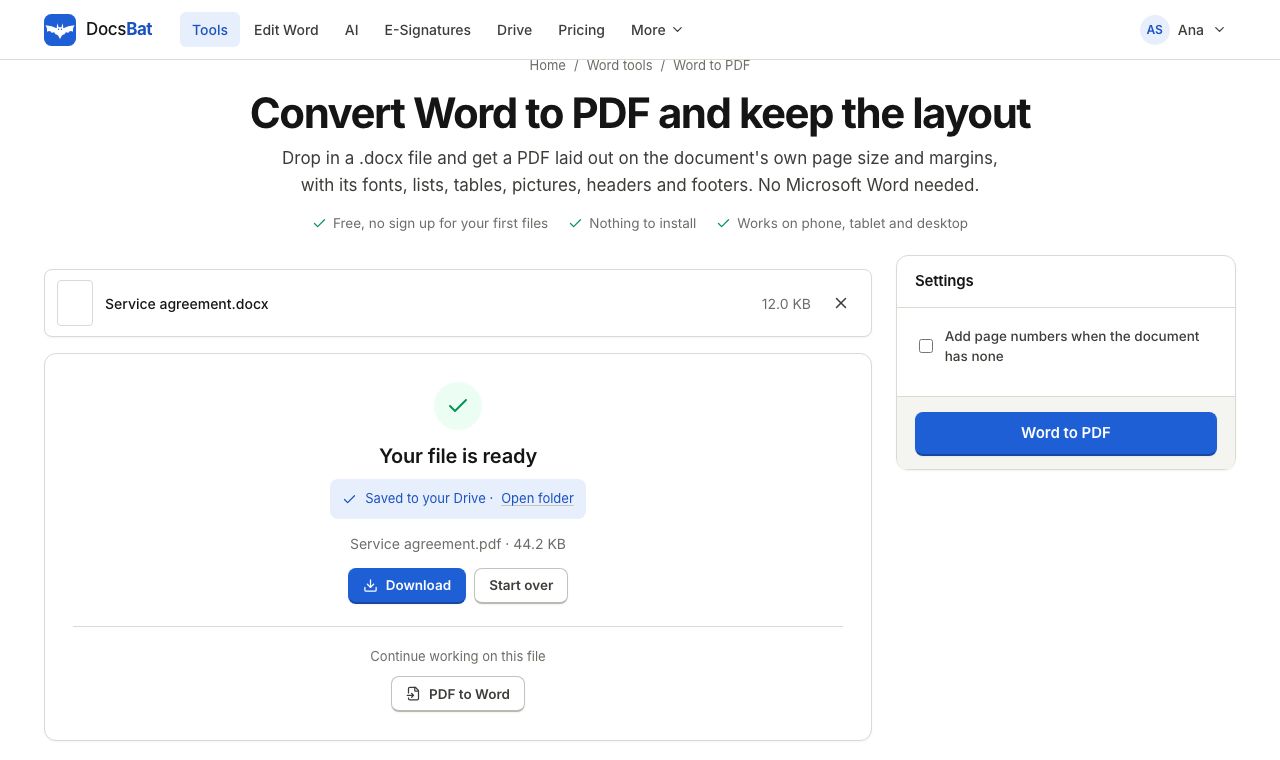 Word to PDFTurn a .docx into a PDF that keeps its fonts, lists, tables, pictures, headers, footers and page numbers.
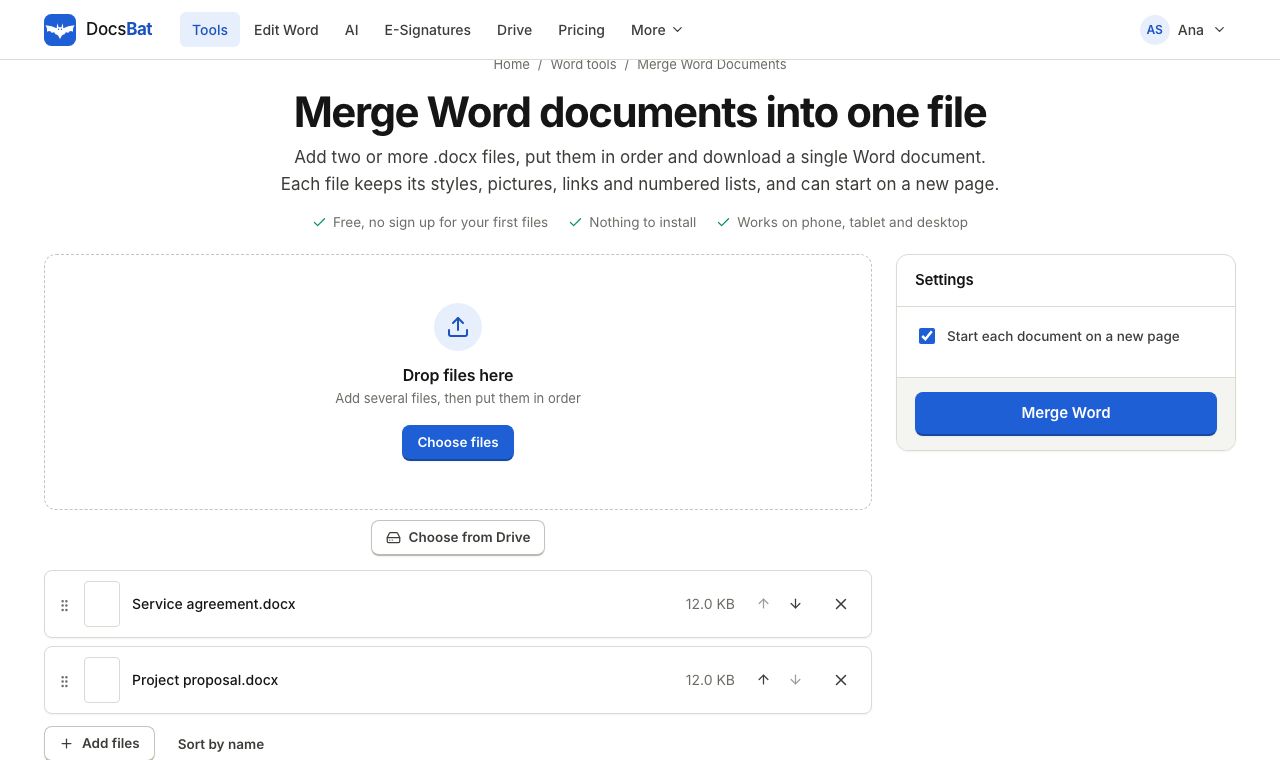 Merge Word DocumentsCombine several Word documents into one .docx in the order you choose, keeping formatting, pictures and lists.
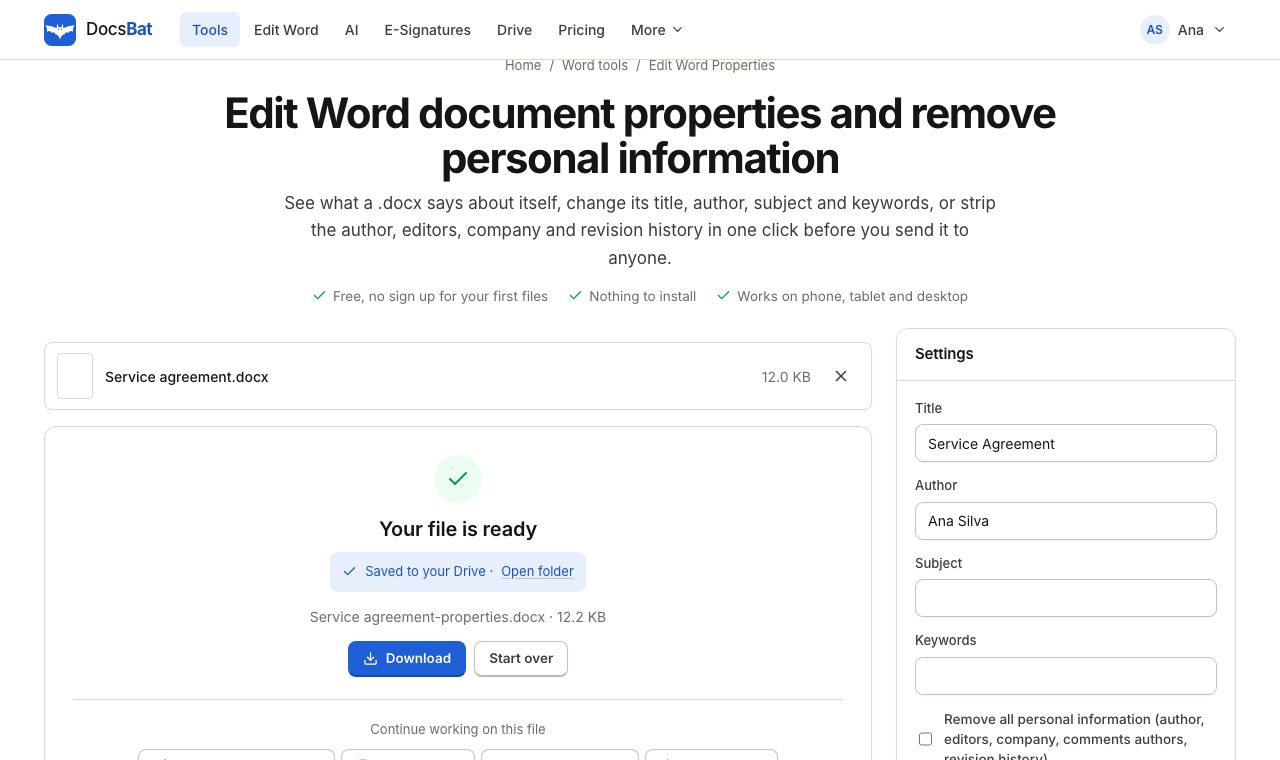 Edit Word PropertiesChange the title, author, subject and keywords of a Word file, or remove personal information before you share it.
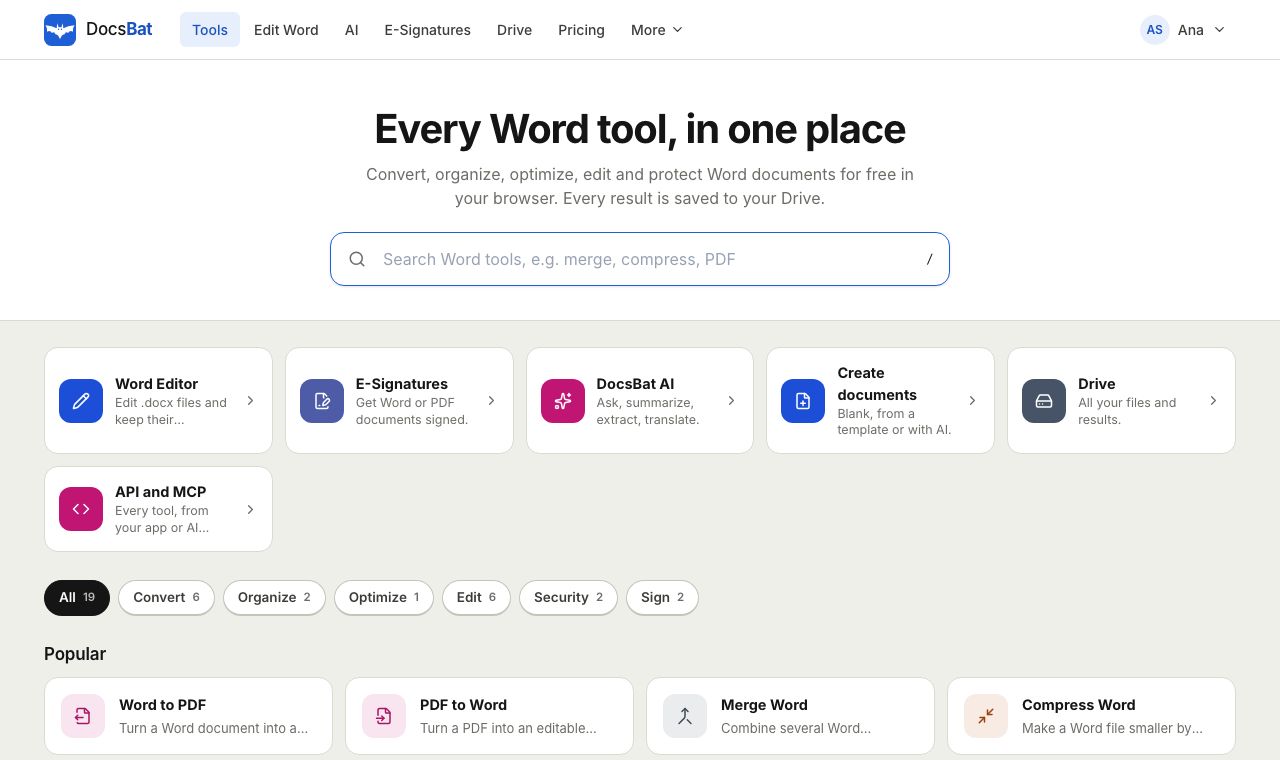 Free Word Tools17 free tools to convert, merge, split, compress, edit and protect Word documents in your browser.
Ready? Your file is one click away
Free, in your browser. Create a free account to get 10 tasks a day and keep every result in your own Drive.