Add a header and footer to every page of a Word document
Type a header, a footer or both, choose where each sits and how big the text is, and DocsBat writes them into every section of your .docx. Use {page} and {pages} to get real page numbers that update as the document changes.
- Free, no sign up for your first files
- Nothing to install
- Works on phone, tablet and desktop
One consistent header and footer, in one step
Documents assembled from several sources often end up with mismatched headers: one section shows an old title, another shows nothing at all. Fixing it by hand in Word means visiting every section and unlinking or relinking headers. DocsBat replaces the header and footer of every section with the text you type, so the whole document matches.
The placeholders {page} and {pages} become genuine Word fields, the same PAGE and NUMPAGES fields Word inserts. That means a footer such as "Page {page} of {pages}" shows the right numbers on every page and keeps them right after you add or remove content later.
Why use DocsBat for headers and footers
Header, footer or both
Fill in only the part you need. An empty field leaves that part of the document as it was.
Live page numbers
{page} and {pages} turn into real Word fields, so numbering stays correct when the document changes.
Left, centre or right
Place the header and the footer independently, for example a title on the left and numbers in the centre.
Every section at once
Multi section documents get the same header and footer throughout, with no per section clicking.
Any device
Works in the browser on Windows, Mac, Chromebook, iPhone and Android. Nothing to install.
How it works
- 1
Upload the Word file
Drop a .docx, .docm or .dotx file, or pick one from Drive. If it needs a password to open, enter it when asked.
- 2
Write the header and footer
Fill in Header text and Footer text, choose Header position and Footer position, and set the Text size (pt).
- 3
Download the result
DocsBat writes them into every section and returns the updated .docx, saved to your Drive as well.
Options explained
- Header text
- Empty by default. Type a document title, a company name, a reference number or anything else that should sit at the top of each page.
- Header position
- Left, Centre or Right. Centre is the default.
- Footer text
- Defaults to "Page {page} of {pages}". Change it, or clear it if you only want a header.
- Footer position
- Left, Centre or Right, set separately from the header.
- Text size (pt)
- 10 point by default, anywhere from 6 to 72 point. The same size is used for header and footer.
- {page} and {pages}
- {page} becomes the current page number and {pages} the total page count. Combine them with any text, such as "Report 2026, page {page}".
- Replaces what was there
- The new header and footer replace the existing ones in every section. A different first page setting is removed so the first page shows them too.
Ideas for headers and footers
- Reports: the report title in the header and "Page {page} of {pages}" in the footer.
- Contracts: the agreement name and a reference in the header so every page can be traced to its document.
- Coursework: your name and student number in the header, page numbers in the footer.
- Confidential papers: "Confidential, do not distribute" in the footer, combined with a watermark.
- Merged documents: after merging Word files, give the combined document one consistent header and footer.
Things to keep in mind
- The tool replaces existing headers and footers rather than adding to them. If you only want page numbers on top of an existing footer, use Add Page Numbers to Word, which keeps what is already there.
- Each header and footer is a single line of plain text. Logos, tables and different first page or odd and even layouts are not created by this tool; edit those in the Word editor or in Word.
- Page numbers start from 1 at the beginning of the document unless the file already sets a different starting number for a section.
- Old .doc files are not supported. Save them as .docx first.
Frequently asked questions
How do I add a header to every page in Word online?
Upload the document, type the Header text, choose its position and download. DocsBat applies it to every section, so every page gets it.
How do I add "Page 1 of 10" to a Word footer?
Use the default footer text "Page {page} of {pages}". Both placeholders become Word fields that count pages automatically.
Will it remove my existing header?
Yes, when you fill in Header text it replaces the existing header in every section. Leave Header text empty to keep the current header and change only the footer.
Why does my first page now show the header?
The tool removes the different first page setting so the new header and footer appear on every page. You can turn it back on in Word if you want a plain title page.
Can I add a logo to the header?
Not with this tool, which writes text. Add a picture in the Word editor or in Word.
Is it free?
Yes. 3 runs a day without an account, 10 a day with a free account, and unlimited on Pro for $4 a month.
Related features and tools
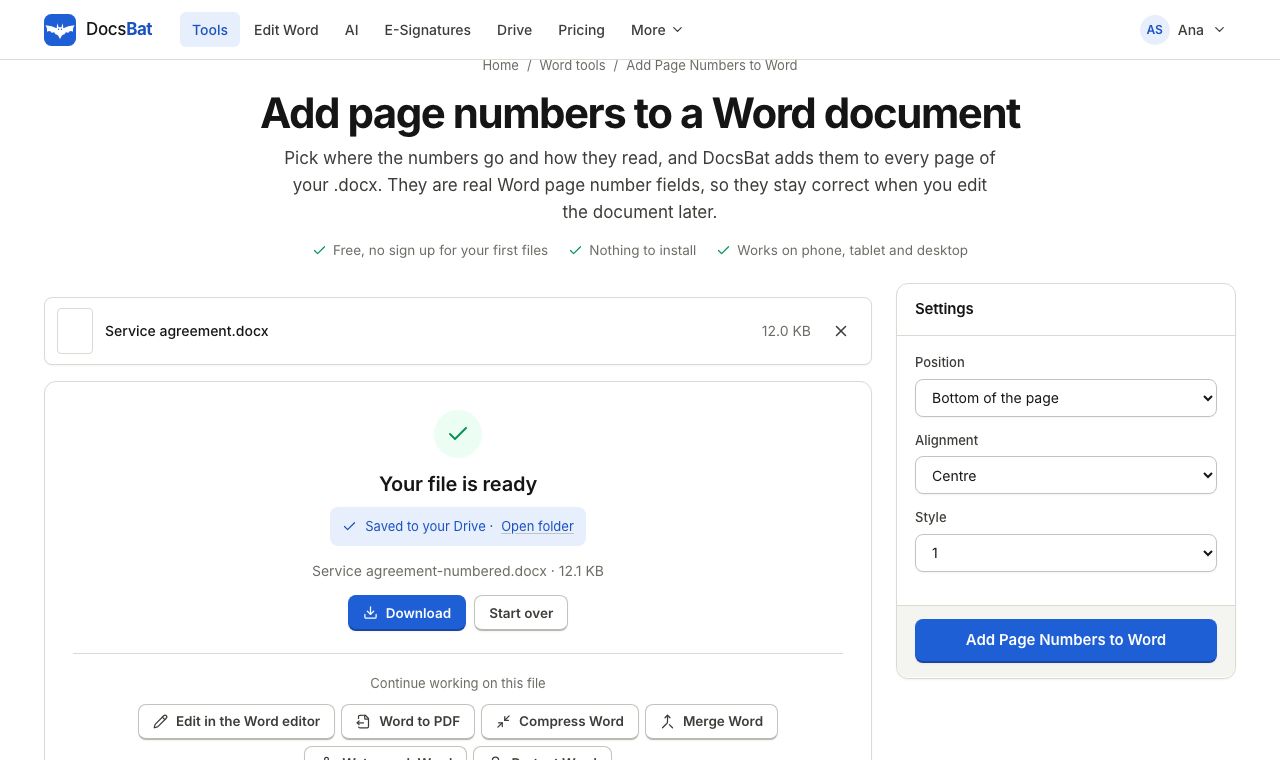 Add Page Numbers to WordNumber the pages of a Word document with real page number fields, top or bottom, left, centre or right.
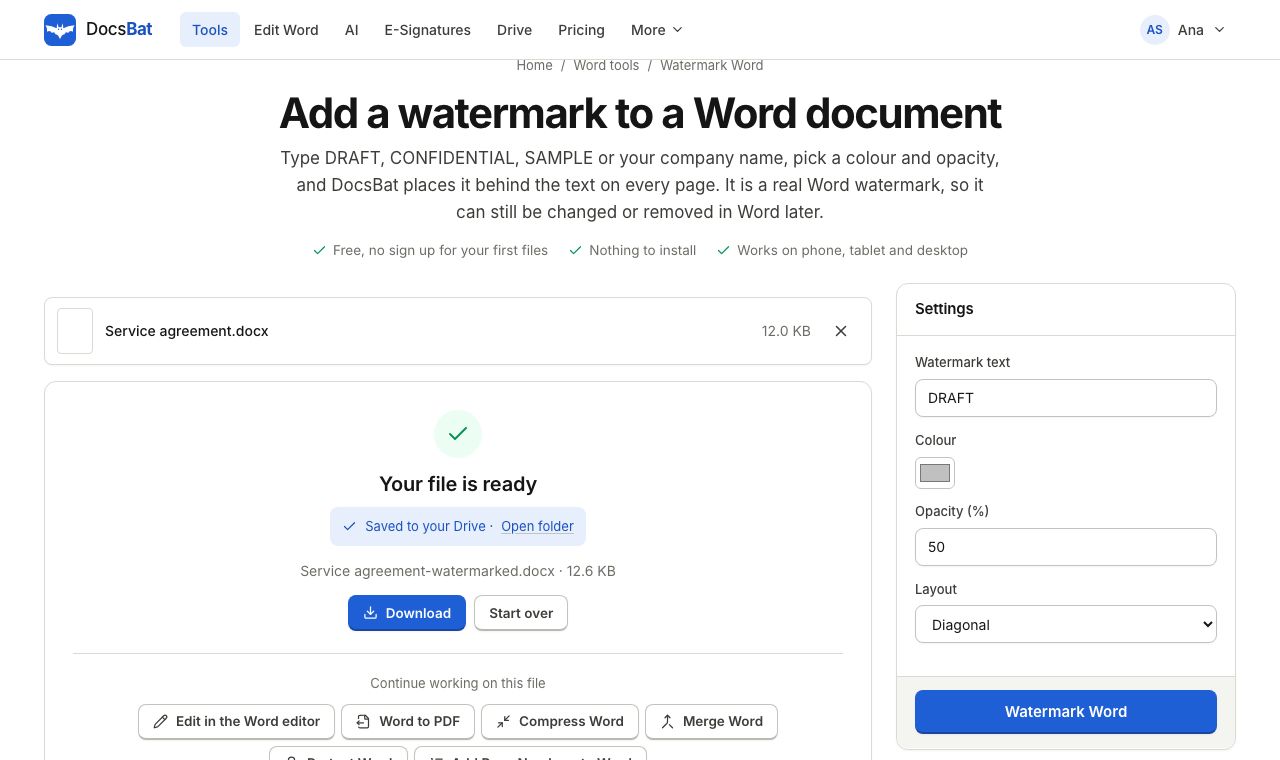 Watermark WordAdd a DRAFT or CONFIDENTIAL text watermark behind the text on every page of a Word document, the way Word does it.
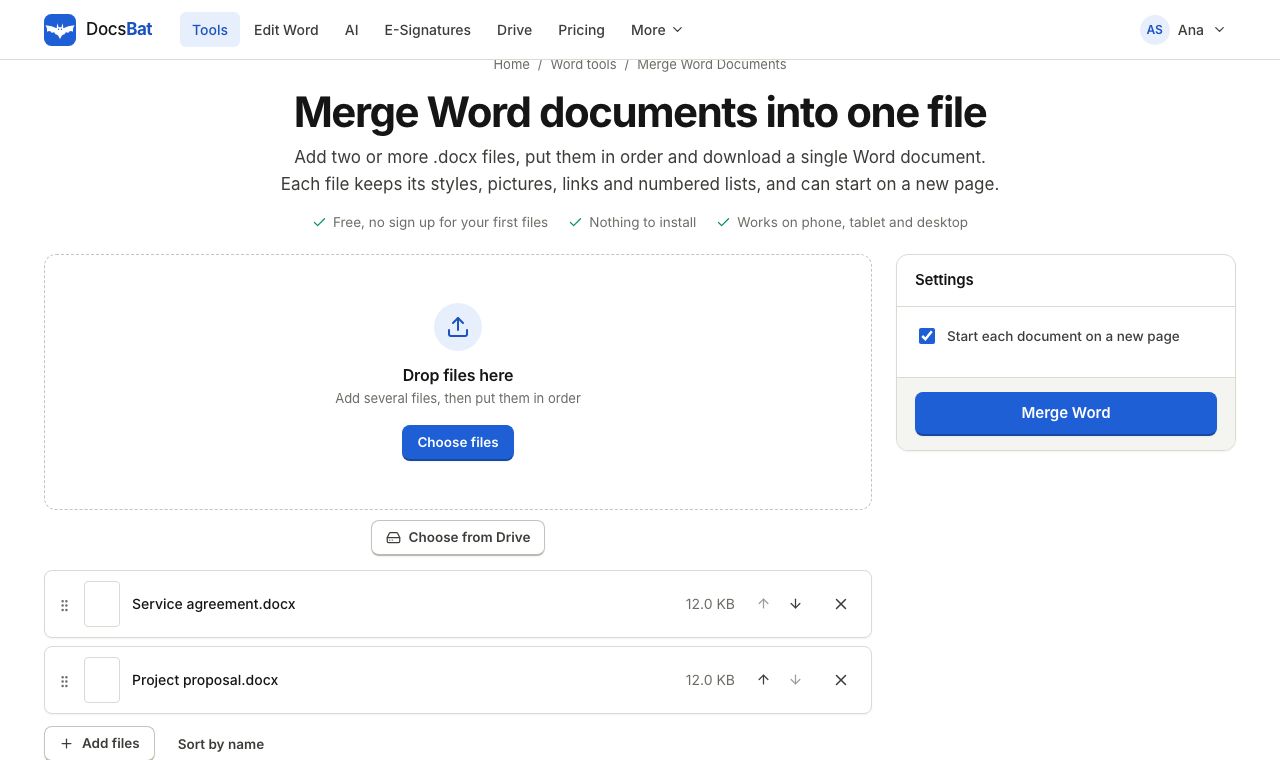 Merge Word DocumentsCombine several Word documents into one .docx in the order you choose, keeping formatting, pictures and lists.
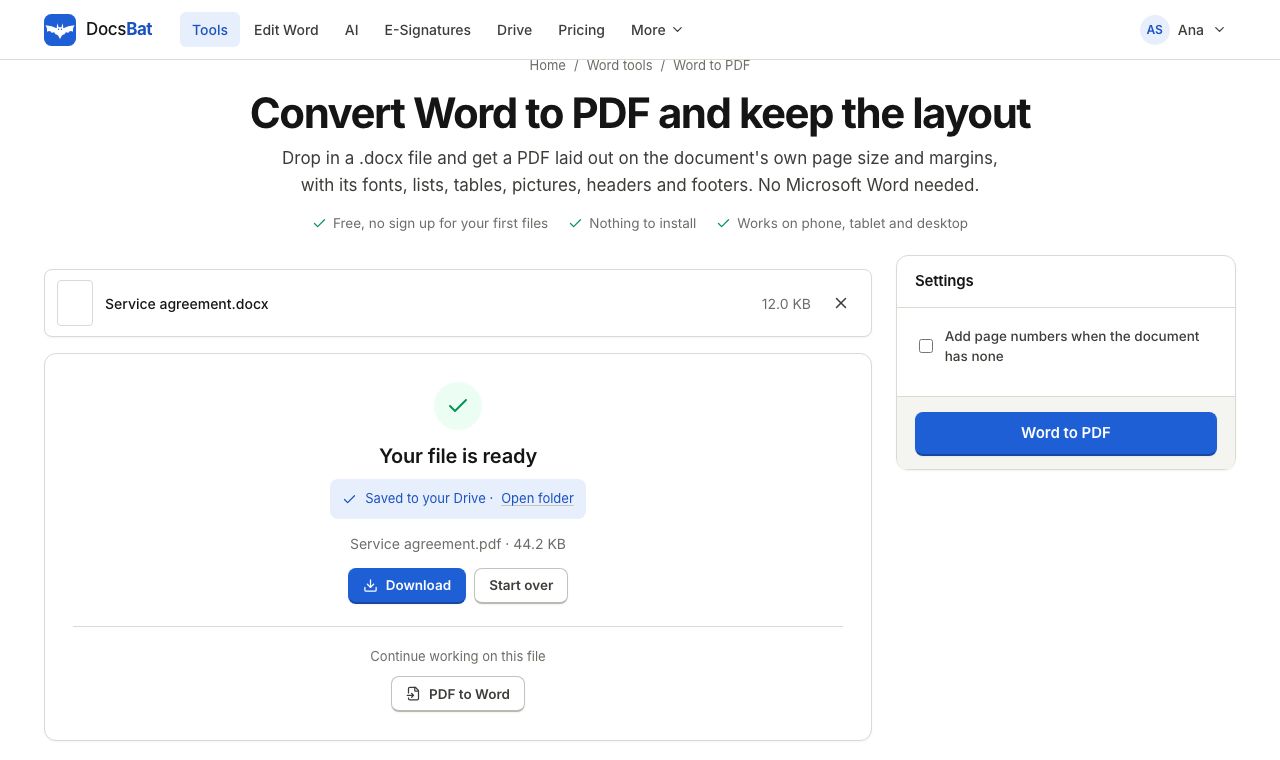 Word to PDFTurn a .docx into a PDF that keeps its fonts, lists, tables, pictures, headers, footers and page numbers.
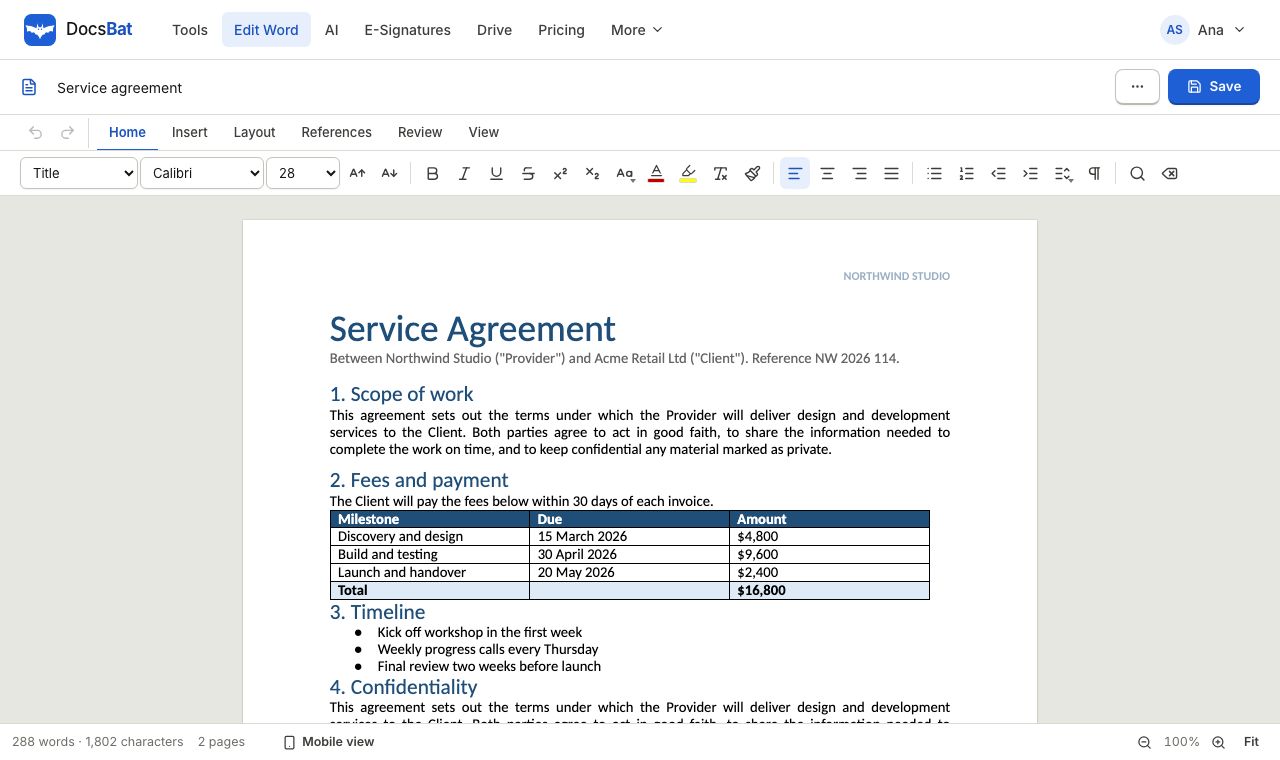 Word EditorOpen a .docx in your browser, edit text, lists, tables and pictures, and save it back as Word or PDF.
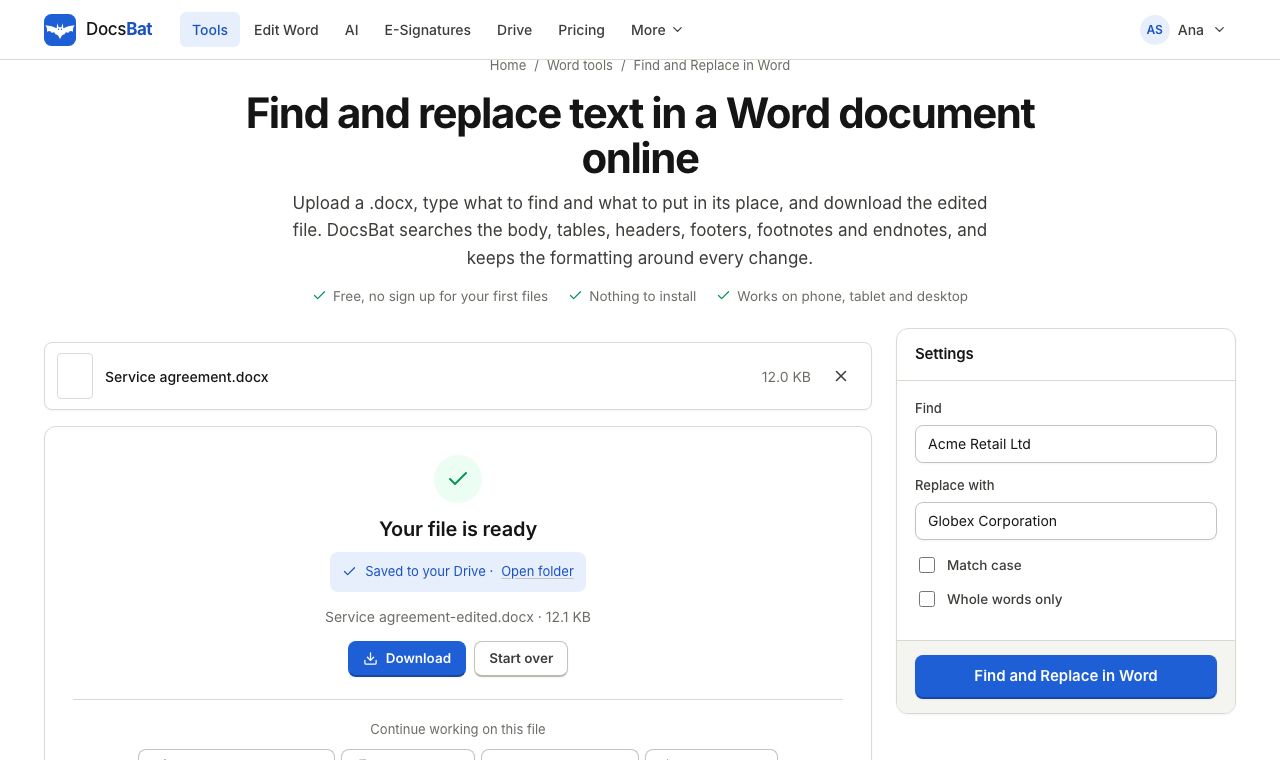 Find and Replace in WordReplace a word or phrase everywhere in a Word file, including headers, footers, tables and footnotes, keeping the formatting.
Ready? Your file is one click away
Free, in your browser. Create a free account to get 10 tasks a day and keep every result in your own Drive.