Accept all tracked changes and remove comments in Word
Upload a reviewed .docx and get a clean final copy: every insertion and deletion accepted, every comment gone, and Track Changes switched off so the file stays clean when the next person opens it.
- Free, no sign up for your first files
- Nothing to install
- Works on phone, tablet and desktop
From marked up draft to clean final version
After a round of reviews, a Word document can be crowded with red insertions, struck out deletions and comment bubbles. Sending it out like that looks unfinished, and comments meant for colleagues can reveal things a client should never read.
DocsBat finalises the file in one step. Inserted text stays, deleted text goes, moved text lands in its new place and formatting changes are kept as they currently look. Comments are removed together with their stored text and author list, and Track Changes is turned off. It works on the main text and also in headers, footers, footnotes and endnotes, where leftover markup is easy to miss.
Why finalise with DocsBat
Accept everything at once
Insertions, deletions, moves, formatting changes and table changes are all accepted in a single pass.
Comments really gone
Comment markers and the comment text stored inside the file are both removed, not just hidden from view.
Hidden text cleanup
Optionally delete text formatted as hidden, which readers do not see but which still travels with the file.
Stays clean
Turning off Track Changes means the next edit is not recorded as a revision by accident.
No Word needed
Works in any browser on desktop, tablet or phone, which helps when you only have a reviewed file and a phone.
How it works
- 1
Upload the reviewed file
Drop a .docx, .docm or .dotx file onto the page or pick it from Drive. Password protected files ask for their password.
- 2
Choose what to clean
Accept all tracked changes, Delete all comments and Turn off Track Changes are on by default. Tick Remove hidden text if you also want that.
- 3
Download the final copy
DocsBat returns the cleaned .docx and saves a copy to your Drive.
Options explained
- Accept all tracked changes
- On by default. Inserted and moved in text is kept, deleted and moved out text is removed, and recorded formatting, paragraph, section and table changes are accepted as they now appear.
- Delete all comments
- On by default. Removes every comment marker from the text and deletes the comments, their extended data and the list of comment authors from the file.
- Remove hidden text
- Off by default. Deletes text that is formatted as hidden. Leave it off if your document deliberately uses hidden text, for example in a form or template.
- Turn off Track Changes
- On by default. Switches off the setting that records new edits as revisions.
- Headers, footers and notes
- All four cleanups also run in headers, footers, footnotes and endnotes, not only in the body.
When to use it
- Before sending a contract: make sure no negotiation history or internal comments go to the other side.
- Before converting to PDF: finalise first, then use Word to PDF so the PDF shows the final text only.
- Before sending for signature: clean up, then send the document for e signature.
- Publishing a paper or report: remove reviewer comments and markup from the version that goes out.
- Sharing outside the company: combine with Edit Word Properties and its Remove all personal information option to strip names from the file properties too.
Limits worth knowing
- The tool accepts changes. It cannot reject them or let you choose change by change. For that, review the document in Word or another word processor.
- In rare cases where a paragraph mark itself was deleted, Word would join two paragraphs. DocsBat keeps them as two paragraphs, so check the spots where whole paragraphs were removed.
- Accepting changes cannot be undone in the result, so keep the original file if you may need the history. DocsBat does not change your uploaded file; it creates a new one.
- Old .doc files are not supported. Save them as .docx first.
Frequently asked questions
How do I accept all changes in a Word document online?
Upload the file to Accept Changes and Remove Comments, keep Accept all tracked changes ticked and download the result. Every tracked insertion and deletion is applied.
Can I reject all changes instead?
No. The tool only accepts changes. To reject them, use Word or another word processor that has a reject option.
Does it delete comments completely?
Yes. Comment markers are removed from the text and the comment content and author list are deleted from the file, so they cannot be shown again.
What is hidden text and should I remove it?
Hidden text is formatted so it does not show on screen or in print, but it remains in the file. Remove it when sharing outside your organisation, unless your template relies on it.
Does it clean headers and footers too?
Yes. Tracked changes, comments and hidden text are cleaned in headers, footers, footnotes and endnotes as well as the main text.
Is it free?
Yes. 3 runs a day without an account, 10 a day with a free account, unlimited with Pro for $4 a month.
Related features and tools
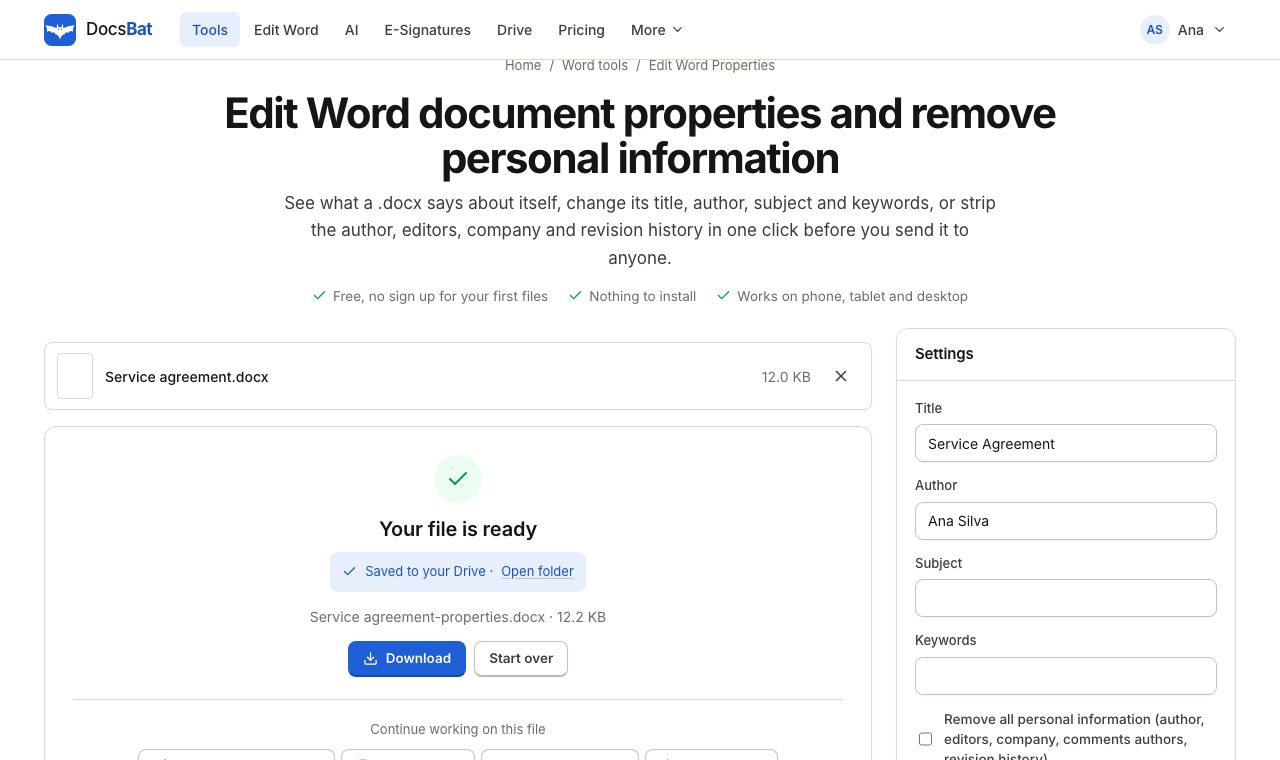 Edit Word PropertiesChange the title, author, subject and keywords of a Word file, or remove personal information before you share it.
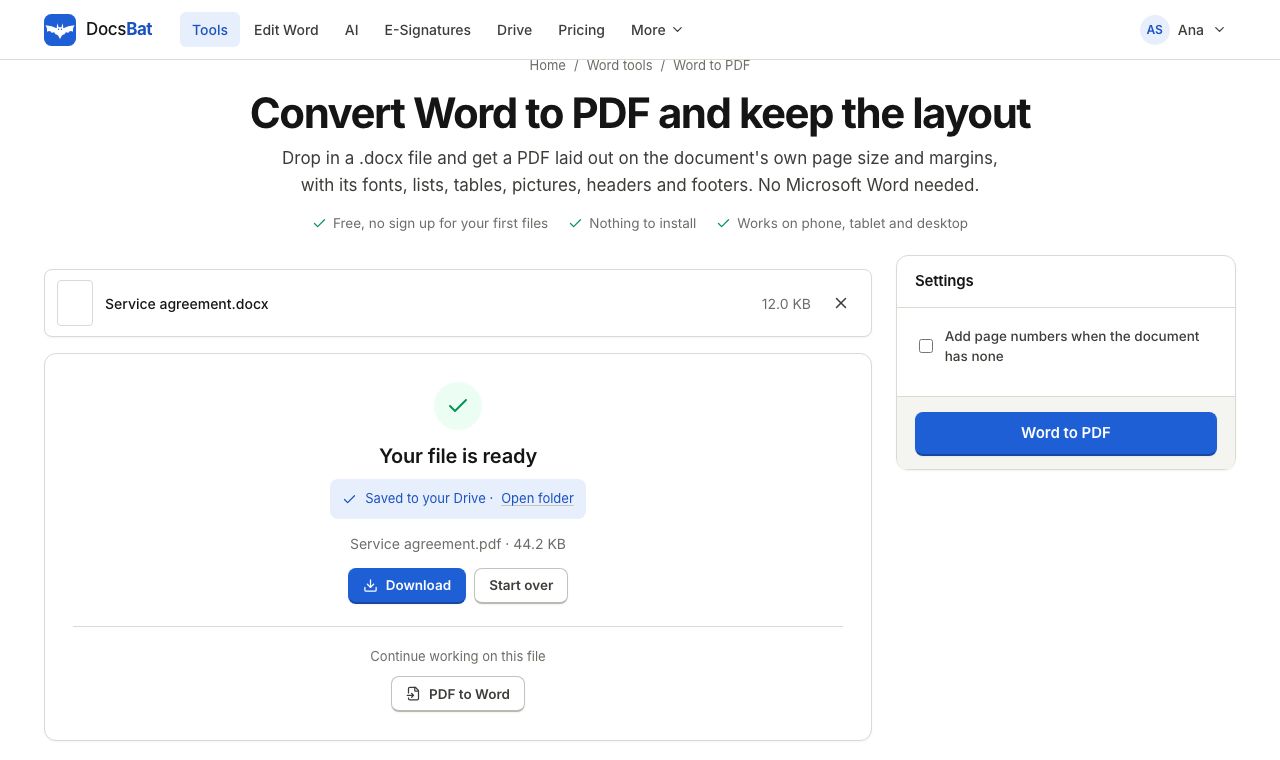 Word to PDFTurn a .docx into a PDF that keeps its fonts, lists, tables, pictures, headers, footers and page numbers.
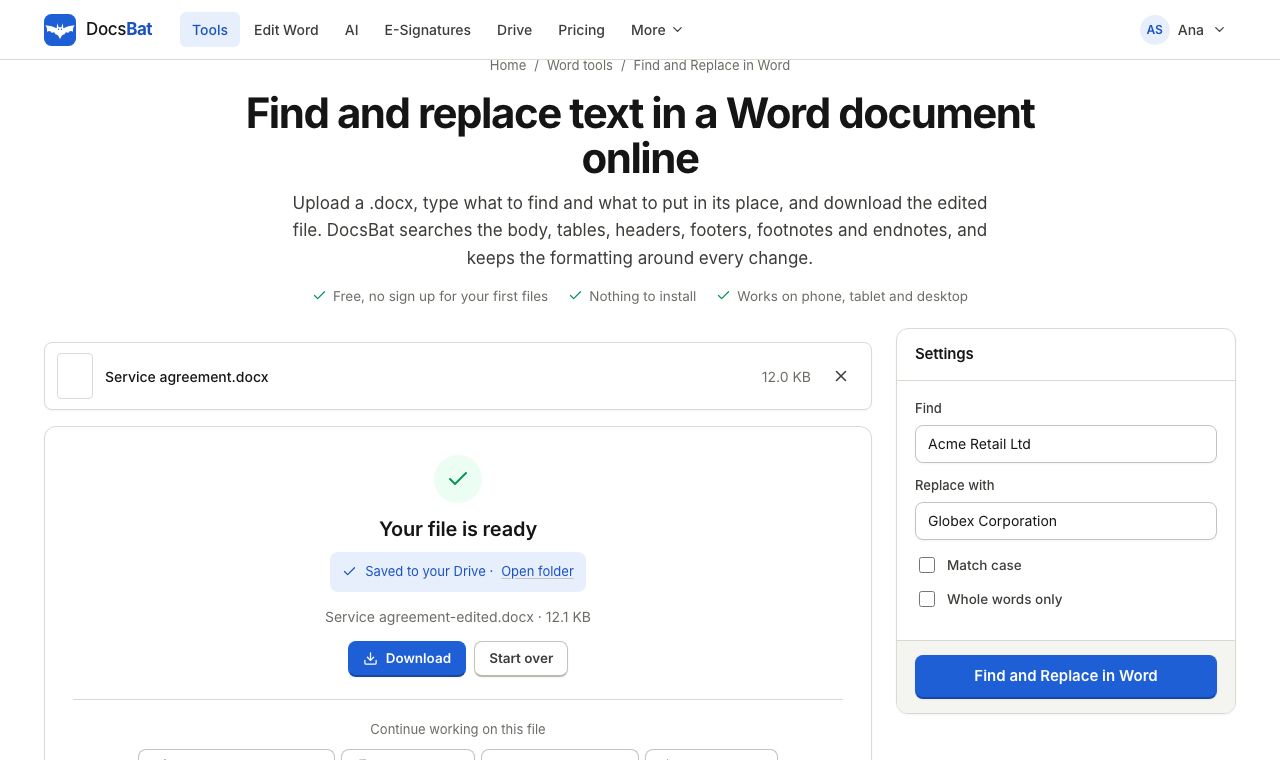 Find and Replace in WordReplace a word or phrase everywhere in a Word file, including headers, footers, tables and footnotes, keeping the formatting.
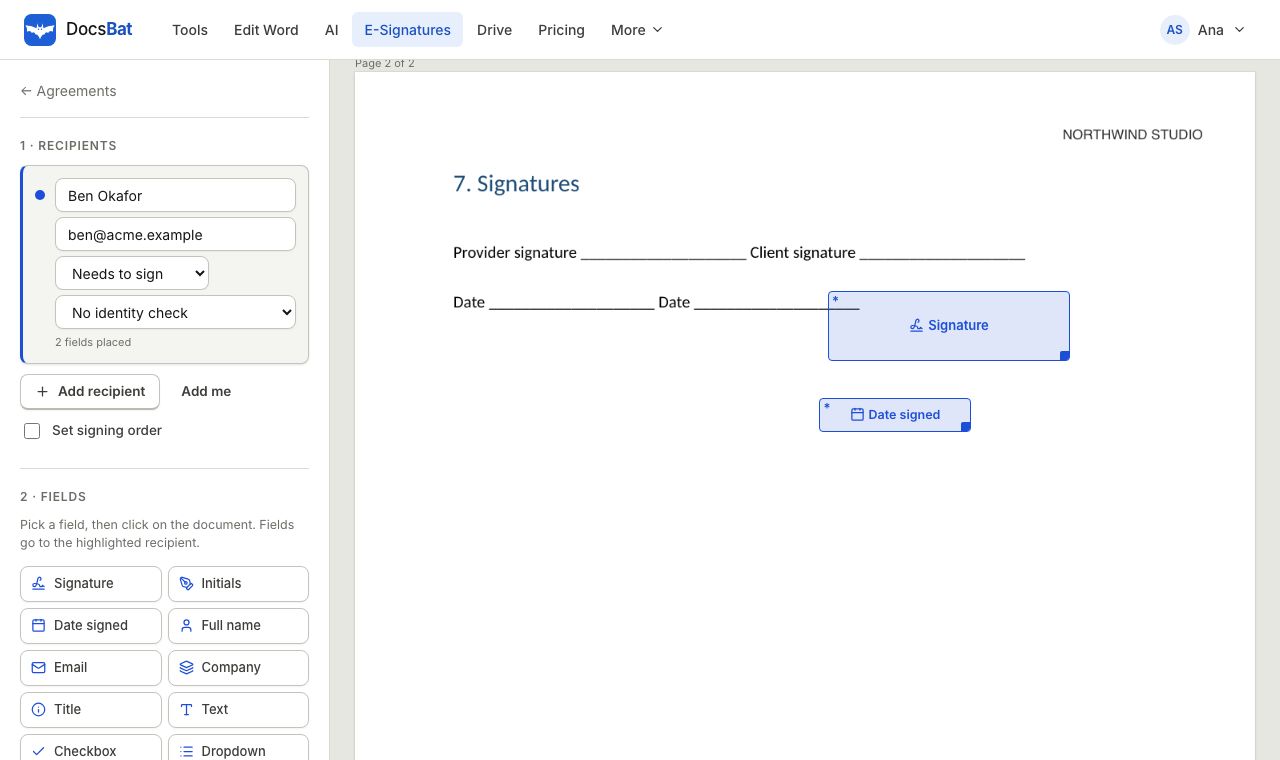 Sign a Word document onlineSend a Word file for e signature. DocsBat turns it into a PDF, signers sign on any device with no account, and you get a sealed PDF.
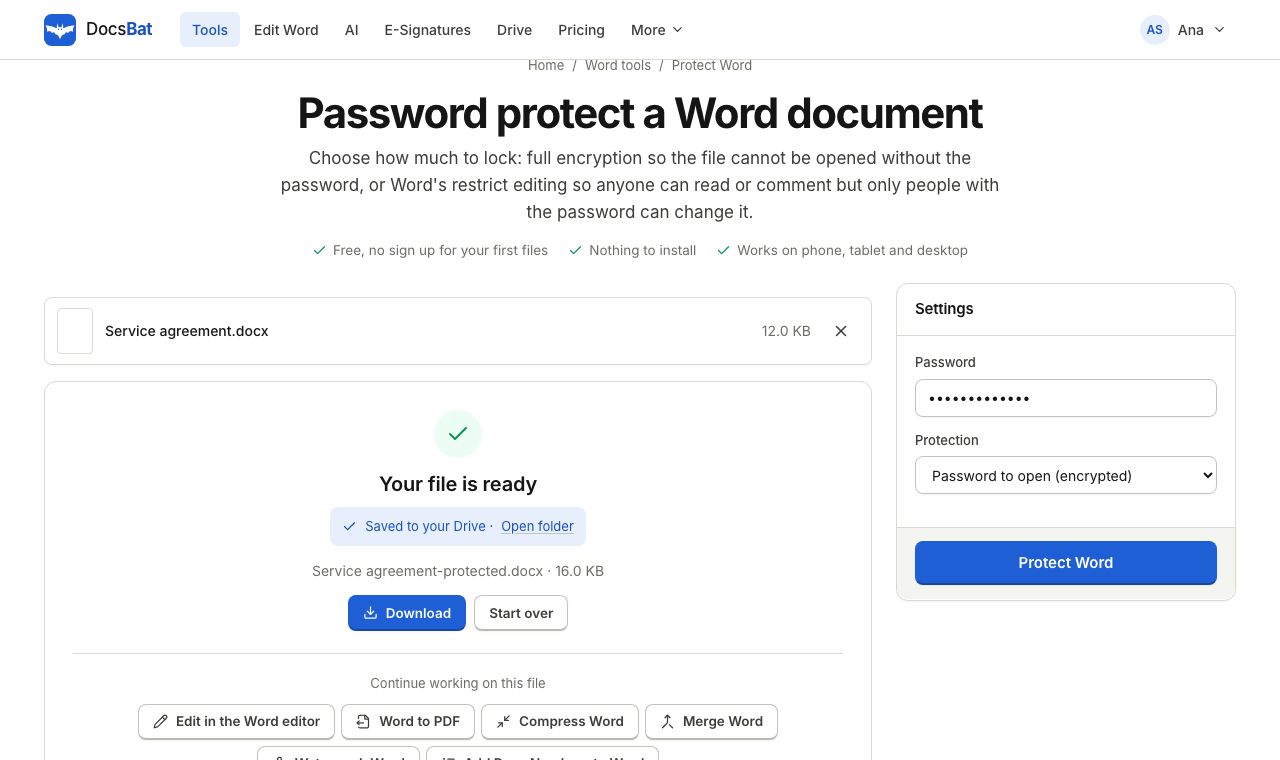 Protect WordLock a Word document with a password to open, or make it read only or comments only with a password to edit.
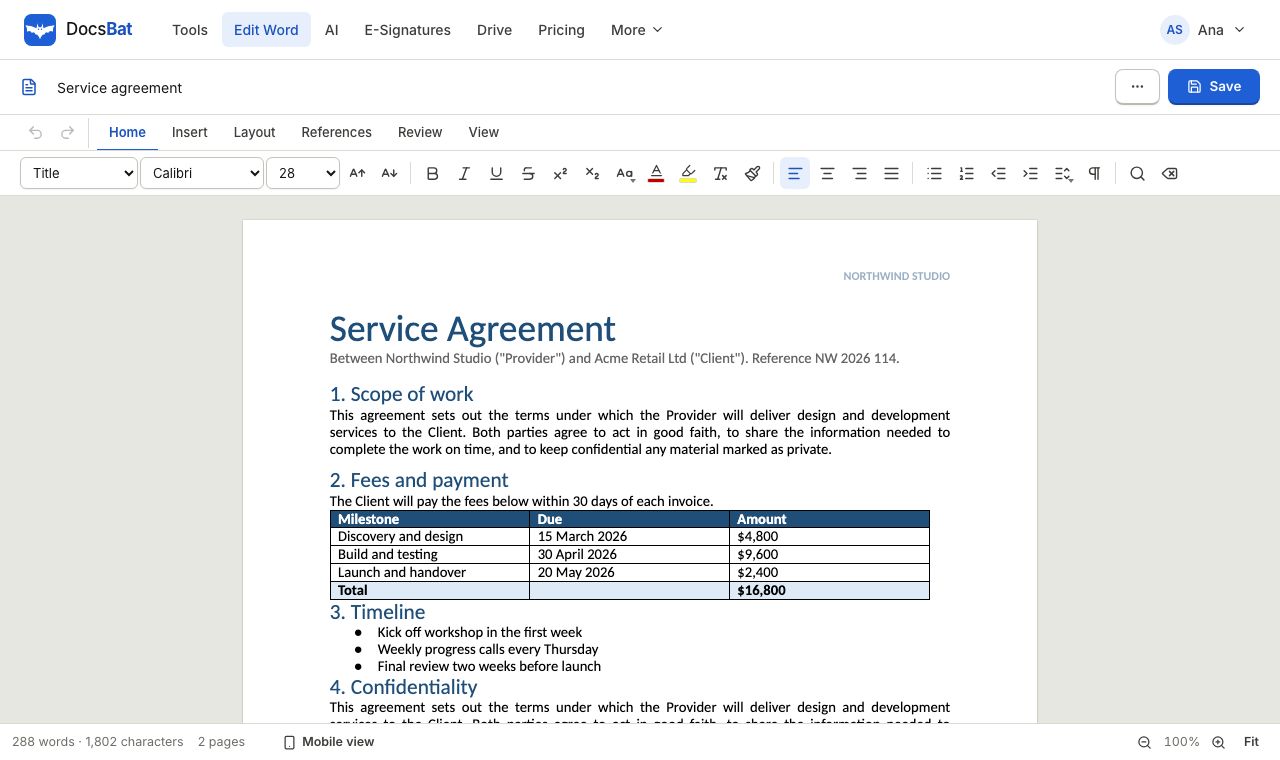 Word EditorOpen a .docx in your browser, edit text, lists, tables and pictures, and save it back as Word or PDF.
Ready? Your file is one click away
Free, in your browser. Create a free account to get 10 tasks a day and keep every result in your own Drive.