Convert Word to PDF and keep the layout
Drop in a .docx file and get a PDF laid out on the document's own page size and margins, with its fonts, lists, tables, pictures, headers and footers. No Microsoft Word needed.
- Free, no sign up for your first files
- Nothing to install
- Works on phone, tablet and desktop
A PDF that looks like the document you wrote
A PDF is the safest way to send a Word document to someone else. It opens the same on every phone, tablet and computer, it prints the way you expect, and nobody can change the text by accident. The problem is getting there without Microsoft Word, or without the document falling apart on the way.
DocsBat reads the Word file itself: its styles, paragraph spacing, indents, numbered and bulleted lists, tables with merged cells, borders and shading, pictures, links, page size and margins, headers, footers and footnotes. It then lays the pages out and writes a real PDF with selectable, searchable text. You do not need Word, LibreOffice or any app on your device.
Why convert Word to PDF with DocsBat
Fonts that fit
Common Office fonts are swapped for free twins with the same letter widths, such as Carlito for Calibri and Caladea for Cambria, so lines and pages break where they did in Word.
Every script
Noto fonts cover Arabic, Hebrew, Hindi, Tamil, Thai, Chinese, Japanese, Korean and many more, so no character turns into an empty box.
Tables and lists intact
Column widths, merged cells, borders, shading and list numbering carry over, so contracts, invoices and reports read the same.
Headers, footers, page numbers
Headers and footers are placed on every page, with page numbers where your document has them. Add numbers with one tick if it has none.
Nothing to install
Runs in the browser on Windows, Mac, Chromebook, iPhone and Android. Handy on a borrowed or locked down computer.
How it works
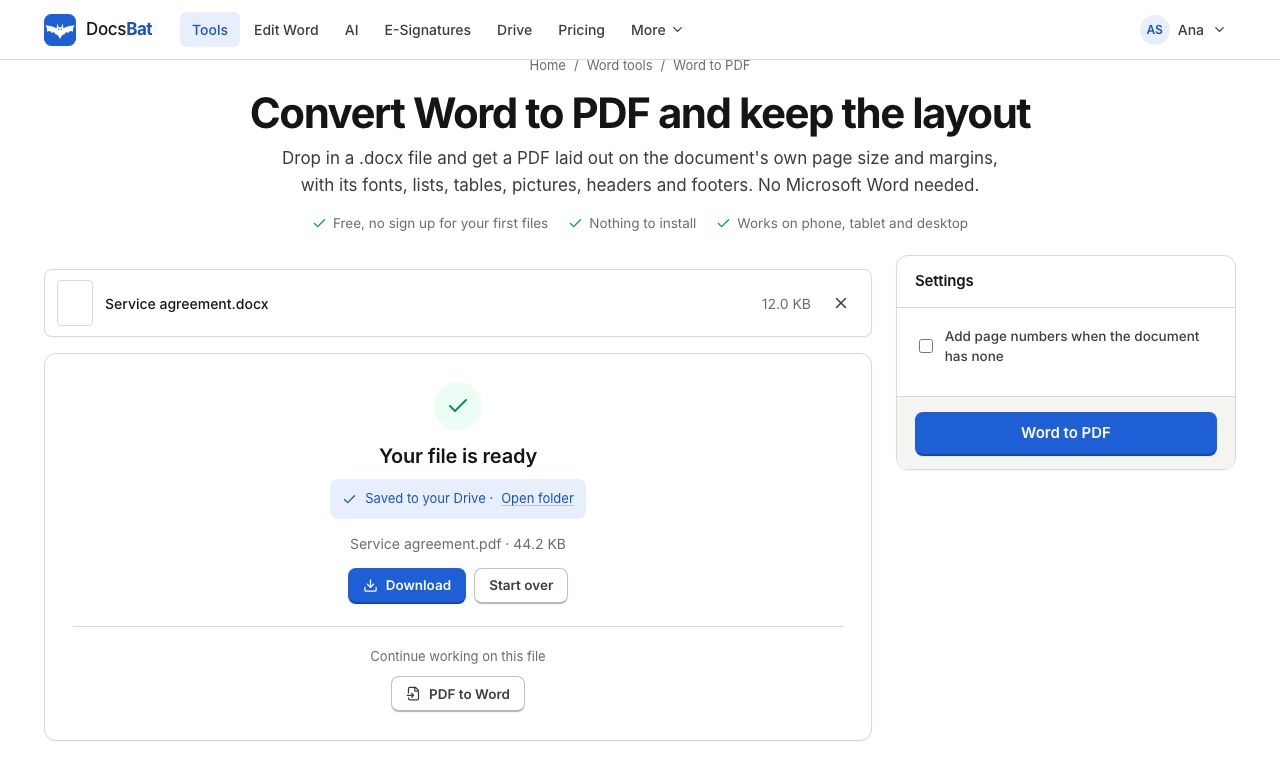
- 1
Choose your Word file
Drop a .docx onto the page, pick it from your device or open it from your Drive. Password protected files ask for the password first.
- 2
Pick the option
Tick Add page numbers when the document has none if you want numbered pages. Everything else is read from the document.
- 3
Convert and download
Click convert. The PDF downloads and a copy is saved to your private Drive, ready to share or send for signature.
What the converter keeps
- Page size and margins
- Each page uses the size and margins set in the Word file, whether that is A4, Letter or a custom size.
- Styles and spacing
- Headings, body text, paragraph spacing, indents, alignment, bold, italic, colour and highlight follow the document's own styles.
- Lists
- Numbered and bulleted lists keep their numbers and bullet symbols, including bullets from the Symbol and Wingdings fonts.
- Tables
- Widths, merged cells, borders and cell shading are drawn as in the document.
- Pictures and links
- Pictures appear at their size in the document, and web links stay clickable in the PDF.
- Headers, footers and footnotes
- Headers and footers are stamped on each page, and footnotes are included.
- Add page numbers when the document has none
- An optional checkbox, off by default. Turn it on to number the pages of a document that has no page numbers of its own.
- Searchable text
- The PDF contains real text, so it can be selected, copied, searched and read by screen readers.
When people convert Word to PDF
- CVs and cover letters: recruiters see exactly the layout you designed, whatever software they use.
- Contracts and proposals: send a version nobody edits by accident, or go straight to e signatures.
- Invoices and quotes: many accounting portals accept only PDF uploads.
- Coursework and theses: most submission systems ask for PDF and check page counts.
- Printing: a PDF prints the same at home, at a print shop or on an office printer.
Tips and honest limits
- Old .doc files from Word 97 to 2003 are not supported. Open them in Word, LibreOffice or Google Docs and save as .docx first. Files ending in .docm and .dotx work.
- If a document uses an unusual font that is not available, a close match is used instead. For pixel perfect brand fonts, check the result before you send it.
- Very complex layouts, such as text boxes floating over pictures or text wrapped around shapes, may shift slightly. Plain documents, reports, letters and tables convert best.
- Need to fix a typo first? Open the file in the Word editor, save, then convert.
- Want images of the pages instead? Use Word to JPG.
Frequently asked questions
How do I convert Word to PDF without Microsoft Word?
Open DocsBat Word to PDF in your browser, choose the .docx file and click convert. The layout is calculated from the file itself, so you need no Word licence and nothing installed.
Will my fonts change?
Fonts available to DocsBat are used as they are. Calibri and Cambria are replaced with Carlito and Caladea, free fonts with identical letter widths, so text breaks into the same lines and pages. Rare fonts fall back to a similar looking font.
Can I convert an old .doc file?
No. Only .docx, .docm and .dotx files are supported. Open the .doc in Word, LibreOffice or Google Docs, save it as .docx and convert that.
Does it work with password protected Word files?
Yes, if you know the password. DocsBat asks for it, opens the file and converts it. The PDF itself is not password protected.
Is Word to PDF free?
Yes. Without an account you can run 3 tools a day. A free account gives you 10 tasks a day with files up to 25 MB. Pro is $4 a month for unlimited tasks and files up to 100 MB.
Does it work on iPhone and Android?
Yes. It runs in Safari, Chrome and other mobile browsers. Pick the file from Files, Google Drive or your downloads.
Is the text in the PDF searchable?
Yes. The PDF contains real text, not a picture of the page, so you can search, select and copy it.
Related features and tools
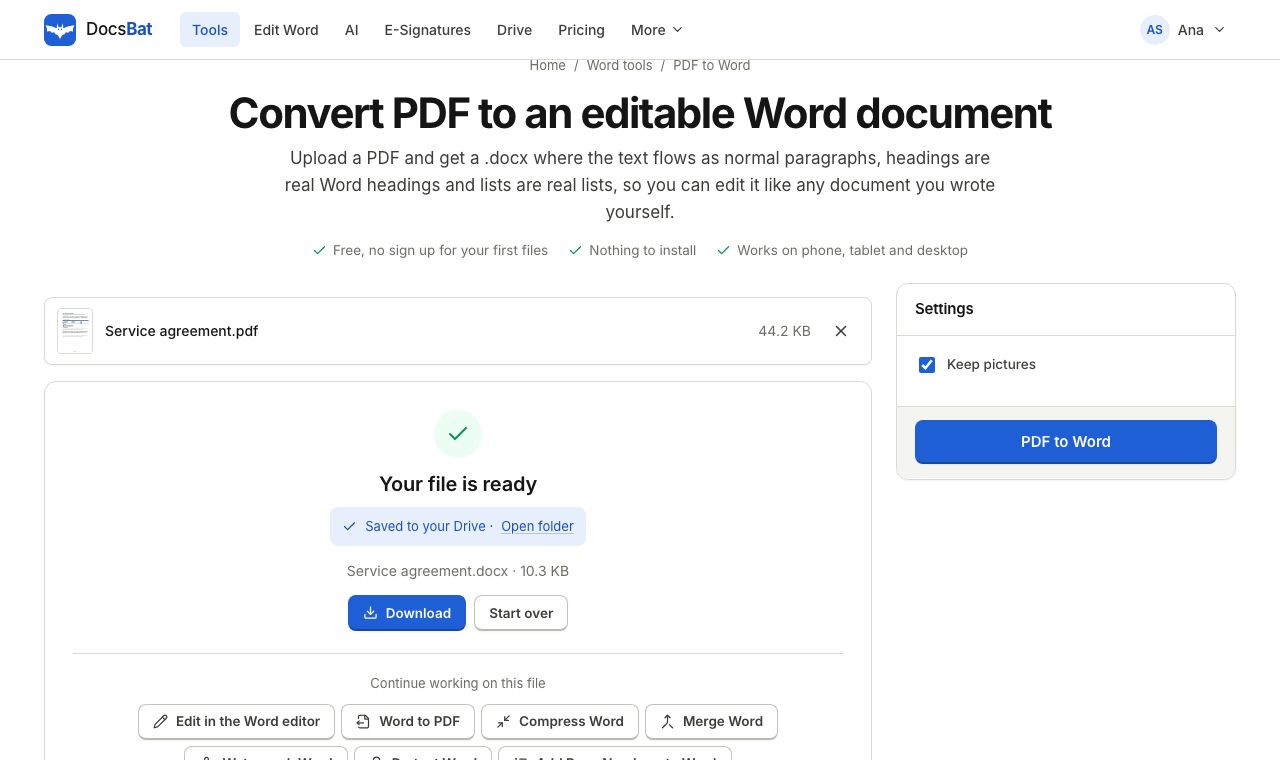 PDF to WordTurn a PDF into an editable .docx with paragraphs, headings, lists and pictures rebuilt.
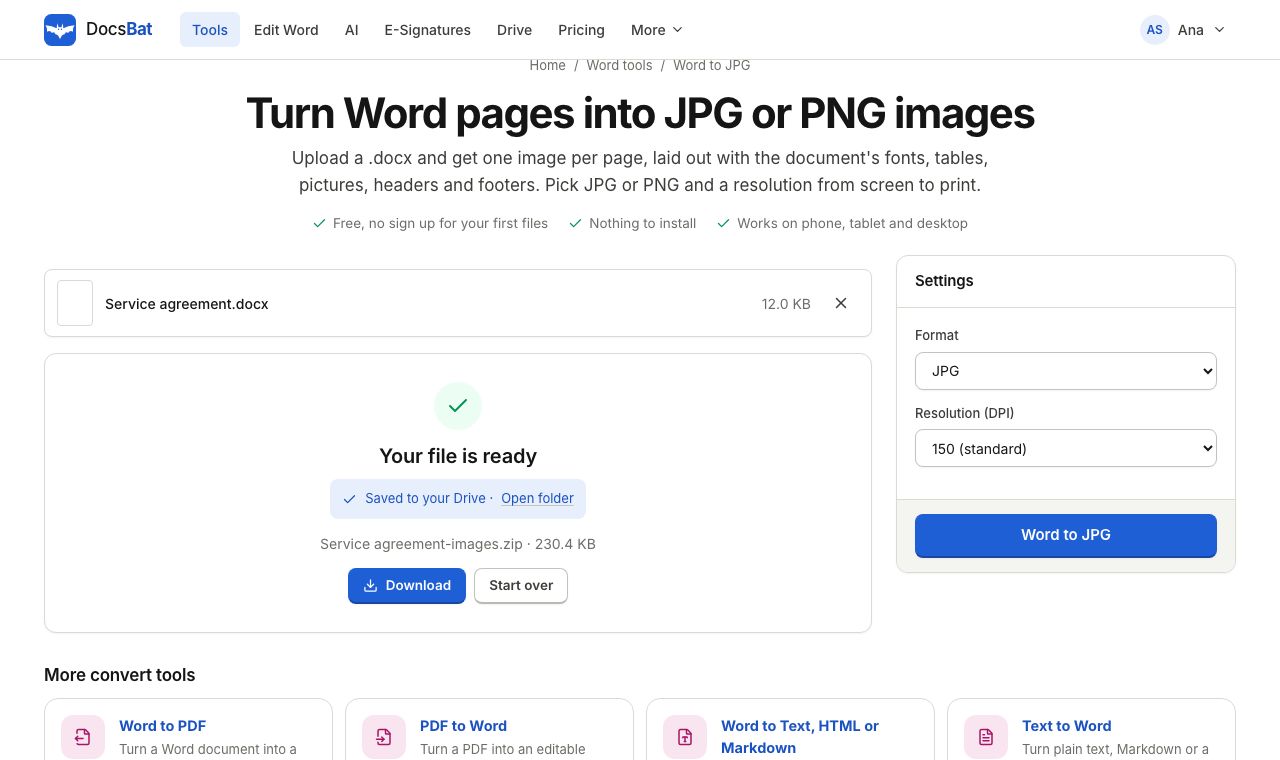 Word to JPGSave every page of a Word document as a JPG or PNG image at 72, 150 or 300 DPI.
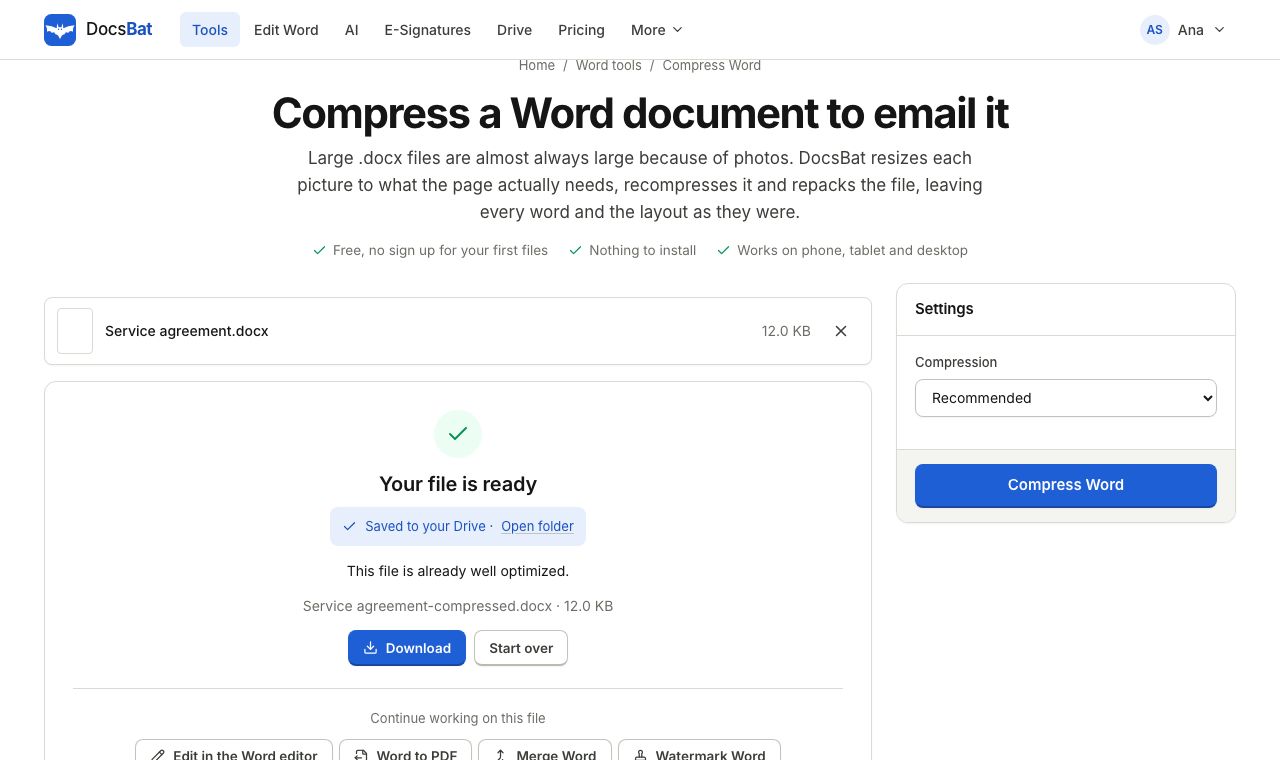 Compress WordMake a Word file smaller by shrinking its pictures to the size they are shown at, without touching the text.
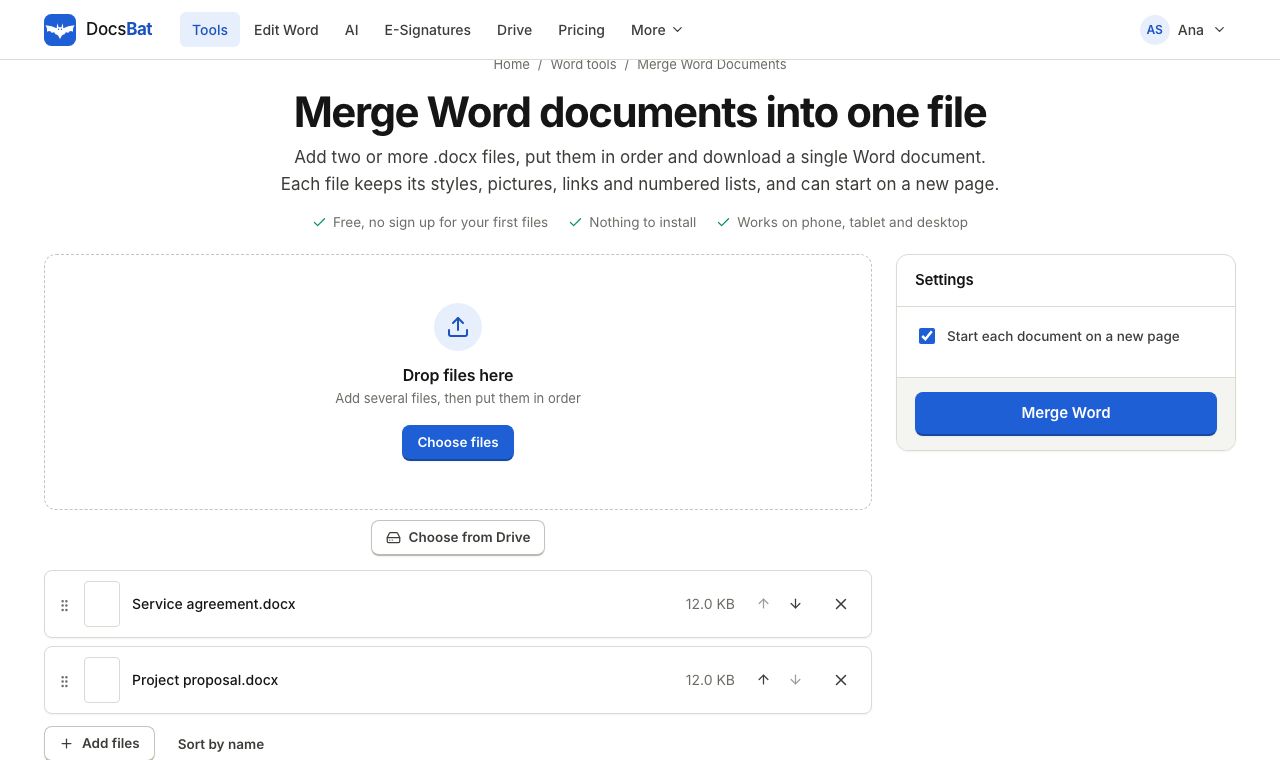 Merge Word DocumentsCombine several Word documents into one .docx in the order you choose, keeping formatting, pictures and lists.
 Convert Word to PDF on MacTurn a .docx into a PDF on any Mac, without Word, with Calibri and Cambria replaced by metric twins so pages break where they should.
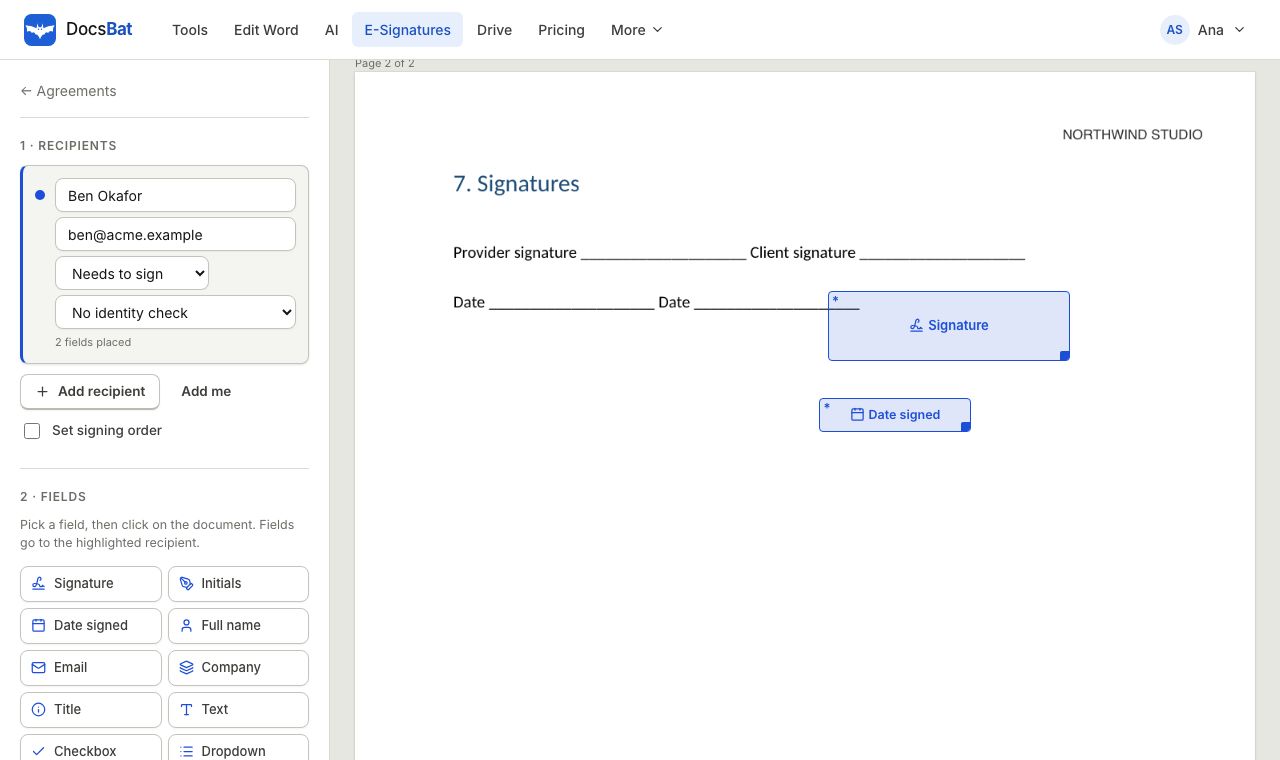 Sign a Word document onlineSend a Word file for e signature. DocsBat turns it into a PDF, signers sign on any device with no account, and you get a sealed PDF.
Ready? Your file is one click away
Free, in your browser. Create a free account to get 10 tasks a day and keep every result in your own Drive.