How to Convert Word to PDF Without Microsoft Word
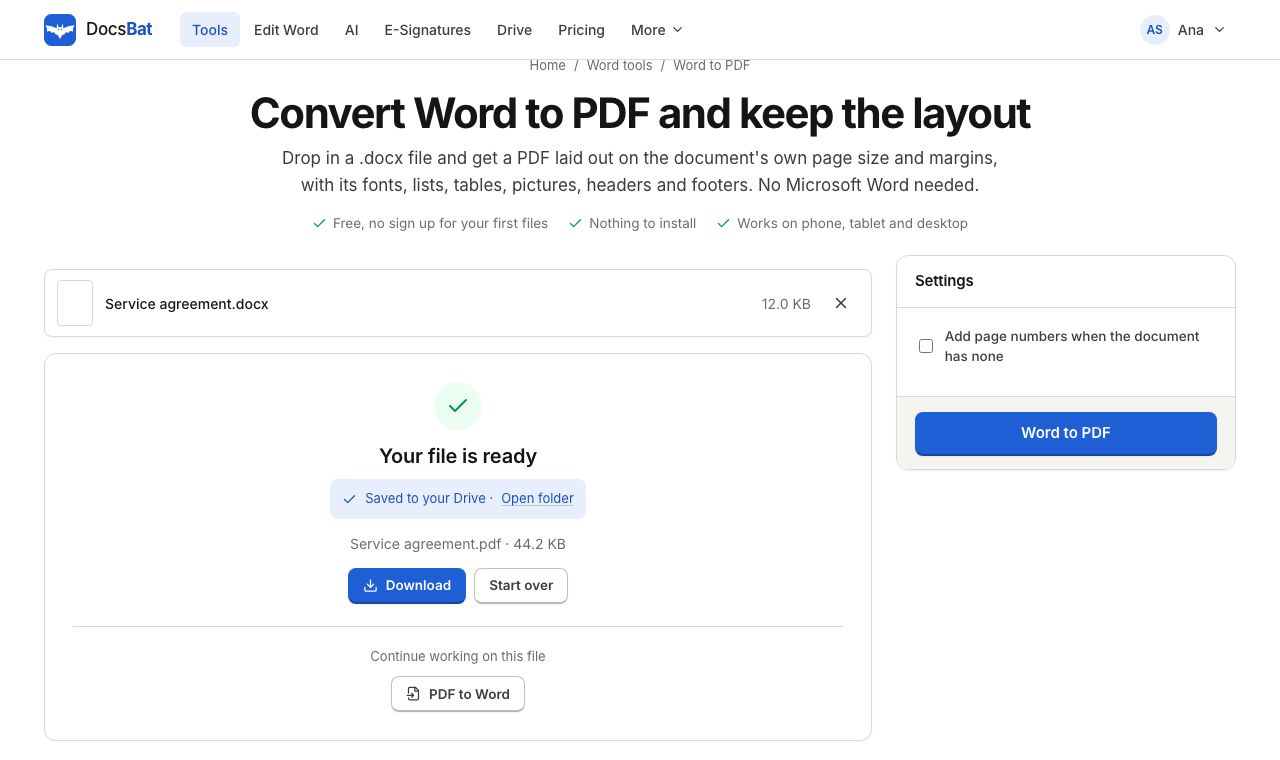
You can convert Word to PDF without Word in under a minute: no Office subscription, no installer and no admin rights on a borrowed laptop. DocsBat turns a .docx file into a PDF in your browser and keeps the things people actually care about: the fonts and line breaks, lists, tables, pictures, headers and footers, and page numbers. This guide walks through the steps, explains what the options do, compares the other free ways to do it and covers the problems people run into most often.
Why you might need to convert without Word
Plenty of people have a Word document but no copy of Word at hand:
- A shared or work computer where you cannot install software.
- A Chromebook, tablet or phone, where the full desktop Word app is not available or not signed in.
- A Mac without Office, where Pages can open .docx files but sometimes shifts the layout.
- A one off job, such as sending a CV, an invoice or a form, where paying for a subscription makes no sense.
- A file someone else wrote, using fonts you do not have.
PDF is the safest format to send in all of these cases. It looks the same on every screen, it prints the same, and the recipient cannot change it by accident.
How to convert Word to PDF without Word, step by step
- Open Word to PDF in any browser.
- Drop your .docx file onto the page, or click to choose it. You can also pick a file from your DocsBat Drive.
- If you want page numbers and the document has none of its own, tick Add page numbers when the document has none. Leave it off if your document already numbers its pages, so you do not get two sets.
- Click convert.
- Download the PDF. If you are signed in, a copy is also saved to your private Drive, ready to share with a link or send for signature.
That is all. You can run 3 conversions a day without an account. A free account gives you 10 tool tasks a day and keeps every result in 1 GB of Drive storage.
What the converter keeps
DocsBat reads the Word file itself rather than taking a screenshot of it, so the PDF has real, selectable and searchable text. It keeps:
- Fonts and spacing. When a document uses Microsoft fonts that are not freely licensed, DocsBat uses metric compatible twins: Calibri becomes Carlito and Cambria becomes Caladea. These have identical character widths, so every line and page breaks where it did in Word.
- Every language and script. Text in Arabic, Hebrew, Hindi, Tamil, Thai, Chinese, Japanese, Korean and many more is drawn with Noto fonts, so nothing turns into empty boxes.
- Lists and numbering, including nested bullets and numbered steps.
- Tables with their widths, borders, shading and merged cells.
- Pictures placed in the text.
- Headers and footers, stamped on every page, with the page numbers your document already has.
- Page size and margins from the document, whether that is A4, Letter or something custom.
The free alternatives, honestly compared
DocsBat is not the only way to do this. Depending on what you have, one of these may be just as good:
- Word's own Save as PDF. If you do have Word, File > Save As (or Export) > PDF gives the most faithful result, because Word lays out its own format. Word for the web, free with a Microsoft account, can also download a document as PDF.
- Google Docs. Upload the .docx to Google Drive, open it in Docs and choose File > Download > PDF. It works well for simple documents, but Docs converts the file into its own format first, so complex layouts, text boxes and some fonts can move.
- LibreOffice Writer. Free desktop software for Windows, Mac and Linux. Open the .docx and use File > Export as PDF. It is very capable, but you need to install it, and layout can differ slightly from Word.
- Pages on a Mac. Open the .docx and use File > Export To > PDF. Fine for simple files.
Use DocsBat when you cannot install anything, when you are on a phone or a Chromebook, or when you want the PDF saved straight to a Drive where you can share it or send it for e signature.
Special cases
Password protected documents
If the Word file needs a password to open, DocsBat asks for it before converting. The password is used only to read the file and the PDF has no password. To protect the PDF afterwards, keep the original .docx locked with Protect Word and send the PDF through a private share link from your Drive.
Old .doc files
DocsBat works with modern Word files: .docx, plus macro enabled .docm and template .dotx files. The old binary .doc format from Word 97 to 2003 is not supported. Open the file in any word processor, save it as .docx, then convert it.
Documents with tracked changes and comments
If you are sending a final version, clean the file first. Accept Changes and Remove Comments accepts every tracked change, deletes comments and can remove hidden text in one step. Then convert the clean copy.
Very large documents
Free accounts can upload files up to 25 MB and Pro up to 100 MB. If a report is large because of its photos, run Compress Word first. It shrinks the pictures to the size they are shown at, which also makes the PDF smaller.
Converting the other way
Need to edit a PDF as a Word document? PDF to Word rebuilds paragraphs, headings, lists and pictures into an editable .docx. It works best on text based PDFs with a simple layout; complex layouts and tables are not rebuilt exactly, and scanned PDFs need OCR first.
Troubleshooting
- A font looks different. The document may use a font that has no free twin. DocsBat picks the closest match, a serif, sans serif or monospaced font as appropriate. If the exact font matters, convert in Word itself or embed fonts when you save in Word.
- A page breaks in a different place. This usually happens with floating text boxes or shapes positioned relative to the page. Simplify the layout, or move the object into the text flow, and convert again.
- "This is an old .doc file". Save it as .docx first, as described above.
- "This Word file is password protected". Enter the password you were given. DocsBat cannot open a file if you do not know its password.
- You get two sets of page numbers. Untick Add page numbers when the document has none, since your document already has them in its footer.
Tips for a clean PDF
- Check the document in the Word editor before converting and fix typos there; the edited file saves back to .docx in your Drive.
- Set the document properties, such as title and author, with Edit Word Properties. PDF readers show the title in their window bar.
- Add a DRAFT or CONFIDENTIAL mark with Watermark Word before converting, so the mark sits behind the text on every page of the PDF.
- Need pictures instead of a PDF, for a slide or a social post? Word to JPG saves every page as a JPG or PNG image.
Converting Word to PDF should not depend on owning Word. Open the converter, drop in your file and you will have a PDF ready to send in seconds.
Frequently asked questions
Can I convert Word to PDF without having Word installed?
Yes. DocsBat converts .docx files to PDF in your browser, so you do not need Word, Office or any other software on the computer, tablet or phone you are using.
Will my fonts look the same in the PDF?
Fonts installed with the document are used where available. Common Microsoft fonts are replaced by free fonts with the same measurements, such as Carlito for Calibri and Caladea for Cambria, so lines and pages break in the same places.
Can I convert an old .doc file?
Not directly. DocsBat reads .docx, .docm and .dotx files. Open the .doc in Word, LibreOffice or Google Docs, save it as .docx, then convert it.
What about a password protected Word file?
Enter the password when DocsBat asks for it. The file is unlocked for the conversion only and the PDF you get has no password.
Is it free?
Yes. You can run 3 conversions a day without an account, or 10 tool tasks a day with a free account. Pro is $4 a month for unlimited tasks and files up to 100 MB.
Does it work on a phone?
Yes. The converter runs in Safari and Chrome on iPhone, iPad and Android, as well as on Windows, Mac, Linux and Chromebooks.