Edit Word document properties and remove personal information
See what a .docx says about itself, change its title, author, subject and keywords, or strip the author, editors, company and revision history in one click before you send it to anyone.
- Free, no sign up for your first files
- Nothing to install
- Works on phone, tablet and desktop
Your Word file says more than its text
Every Word document carries properties: who created it, who saved it last, the company name, the template it came from, how long it was edited and keywords someone typed years ago. File browsers, search engines and document systems show some of these, and anyone can read all of them in Word's file information.
DocsBat lets you control that information. When you upload a file, its current Title, Author, Subject and Keywords are read and shown, so you can see what is there before changing it. Set clean values for a professional document, or tick Remove all personal information to strip the details that identify you and your colleagues.
Why edit properties with DocsBat
See current values
The existing title, author, subject and keywords are filled in from the file as soon as you upload it.
Set clean properties
Give the document a proper title and author so it looks right in search results, file lists and document systems.
Remove personal information
Strip the author, last editor, company, manager and the names attached to comments and tracked changes.
Share with less risk
Send contracts, CVs and reports without leaking internal names, old templates or editing history.
Works anywhere
Runs in your browser on any device. No need to dig through Word's file information screens.
How it works
- 1
Upload the Word file
Drop a .docx, .docm or .dotx file or choose one from Drive. The current properties are read and shown in the form.
- 2
Edit or remove
Change Title, Author, Subject and Keywords, and tick Remove all personal information if you want the file cleaned.
- 3
Download
DocsBat writes the new properties and returns the .docx, with a copy saved to your Drive.
Options explained
- Title
- The document title shown in file details and often used by search engines and document libraries.
- Author
- The creator recorded in the file. Set it to your company name or the person responsible for the document.
- Subject
- A short description of what the document is about.
- Keywords
- Tags that help search tools find the file, for example "contract, supplier, 2026".
- Fields left empty are kept
- Only the fields you fill in are changed. An empty field leaves the existing value as it is, unless you also remove personal information.
- Remove all personal information
- Removes author, last modified by, description, keywords, subject, category, status, revision number and last printed date; company, manager, template and total editing time; and all custom properties. Names on tracked changes and comments become "Author" and revision ids are removed.
- Clean and retitle together
- Tick the removal option and fill in a new Title or Author in the same run to strip old details and set the ones you want.
When people edit Word metadata
- Sending a CV or cover letter: make sure the author is you, not the template site or a previous employer.
- Sharing contracts and proposals: remove internal reviewer names and the company template path before the document leaves the office.
- Publishing documents online: give each file a clear title and keywords so it is described properly.
- Reusing an old document: clear the original author and editing history before turning it into something new.
- Anonymous review: remove names from comments and tracked changes for blind peer review.
What it does not remove
Properties are only part of what a document can reveal. The tool does not change the text itself, so names typed in the body, headers or footers stay. It does not delete comments or tracked changes either; it only anonymises their authors. To remove them, run Accept Changes and Remove Comments. Pictures can carry their own metadata, such as camera details, which this tool does not touch.
Converting to PDF afterwards? Word to PDF creates a new PDF file, so check the PDF's own properties in your reader if they matter.
Frequently asked questions
How do I remove the author name from a Word document?
Upload the file, tick Remove all personal information and download the result. The author, last modified by and other identifying properties are removed.
How do I change the author of a Word document online?
Upload it, type the new name in Author and download. Other properties you leave empty stay as they were.
Does it remove names from comments and tracked changes?
Yes, with Remove all personal information. Every comment and tracked change author becomes "Author". The comments and changes themselves stay until you remove them with Accept Changes and Remove Comments.
Can I see the current properties before editing?
Yes. Title, Author, Subject and Keywords are read from the file when you upload it and shown in the form.
Does it change the content of my document?
No. Only properties and author names attached to revisions change. Text, formatting and layout stay the same.
Is it free?
Yes. 3 runs a day without an account, 10 a day with a free account, and unlimited on Pro for $4 a month.
Related features and tools
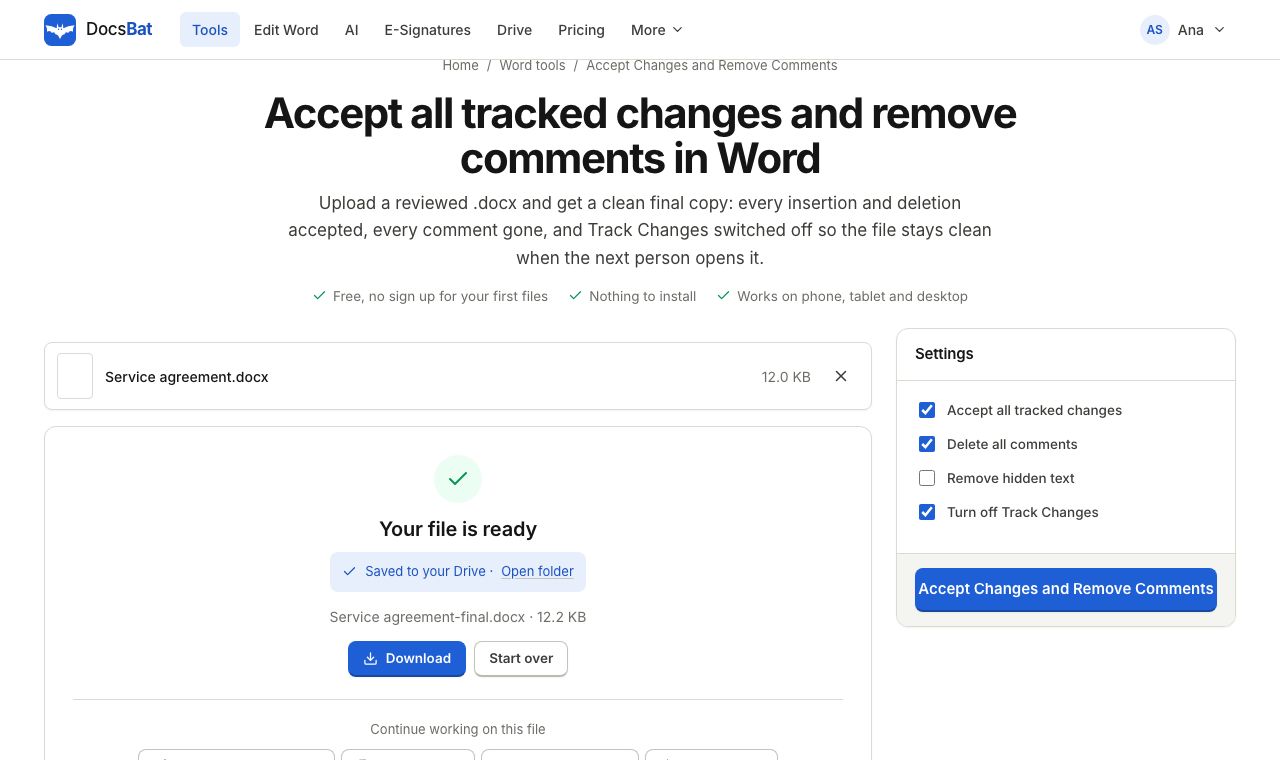 Accept Changes and Remove CommentsFinalise a Word document: accept every tracked change, delete all comments and remove hidden text in one go.
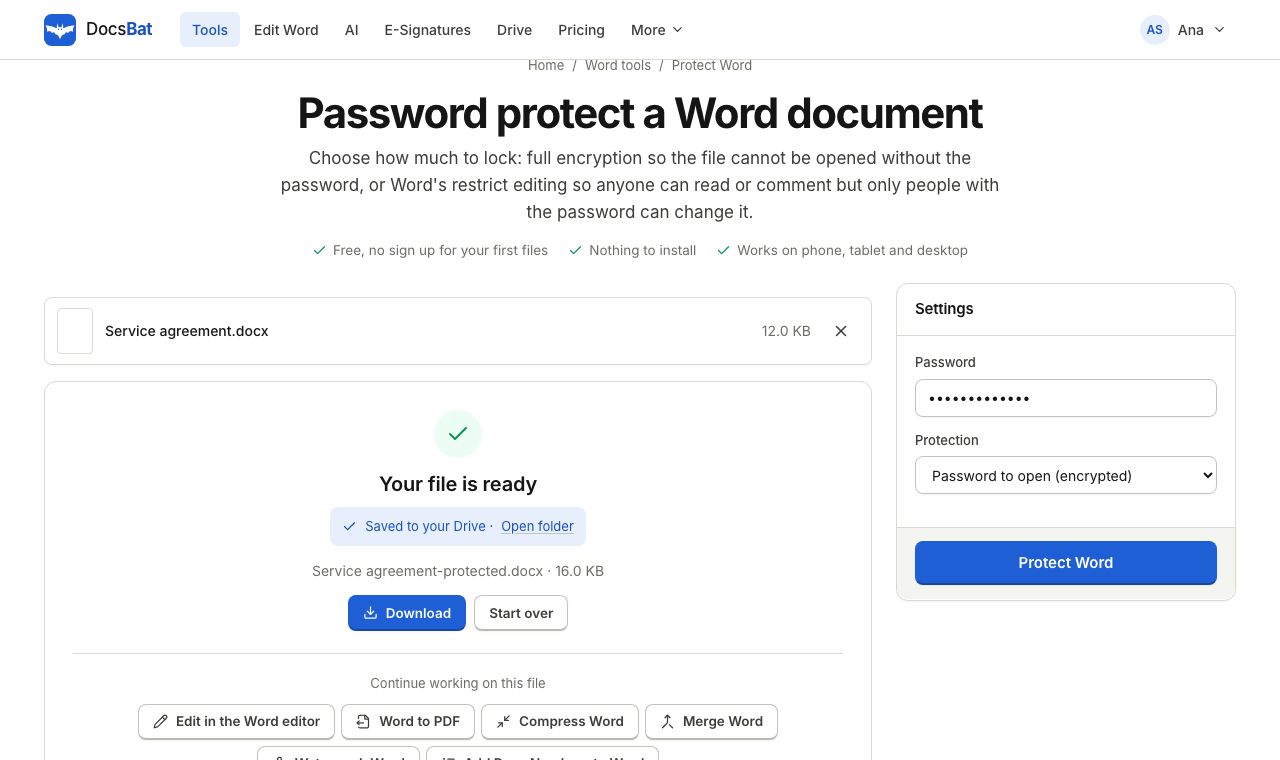 Protect WordLock a Word document with a password to open, or make it read only or comments only with a password to edit.
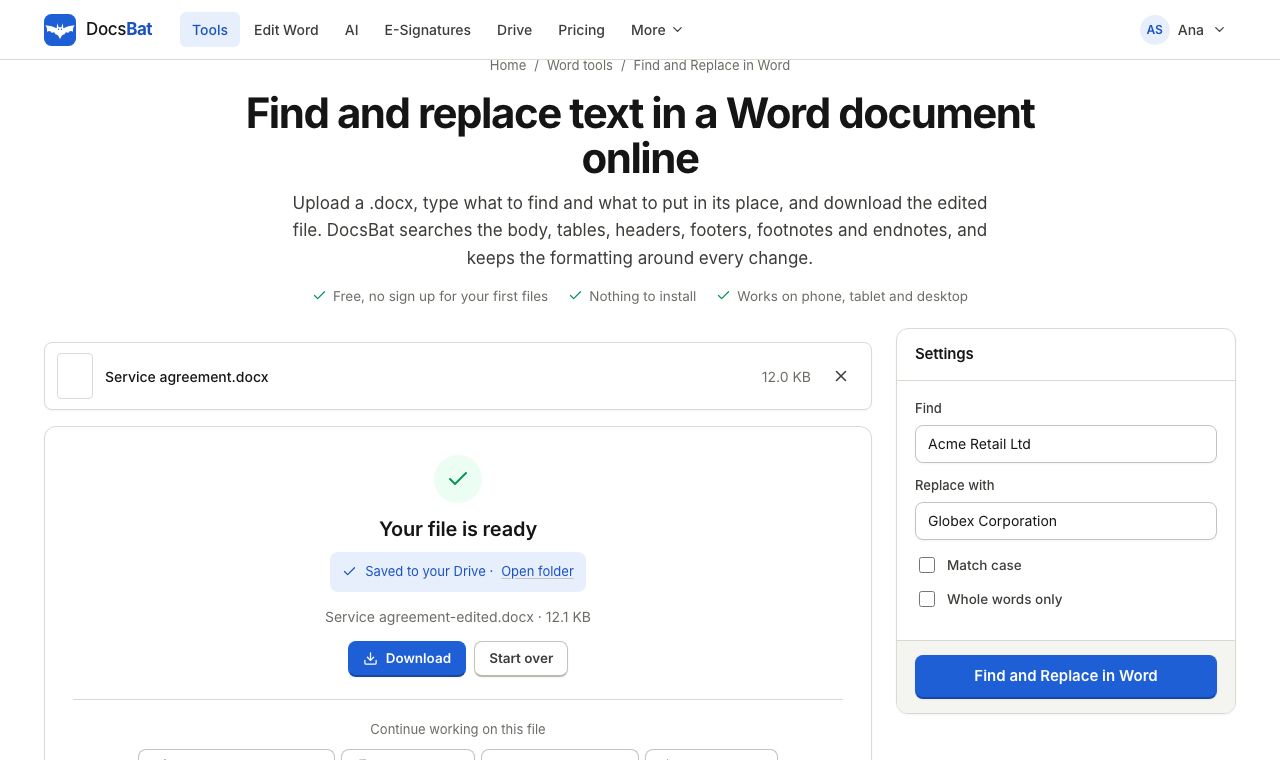 Find and Replace in WordReplace a word or phrase everywhere in a Word file, including headers, footers, tables and footnotes, keeping the formatting.
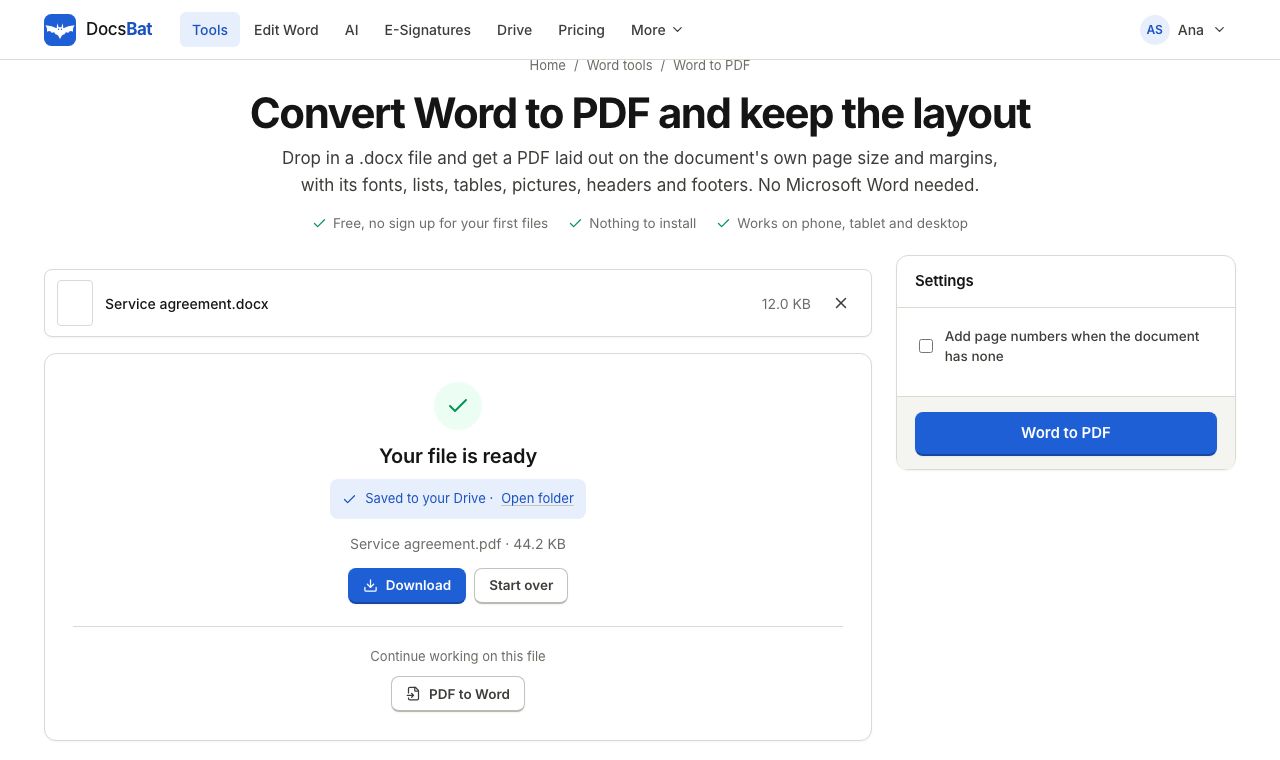 Word to PDFTurn a .docx into a PDF that keeps its fonts, lists, tables, pictures, headers, footers and page numbers.
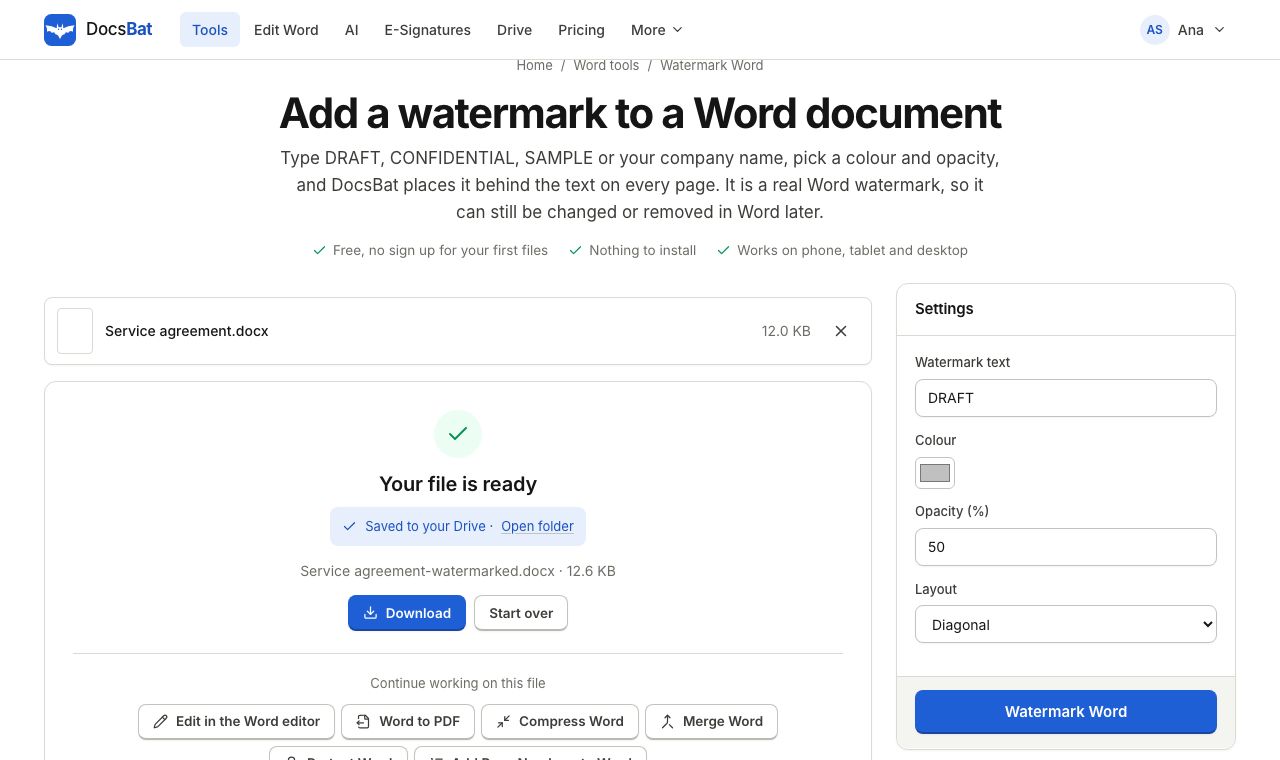 Watermark WordAdd a DRAFT or CONFIDENTIAL text watermark behind the text on every page of a Word document, the way Word does it.
 Free Word Tools17 free tools to convert, merge, split, compress, edit and protect Word documents in your browser.
Ready? Your file is one click away
Free, in your browser. Create a free account to get 10 tasks a day and keep every result in your own Drive.