How to Merge Word Documents Into One File
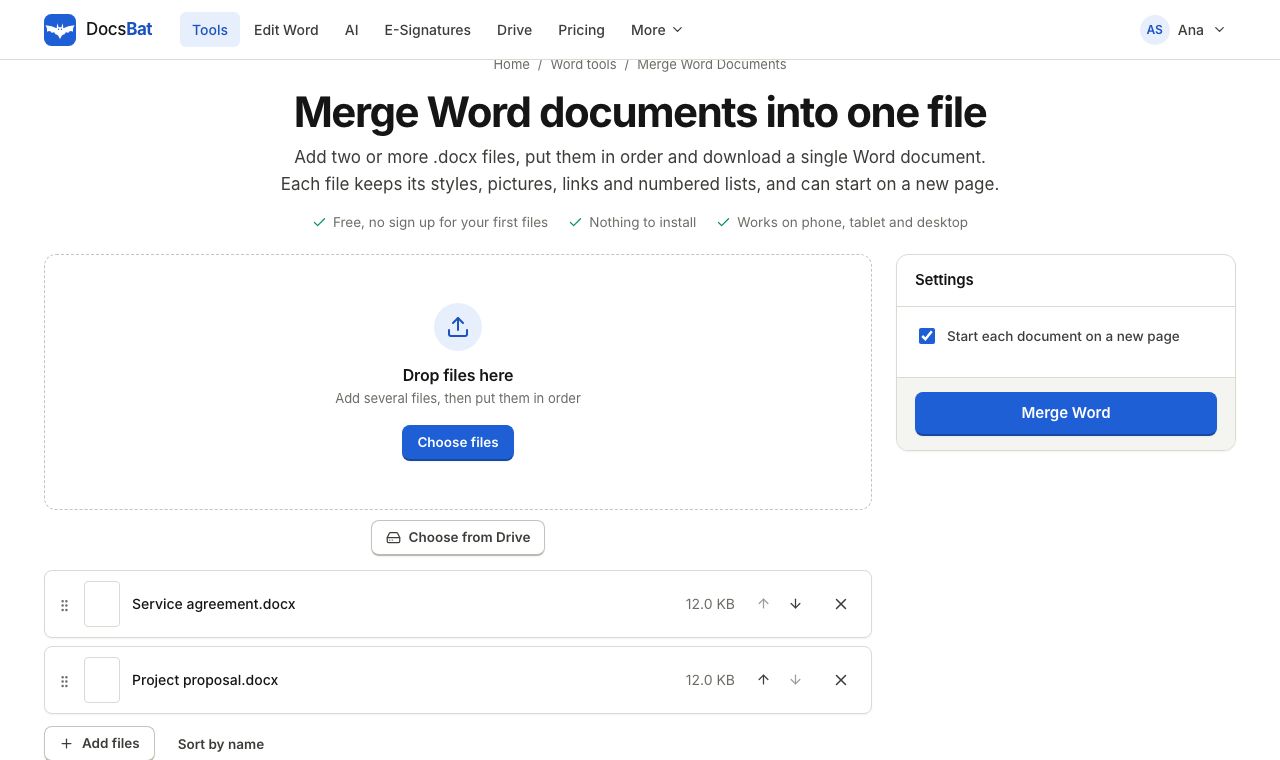
Merging Word documents sounds simple until you try copying and pasting twenty pages and watch the numbering, styles and pictures fall apart. This guide shows how to merge Word documents into a single .docx in your browser with DocsBat, how to do it inside Word with Insert Text from File, and what to expect from each method so the result looks right the first time.
When you need to combine Word files
- Reports written by several people, one chapter each, that need to become one deliverable.
- A contract and its schedules, kept as separate files while drafting.
- A thesis or book written chapter by chapter.
- Monthly minutes or logs collected into a yearly document.
- Template letters or sections assembled into a single pack.
In all of these, you want one editable Word file at the end, not a PDF. If you only need a file to read or print, merge first and then convert with Word to PDF.
How to merge Word documents online, step by step
- Open Merge Word.
- Add two or more .docx files. Drop them onto the page together, choose them from your device, or pick files already in your DocsBat Drive.
- Put them in the order you want. The first file in the list comes first in the merged document.
- Decide on Start each document on a new page. It is on by default, which inserts a page break before each document after the first. Untick it if the documents should run on without a break.
- Click merge and download the combined .docx. If you are signed in, a copy is saved to your Drive too.
You can merge 3 times a day without an account, or run 10 tool tasks a day with a free account.
What is kept, and what changes
DocsBat does not paste text. It copies the content of each document into the first one, part by part, and brings along everything that content depends on.
Kept from every document:
- Paragraph and character formatting: fonts, sizes, colours, bold, italic and so on.
- Styles that the first document does not already have.
- Tables with their layout and borders.
- Pictures, which are copied into the merged file at their original quality.
- Hyperlinks.
- Numbered and bulleted lists. Each document's lists get their own numbering definitions, so a list in chapter 2 does not continue the numbers of a list in chapter 1.
Taken from the first document:
- Page size, orientation and margins.
- Headers and footers, including any page numbers.
- The definition of any style that both documents share. If chapter 1 and chapter 2 both use the Normal style but with different fonts, the merged file uses chapter 1's version for both.
Removed from the second and later documents:
- Footnotes, endnotes and comments. Their markers are removed so the merged file opens cleanly. If you need them, add them again in the merged file, or merge in Word as described below.
This makes the first document the template for the whole merge. Put the file with the page layout and headers you want at the top of the list.
How to merge documents in Microsoft Word
If you have desktop Word, it can insert one document into another:
- Open the document that should come first.
- Click where the next document should start, usually at the very end. Add a page break with Insert > Page Break if you want it on a new page.
- Go to Insert, open the Object menu in the Text group and choose Text from File.
- Select one or more .docx files. If you select several, they are inserted in the order the file dialog lists them, so number the file names first.
- Save the document under a new name.
Word's method keeps footnotes and comments from the inserted files, which is its advantage. Like DocsBat, it applies the first document's styles where names clash. It needs the desktop app; Word for the web does not offer Text from File.
Other free ways
- Google Docs. There is no built in merge. You open each file and copy and paste, which loses numbering and some formatting on complex documents.
- LibreOffice Writer. Free desktop software. Use Insert > Text from File much like Word, or a master document for long books.
- Copy and paste. Fine for two short documents. Use Keep Source Formatting when pasting in Word, and check numbered lists afterwards.
Use DocsBat when you do not have desktop Word, when you are on a phone or Chromebook, or when the files already live in your DocsBat Drive.
Tips for a clean merged document
- Name files in order, for example
01 Introduction.docx,02 Method.docx, so they are easy to arrange. - Finalise each file first. Accept tracked changes and delete comments with Accept Changes and Remove Comments, so nothing unfinished is carried into the merge.
- Use the same template. Documents built from the same styles merge most smoothly, because shared style names then mean the same thing.
- Number the pages after merging. Use Add Page Numbers to Word on the merged file so numbering runs across the whole document. The numbers are real Word fields, so they stay right as you keep editing.
- Add one header and footer for everything with Add Header and Footer to Word, using
{page}and{pages}for numbers. - Unify wording across chapters with Find and Replace in Word, for example a client name that changed halfway through a project.
Splitting it again
Merging and splitting are two sides of the same job. If you later need the chapters as separate files, Split Word cuts a document at each Heading 1 (or Heading 1 and 2), at page breaks, or into a number of parts of equal length, and gives you a zip of .docx files.
Troubleshooting
- "This Word file is password protected". Merge does not take passwords. Unlock each locked file first with Unlock Word, using the password you know.
- "This is an old .doc file". Save it as .docx first.
- Text in a later chapter changed font. The two files use the same style name with different settings. Change the style in the merged file once, or apply direct formatting.
- A chapter's footnotes are missing. Only the first document's footnotes are kept. Merge in desktop Word if footnotes in every chapter matter.
- Headers are wrong for a chapter. The merged file uses the first document's headers and footers throughout. Set new ones on the merged file.
Merging should take seconds, not an afternoon of pasting. Add your files, set the order and download one tidy Word document.
Frequently asked questions
How do I combine multiple Word documents into one?
Open Merge Word in DocsBat, add two or more .docx files, put them in order and click merge. You get one .docx file you can keep editing in Word or any word processor.
Will the formatting be kept?
Yes. Text formatting, styles, tables, pictures, links and numbered or bulleted lists of each file are carried across. Page size, margins, headers and footers come from the first document.
Can each document start on a new page?
Yes. Start each document on a new page is on by default. Untick it to let each document follow straight on from the one before.
What happens to footnotes and comments?
Footnotes, endnotes and comments of the first document are kept. Those in the documents added after it are removed, so the merged file stays valid.
Can I merge password protected Word files?
Remove the password first with Unlock Word, using the password you know, then merge the unlocked copies.
Can I merge .doc files?
Not directly. Save old .doc files as .docx first, in Word, LibreOffice or Google Docs.