How to Remove a Password From a Word Document
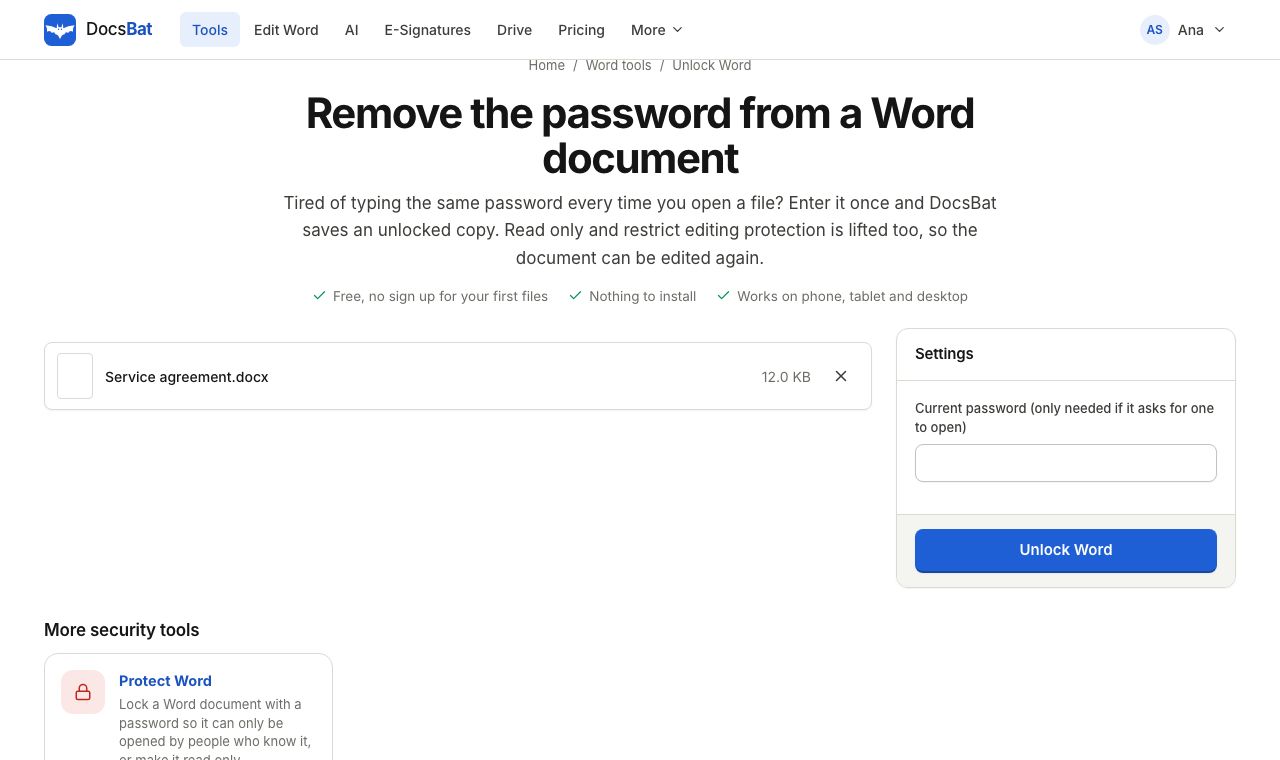
A password on a Word document is useful while a file travels, and a nuisance once it has arrived. If you have to type the password every time you open a contract or a report, or a colleague cannot edit a document because it is locked, you will want to remove it. This guide shows how to remove a password from a Word document in your browser with DocsBat and inside Word, explains the two very different kinds of Word protection, and is clear about what cannot be done.
First, which kind of lock is it?
Word has two protection features that look similar but work completely differently.
Password to open (encryption). Word asks for a password before it shows anything. The whole file is encrypted, so without the password the content cannot be read by Word or any other program. You set this in File > Info > Protect Document > Encrypt with Password.
Restrict editing. The document opens normally, but you can only read it, or only add comments, or only fill in form fields. Word asks for a password when you try to stop the protection. The content is not encrypted; the restriction is a setting stored in the file. You set this in Review > Restrict Editing.
There is also Mark as Final, which just shows a banner asking readers not to edit. Anyone can click Edit Anyway, so it needs no unlocking at all.
How to remove a password with DocsBat
- Open Unlock Word.
- Drop in the locked .docx file, or choose it from your Drive.
- If the file needs a password to open, type it in Current password (only needed if it asks for one to open). If the document only restricts editing, leave the box empty.
- Click unlock and download the copy.
The unlocked file has no password to open and no editing restrictions. Everything else in it, text, formatting, pictures, comments and tracked changes, is untouched. If you are signed in, the copy is saved to your private Drive.
If you upload a file that has neither a password nor restrictions, DocsBat tells you it is not locked rather than giving you an identical copy.
How to remove a password in Microsoft Word
Password to open
- Open the document and enter its password.
- Go to File > Info.
- Click Protect Document and choose Encrypt with Password.
- Delete the dots in the password box so it is empty, and click OK.
- Save the document.
On a Mac, the setting is under Review > Protect Document, or in the Save As options, depending on your version.
Restrict editing
- Open the document.
- Go to Review > Restrict Editing.
- Click Stop Protection at the bottom of the pane.
- Enter the editing password if Word asks for one.
- Save the document.
Word's method works whenever you have desktop Word and know both passwords. DocsBat helps when you do not have Word, are on a phone or Chromebook, or have lost the editing password for a document you own.
What cannot be done
It is worth being direct about this, because many sites suggest otherwise:
- A forgotten password to open cannot be removed. Modern .docx encryption is strong. DocsBat does not try to guess or crack passwords, and an online tool that claims to "remove" an unknown open password is really trying to guess it, which may take forever and means sending your file to a stranger.
- Old .doc files are not supported. The Word 97 to 2003 format uses different protection. Open the .doc in Word with its password and save it as .docx.
- A PDF made from the document is a separate file. Unlocking the .docx does not affect any PDF you exported from it.
If you have truly lost the open password, look for an unprotected copy: an email attachment you sent earlier, a version in OneDrive or Google Drive history, or a PDF export.
A note on restrict editing
Because restrict editing does not encrypt anything, it is a convenience rather than security. Unlock Word removes it without the editing password. That is helpful when the person who set it has left the team or the password was never written down, but it also means you should never rely on restrict editing to keep a file safe. Use it only on documents you are entitled to edit.
Locking the file again, properly
Once you have finished editing, you may want protection back. Protect Word offers three modes:
- Password to open (encrypted) encrypts the file with the same standard encryption Word uses. Nobody can read it without the password.
- Anyone can open, password to edit opens the file read only until the password is given.
- Anyone can open and comment, password to edit allows comments but no other changes.
Passwords must be at least 4 characters, but use something much longer for anything sensitive, and share it through a different channel from the file, such as a phone call or a text message.
Related jobs after unlocking
- Merge it with other files. Merge Word does not accept locked files, so unlocking comes first.
- Remove hidden personal data. Edit Word Properties can strip the author, editors, company and revision history before you share a file outside your team.
- Finalise it. Accept Changes and Remove Comments accepts tracked changes and deletes comments in one step.
- Send it as a PDF. Word to PDF can read a password protected .docx directly when you give it the password, so you do not always need to unlock first.
Troubleshooting
- "That password is not right for this Word file". Passwords are case sensitive. Check Caps Lock and try any variations you used.
- "This Word document is not locked". The file has no password and no editing restriction. If Word still will not let you edit, it may be opened in Protected View; click Enable Editing, or check that the file itself is not set to read only on your computer.
- "This is an old .doc file". Save it as .docx in Word first.
- The file still asks for a password in Word. Make sure you opened the downloaded copy, not the original.
Removing a password you know should take seconds. Upload the file, enter the password and keep working.
Frequently asked questions
How do I remove a password from a Word document?
If you know the password, open Unlock Word in DocsBat, add the file, enter the current password and download the unlocked copy. In Word, open the file and go to File > Info > Protect Document > Encrypt with Password, clear the box and save.
Can DocsBat recover a password I have forgotten?
No. A Word password to open encrypts the file, and DocsBat does not guess or crack passwords. You need the password to remove it.
What about a document that opens but will not let me edit?
That is restrict editing, which does not encrypt the file. Unlock Word lifts it without asking for a password, so only use it on documents you are entitled to edit.
Does unlocking change the content?
No. Text, formatting, pictures, comments and tracked changes stay as they are. Only the encryption and the editing restriction are removed.
Can I unlock an old .doc file?
No. DocsBat works with .docx, .docm and .dotx files. Open the .doc with its password in Word and save it as .docx without a password.
How do I put a password back on later?
Use Protect Word. Choose Password to open for real encryption, or let anyone open the file but require a password to edit.