Convert PDF to an editable Word document
Upload a PDF and get a .docx where the text flows as normal paragraphs, headings are real Word headings and lists are real lists, so you can edit it like any document you wrote yourself.
- Free, no sign up for your first files
- Nothing to install
- Works on phone, tablet and desktop
Get the words back out of a PDF
Someone sent you a PDF and you need to change it: update a CV, reuse a report, fix a letter or quote from a paper. Copying text out of a PDF by hand breaks lines in the wrong places and loses headings and lists. PDF to Word does that work for you.
DocsBat reads the text of every page, joins lines back into paragraphs, repairs words that were split with a hyphen at the end of a line, recognises headings from their size and turns bullet and numbered lines into real Word lists. Pictures are cut out of the page and placed where they were. The result is a clean .docx you can open in Word, Google Docs, LibreOffice or the DocsBat Word editor.
What you get in the Word file
Flowing paragraphs
Lines are joined into paragraphs, so text rewraps naturally when you edit instead of breaking at the old line ends.
Real headings
Larger text becomes Heading 1, 2 or 3, so the navigation pane and a table of contents work straight away.
Real lists
Lines starting with bullets, numbers or letters become Word bulleted or numbered lists.
Pictures kept
Photos, logos and charts are placed in the document at their size. Untick Keep pictures for a text only file.
Saved to Drive
The .docx is saved to your private Drive, so you can open it in the editor or another Word tool without uploading again.
How it works
- 1
Upload a PDF
Drop a PDF onto the page or pick one from your device or Drive. Up to 300 pages per conversion.
- 2
Choose about pictures
Leave Keep pictures on to include images, or turn it off if you only want the text.
- 3
Convert and edit
Download the .docx and open it in Word, or keep going in the DocsBat Word editor.
How the conversion works
- Keep pictures
- On by default. Images in the PDF are copied into the Word file at their shown size, centred when they were centred on the page. Full page background images are skipped.
- Heading detection
- DocsBat finds the main body text size and treats clearly larger text as headings, up to three levels.
- Bold, italic and size
- Paragraphs that are entirely bold or italic keep that style, and text noticeably larger or smaller than the body keeps its size.
- Page breaks
- Each PDF page starts a new page in Word, so page references still roughly line up.
- Page size
- The Word document uses the page size of the first PDF page.
- Up to 300 pages
- Longer PDFs need to be split into parts first and converted one part at a time.
Honest limits
PDF to Word rebuilds text structure, not the exact page design. It works best on documents that are mostly text: letters, CVs, reports, articles, manuals and essays.
- Tables come out as paragraphs of text, not Word tables. Rebuild them in Word if you need the grid.
- Complex layouts such as multiple columns, text boxes, forms and magazine pages are turned into a single flow of paragraphs.
- Scanned PDFs have no text layer, only a picture of each page, so there is nothing to convert. Run OCR on the scan in another app first, then convert the result.
- Fonts are not copied. The Word file uses the default document font, with bold, italic and size kept where they are clear.
Good uses for PDF to Word
- Updating an old CV when you only kept the PDF.
- Reusing paragraphs from a report or policy in a new document.
- Correcting a letter or notice someone sent as a PDF.
- Translating or rewording text, then converting back to PDF.
- Replacing a name or date throughout with Find and Replace after converting.
Frequently asked questions
Is the Word file editable?
Yes. The text is real Word text in paragraphs, headings and lists, not pictures of the pages, so you can type, delete and reformat it.
Will the Word document look exactly like the PDF?
Not exactly. DocsBat rebuilds the content as flowing text so it is easy to edit. Paragraphs, headings, lists and pictures come across, but tables, columns and precise positioning do not.
Can I convert a scanned PDF to Word?
Not directly. A scan is a picture with no text in it. Run OCR on it in another app to add a text layer, then convert it here.
Are tables converted to Word tables?
No. Table contents come out as text paragraphs. If you need the table, recreate it in Word or the DocsBat editor.
How many pages can I convert?
Up to 300 pages at a time. Split longer PDFs into parts first.
Can I convert a password protected PDF?
Remove the password first with the password you know, then upload the unlocked PDF.
Is PDF to Word free?
Yes. You get 3 runs a day without an account, 10 tasks a day with a free account and unlimited tasks on Pro for $4 a month.
Related features and tools
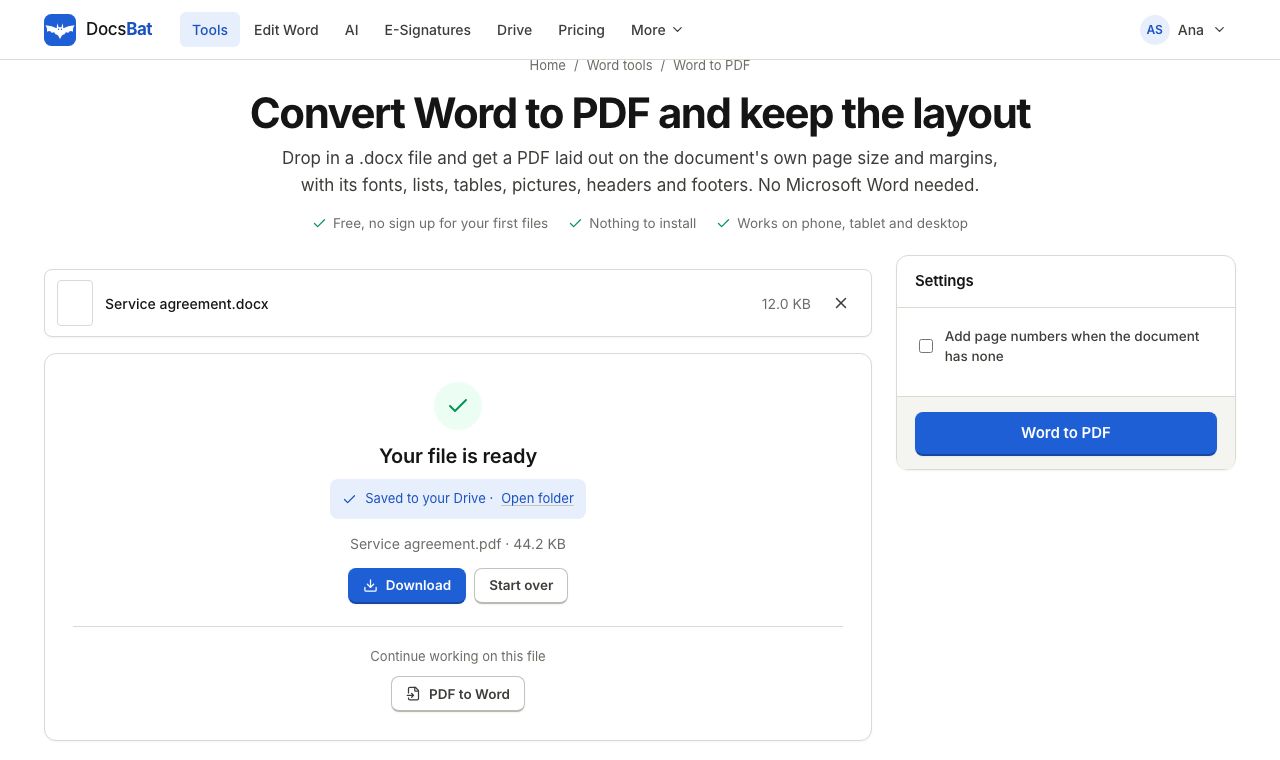 Word to PDFTurn a .docx into a PDF that keeps its fonts, lists, tables, pictures, headers, footers and page numbers.
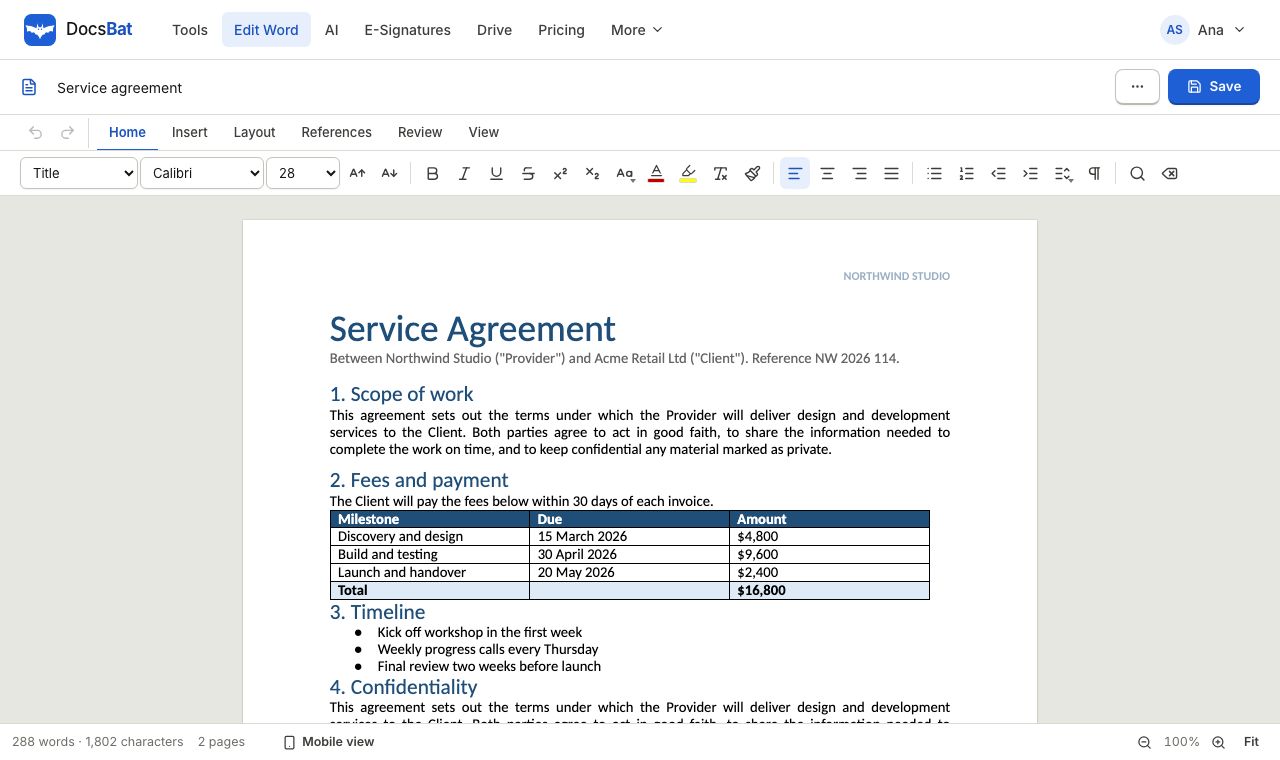 Word EditorOpen a .docx in your browser, edit text, lists, tables and pictures, and save it back as Word or PDF.
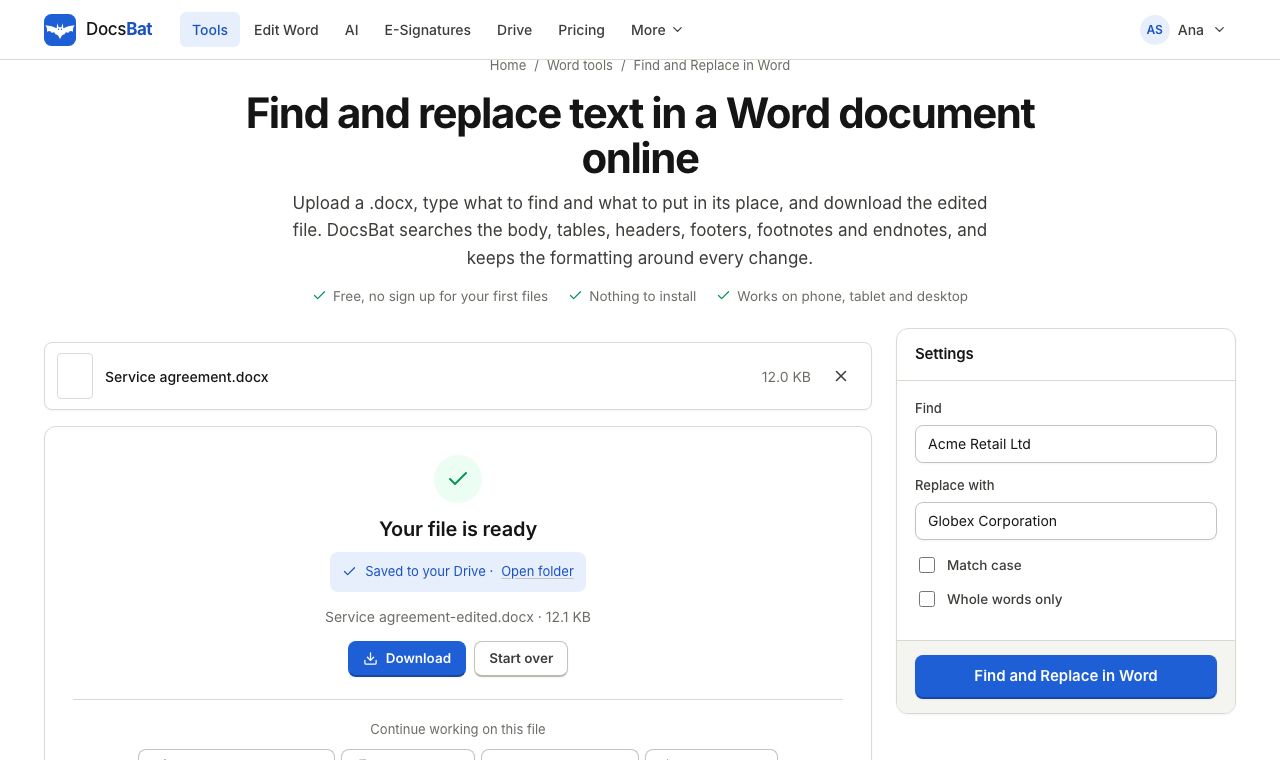 Find and Replace in WordReplace a word or phrase everywhere in a Word file, including headers, footers, tables and footnotes, keeping the formatting.
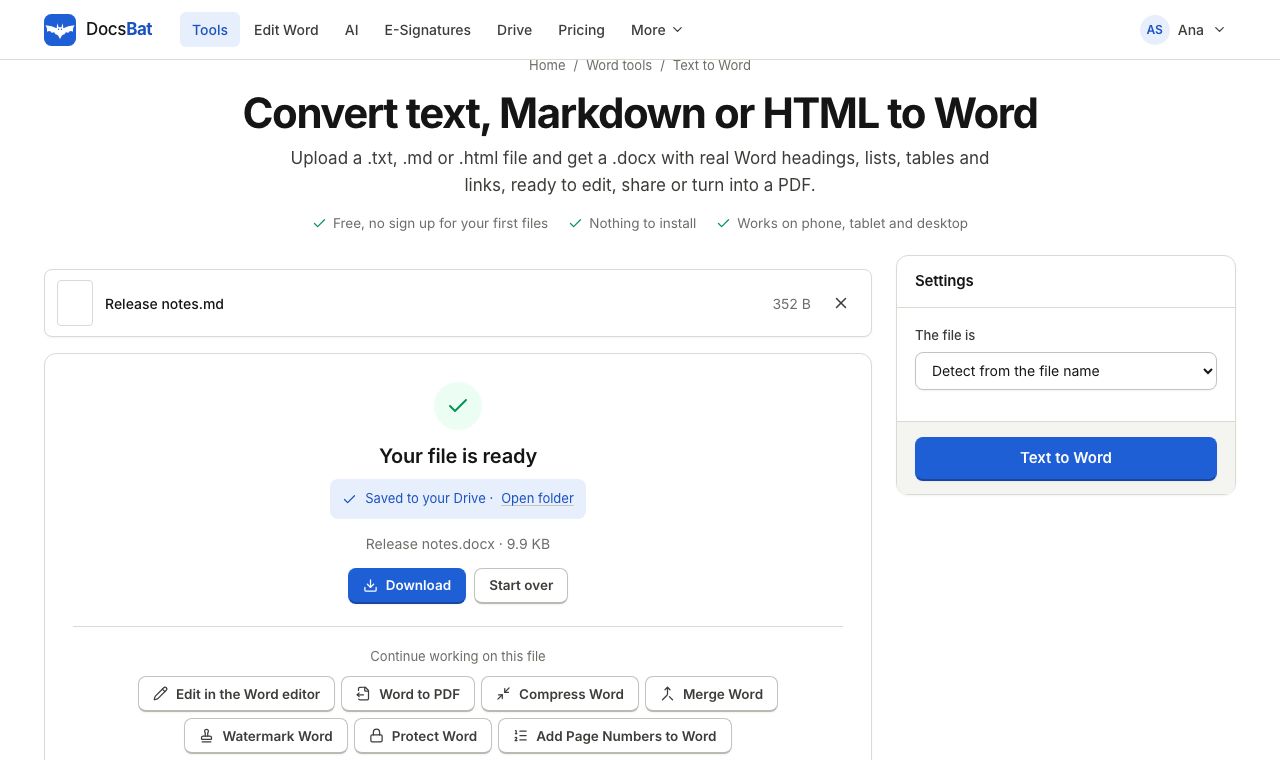 Text to WordTurn plain text, Markdown or an HTML page into a formatted Word document.
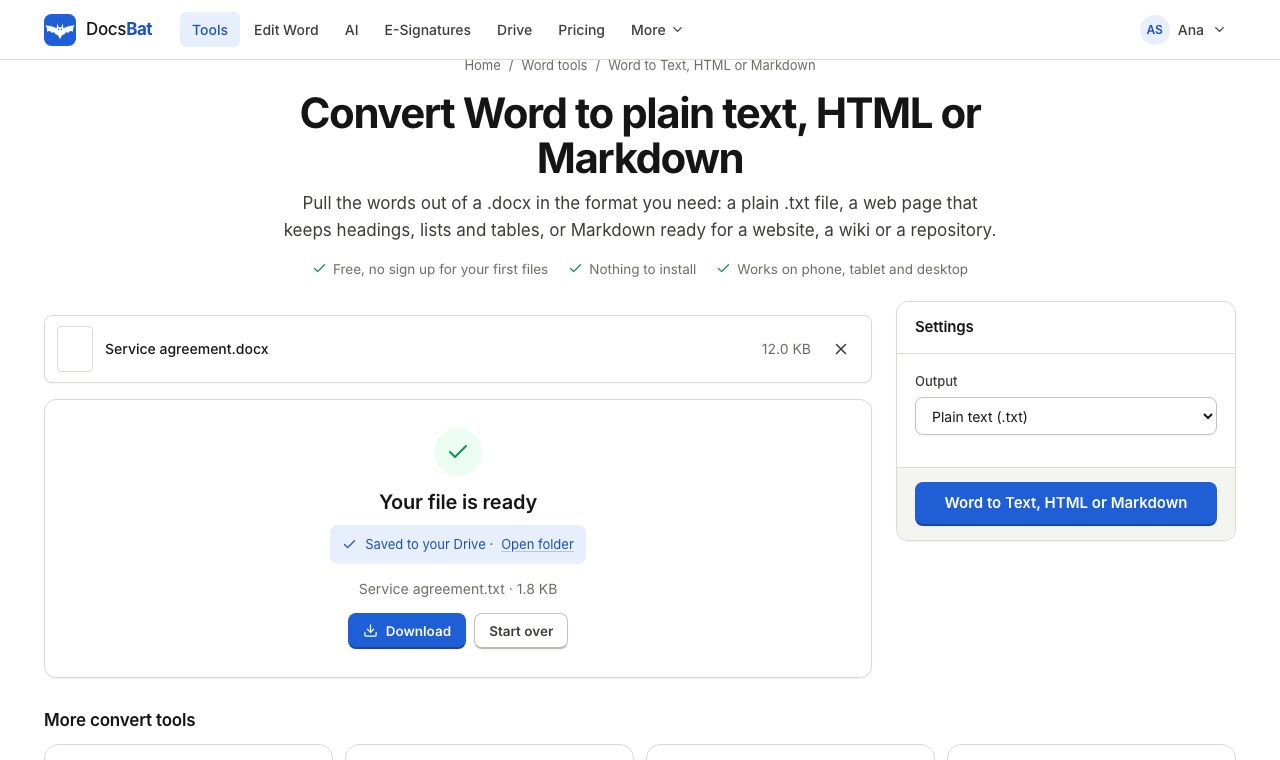 Word to Text, HTML or MarkdownGet the text of a Word document as plain text, a web page or Markdown.
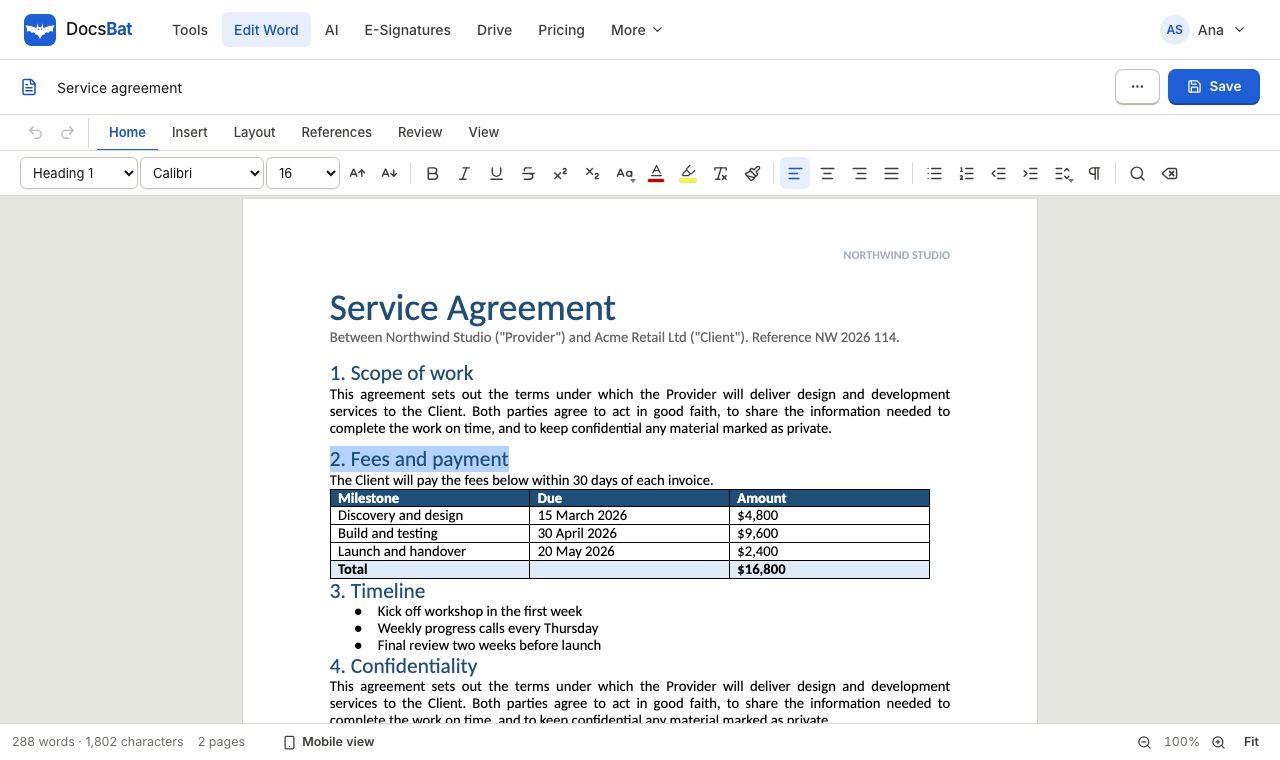 Edit Word online freeOpen a .docx in your browser, change the text, tables and pictures, and save it back as a Word file or a PDF.
Ready? Your file is one click away
Free, in your browser. Create a free account to get 10 tasks a day and keep every result in your own Drive.