Compress a Word document to email it
Large .docx files are almost always large because of photos. DocsBat resizes each picture to what the page actually needs, recompresses it and repacks the file, leaving every word and the layout as they were.
- Free, no sign up for your first files
- Nothing to install
- Works on phone, tablet and desktop
Why your Word file is so big
A modern phone photo is several megabytes. Insert ten of them into a report and shrink them on the page, and Word still stores every one at full camera size. The text of even a long document takes only a few hundred kilobytes, so pictures are where the space goes.
Compress Word looks at how big each picture is actually shown in the document, scales it down to about twice that size so it still prints sharply, and saves it again as JPEG, or as PNG when it has transparent areas. Then the whole file is repacked with the strongest compression. Text, styles, tables and layout are not changed at all.
Why compress with DocsBat
Big savings on photos
Documents full of photos often shrink a lot, because pictures are kept only as large as the page needs.
Text untouched
Only pictures are processed. Every word, style and table stays exactly as it was.
Sharp when printed
Pictures keep about twice the resolution they are shown at, so they still look crisp on paper.
Never bigger
If the result would not be smaller, you get your original file back unchanged.
How it works
- 1
Choose a Word file
Drop a .docx onto the page or pick it from Drive. Password protected files ask for the password.
- 2
Pick a level
Set Compression to Light (best quality), Recommended or Strong (smallest file).
- 3
Compress and download
Download the smaller .docx. A copy is saved to your private Drive.
Compression levels explained
- Light (best quality)
- Pictures are kept up to 2400 pixels on their long side at high JPEG quality. A gentle reduction for documents with detailed photos.
- Recommended
- The default. Up to 1600 pixels at good quality. Usually a big saving with no visible difference on screen or paper.
- Strong (smallest file)
- Up to 1100 pixels at lower quality, for the smallest file when you need to get under an upload or email limit.
- Shown size matters
- A picture displayed small on the page is reduced further, to about twice its shown size, whatever the level.
- Transparency kept
- Pictures with transparent areas, such as logos, are saved as PNG so the transparency survives.
- Pictures left alone
- Pictures that would not get at least a little smaller, small GIFs that may be animated, and vector formats such as SVG and EMF are left as they are.
Honest limits
- Compress Word only shrinks pictures. A document that is mostly text, or whose pictures are already small, will not get much smaller.
- Embedded videos, fonts and other objects are not compressed.
- Cropped pictures keep their hidden cropped areas. Use Word's own Compress Pictures with delete cropped areas if that matters.
- Old .doc files are not supported. Save them as .docx first.
More ways to make a file smaller
- Split a very long document into parts with Split Word.
- Send a PDF instead with Word to PDF. Check the size of the result, since it depends on the pictures.
- Share a link from your Drive instead of attaching the file.
Frequently asked questions
How do I reduce the size of a Word document?
Upload it to Compress Word, keep the Recommended level and click compress. Pictures are resized to the size they are shown at and recompressed, which is where most of the space goes.
Will compressing change my text or layout?
No. Only pictures are processed. Text, styles, tables, headers and footers stay exactly the same.
Why did my file barely get smaller?
Its size is not coming from pictures, or the pictures are already small. Compress Word does not shrink text, fonts or embedded objects.
Will the pictures look worse?
On Light and Recommended, usually not visibly. Pictures keep about twice the resolution they are shown at. Strong trades some quality for the smallest file.
Can it make the file bigger?
No. If the compressed version is not smaller, DocsBat returns your original file.
Is it free?
Yes. 3 runs a day without an account, 10 tasks a day with a free account (files up to 25 MB) and unlimited tasks on Pro with files up to 100 MB for $4 a month.
Related features and tools
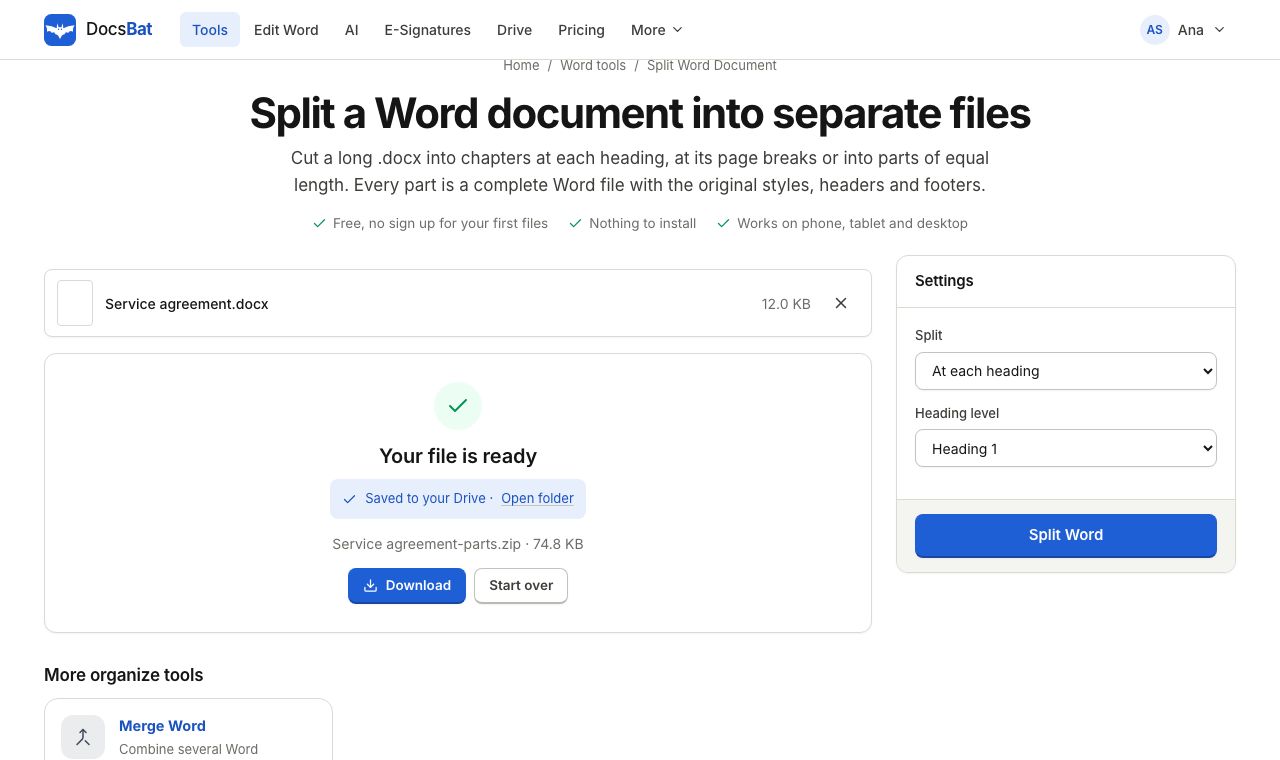 Split Word DocumentSplit a Word document into several .docx files at each heading, at page breaks or into equal parts.
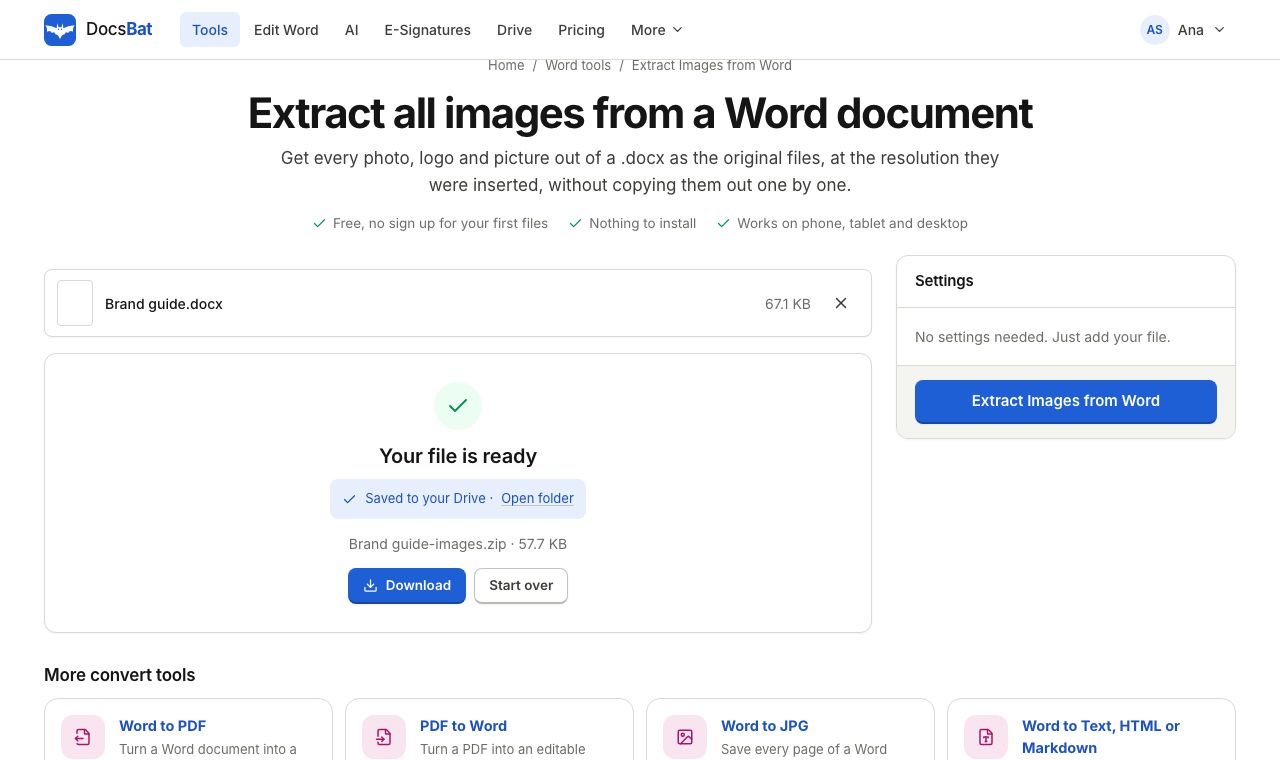 Extract Images from WordSave every picture in a Word document as its original image file, at full quality.
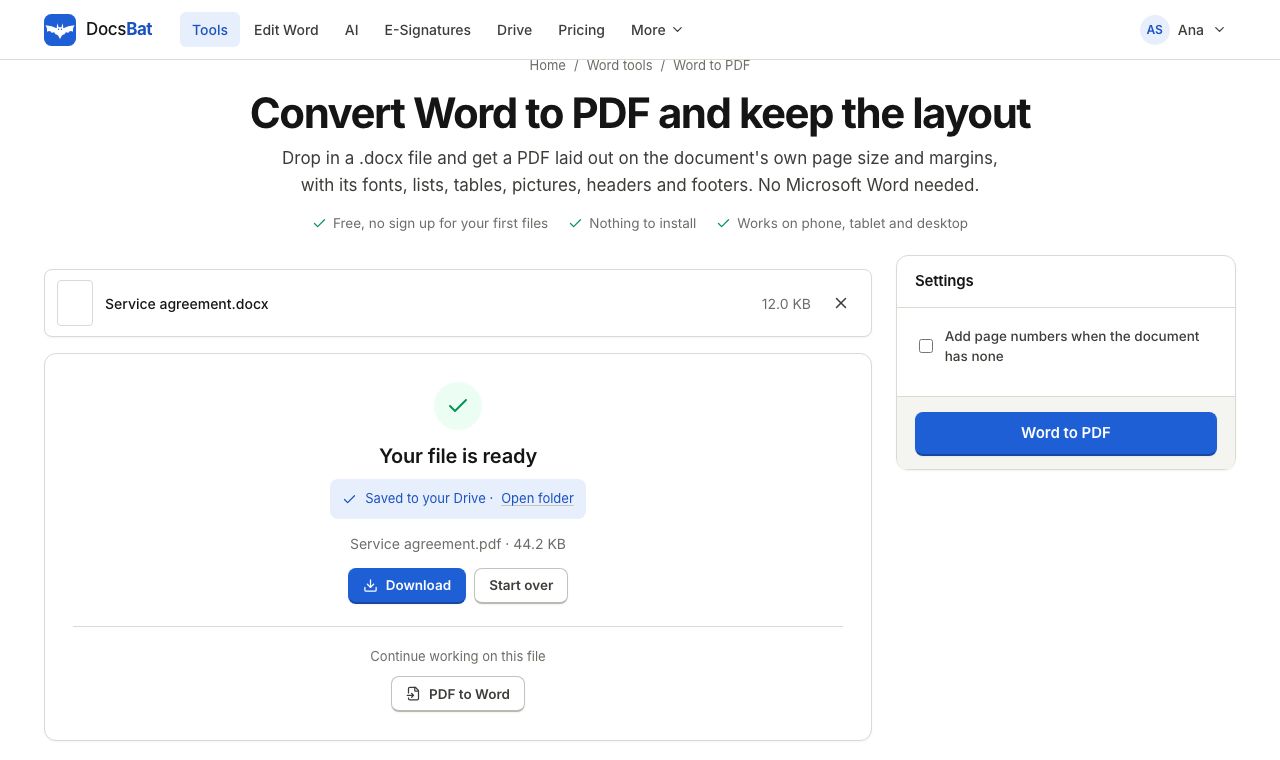 Word to PDFTurn a .docx into a PDF that keeps its fonts, lists, tables, pictures, headers, footers and page numbers.
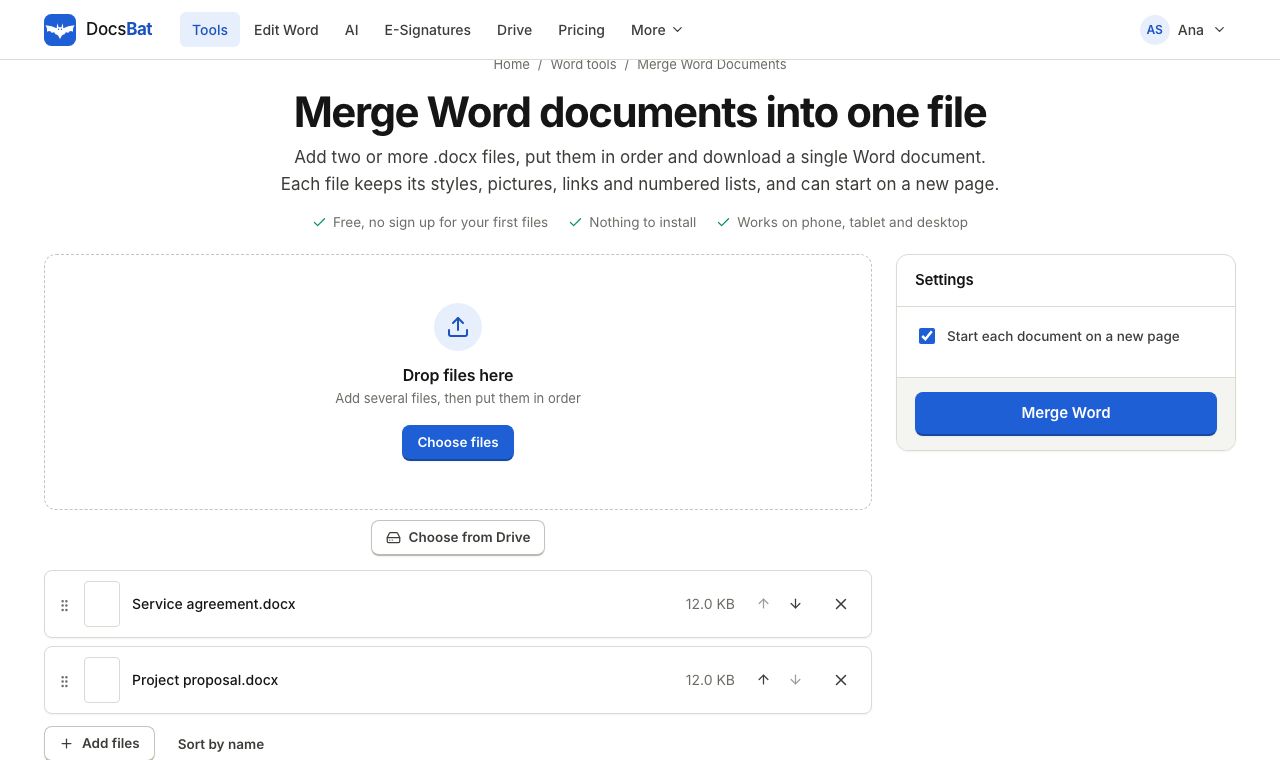 Merge Word DocumentsCombine several Word documents into one .docx in the order you choose, keeping formatting, pictures and lists.
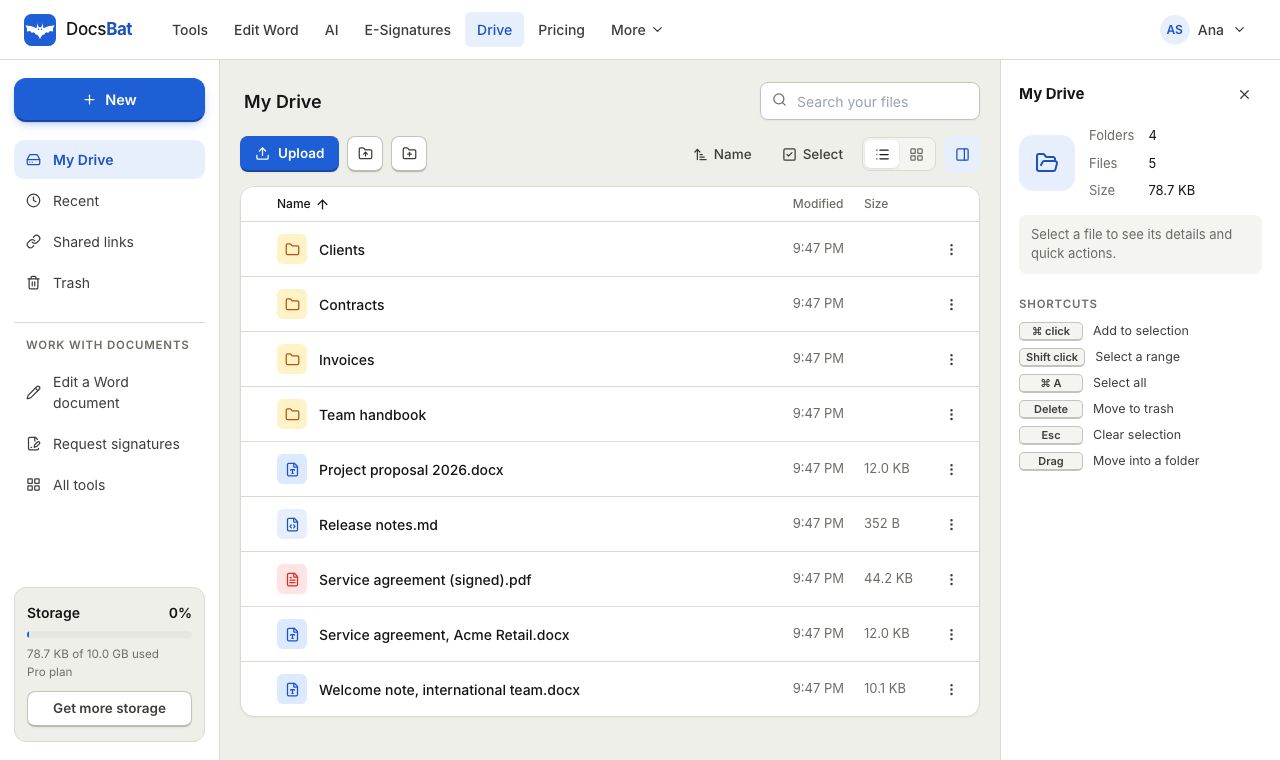 Cloud DrivePrivate cloud storage for Word documents and PDFs, with folders, share links and every tool result saved automatically.
Ready? Your file is one click away
Free, in your browser. Create a free account to get 10 tasks a day and keep every result in your own Drive.