Turn Word pages into JPG or PNG images
Upload a .docx and get one image per page, laid out with the document's fonts, tables, pictures, headers and footers. Pick JPG or PNG and a resolution from screen to print.
- Free, no sign up for your first files
- Nothing to install
- Works on phone, tablet and desktop
When a picture of the page is what you need
Some places only take images: a social post, a slide, a chat message, a website thumbnail, an online form that wants a JPG. Taking screenshots page by page is slow and the quality is poor. Word to JPG renders each page properly and saves it as an image file.
DocsBat lays out the document exactly as it does for Word to PDF, with the page size, margins, fonts, lists, tables and pictures from the file, then saves each page as a picture. One page gives you a single image. Several pages come in a zip, numbered in order.
Why use DocsBat for Word to JPG
JPG or PNG
JPG for small files that are easy to share, PNG for crisp text and sharp lines with no compression marks.
Three resolutions
72 DPI for screens, 150 DPI for everyday use and 300 DPI when the images will be printed.
Faithful layout
Fonts, tables, lists, pictures, headers and footers render the way they do in the PDF conversion.
Neatly named
Files are named after your document with a page number, such as report-page-001.jpg, and zipped when there are several.
How it works
- 1
Choose a Word file
Drop a .docx onto the page, or pick it from your device or Drive.
- 2
Pick format and resolution
Set Format to JPG or PNG and Resolution (DPI) to 72, 150 or 300.
- 3
Convert and download
Download a single image or a zip of every page. A copy goes to your Drive.
Options explained
- Format
- JPG (the default) makes smaller files and suits photos and sharing. PNG keeps text perfectly sharp and is better for diagrams and screenshots in documentation.
- Resolution (DPI)
- 72 (screen) for quick previews and web use, 150 (standard), the default, for most needs, and 300 (print) for printing or zooming in on detail. Higher resolutions make bigger files.
- Every page
- Each page becomes its own image, up to 300 pages per document.
- Zip for many pages
- Several pages are delivered together in one zip file, in page order.
- Password protected files
- If the document needs a password to open, DocsBat asks for it before converting.
Ideas for Word to JPG
- Share a one page flyer or menu in a chat app where people will not open attachments.
- Put a page of a report into a presentation slide as an image.
- Post a certificate or announcement on social media.
- Create a preview thumbnail of a document for a website or listing.
- Upload a signed letter to a portal that only accepts image files.
Tips
- For text heavy pages, choose PNG at 150 DPI for sharp, readable results.
- Only need the photos that are inside the document, not the whole page? Use Extract Images from Word, which saves the original files.
- Old .doc files are not supported. Save them as .docx first.
- Want only some pages? Split the document first with Split Word.
Frequently asked questions
How do I convert a Word document to JPG?
Open Word to JPG, choose your .docx, keep the format on JPG, pick a resolution and click convert. Each page becomes a JPG image.
Can I get PNG instead of JPG?
Yes. Set Format to PNG. It gives sharper text and a larger file.
What resolution should I choose?
150 DPI suits most screens and sharing. Choose 300 DPI for printing and 72 DPI for small previews.
Why did I get a zip file?
Documents with more than one page produce one image per page, delivered together in a zip. A one page document downloads as a single image.
Is there a page limit?
Up to 300 pages per document are converted.
Is Word to JPG free?
Yes. 3 runs a day without an account, 10 tasks a day with a free account, unlimited on Pro for $4 a month.
Related features and tools
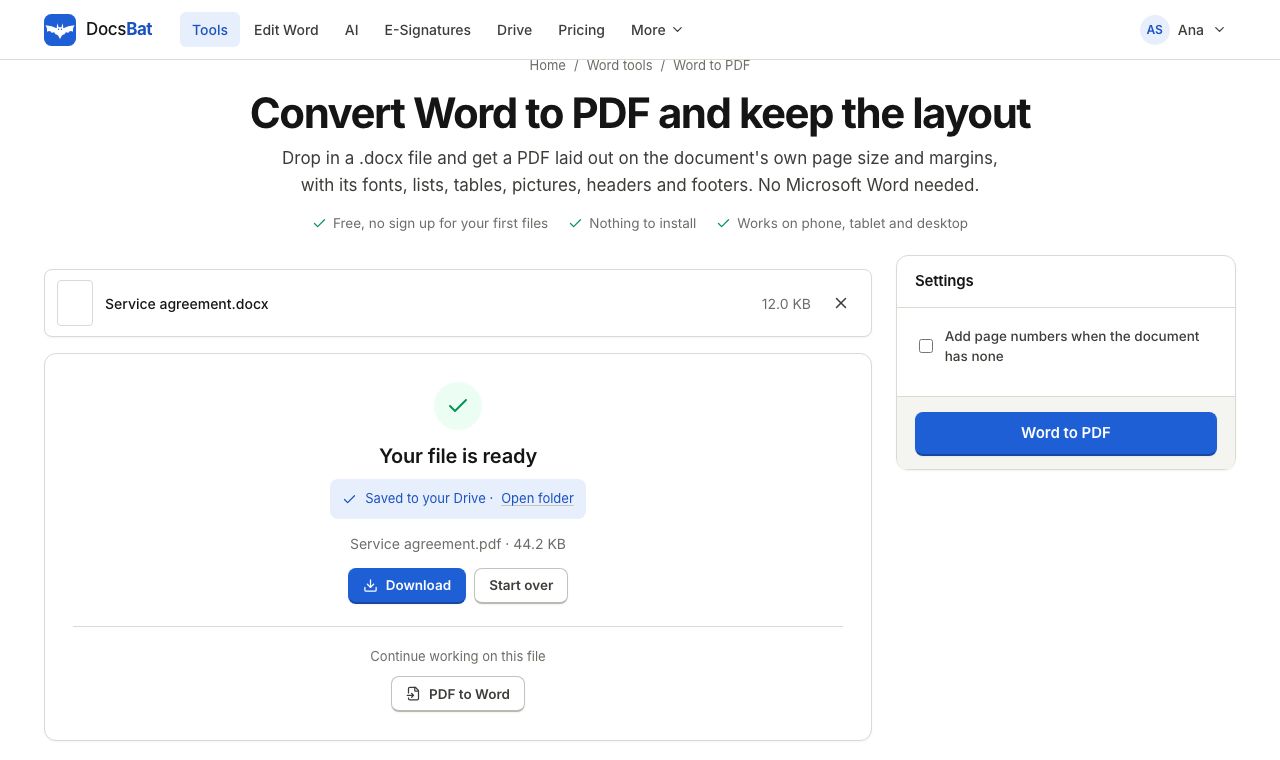 Word to PDFTurn a .docx into a PDF that keeps its fonts, lists, tables, pictures, headers, footers and page numbers.
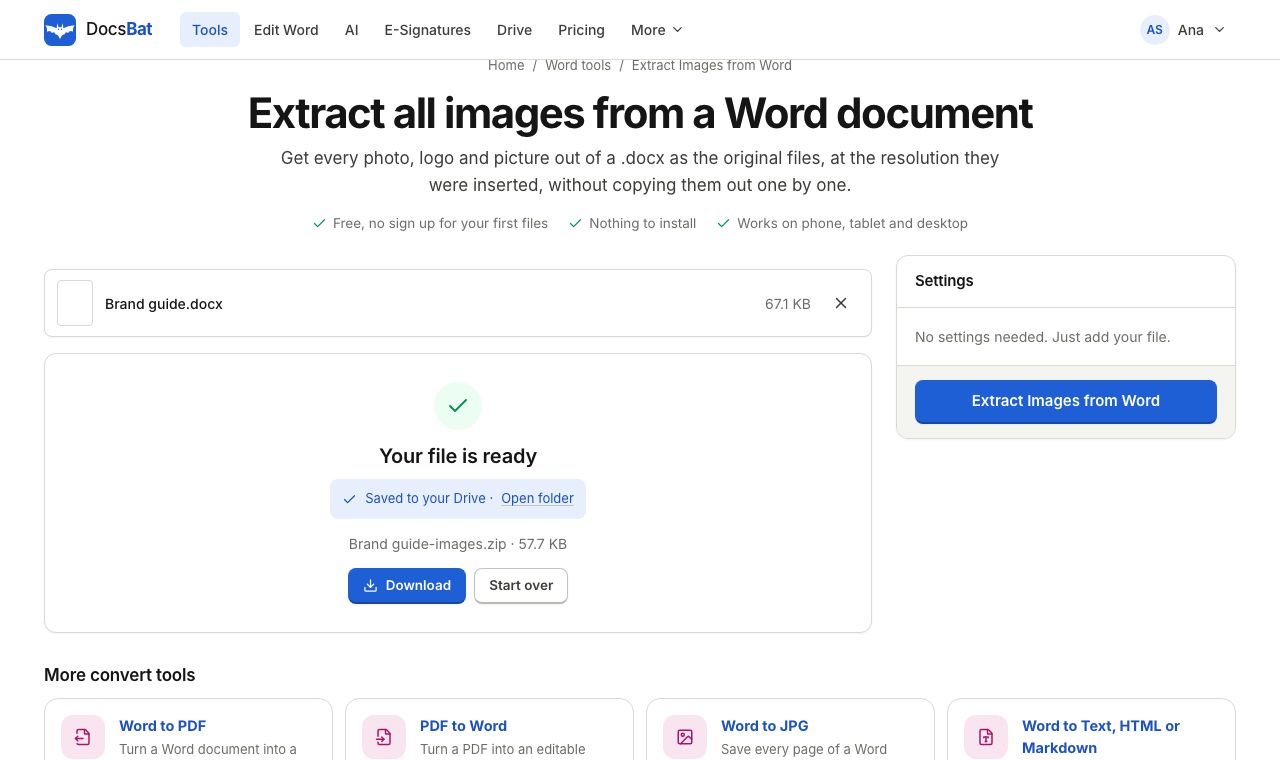 Extract Images from WordSave every picture in a Word document as its original image file, at full quality.
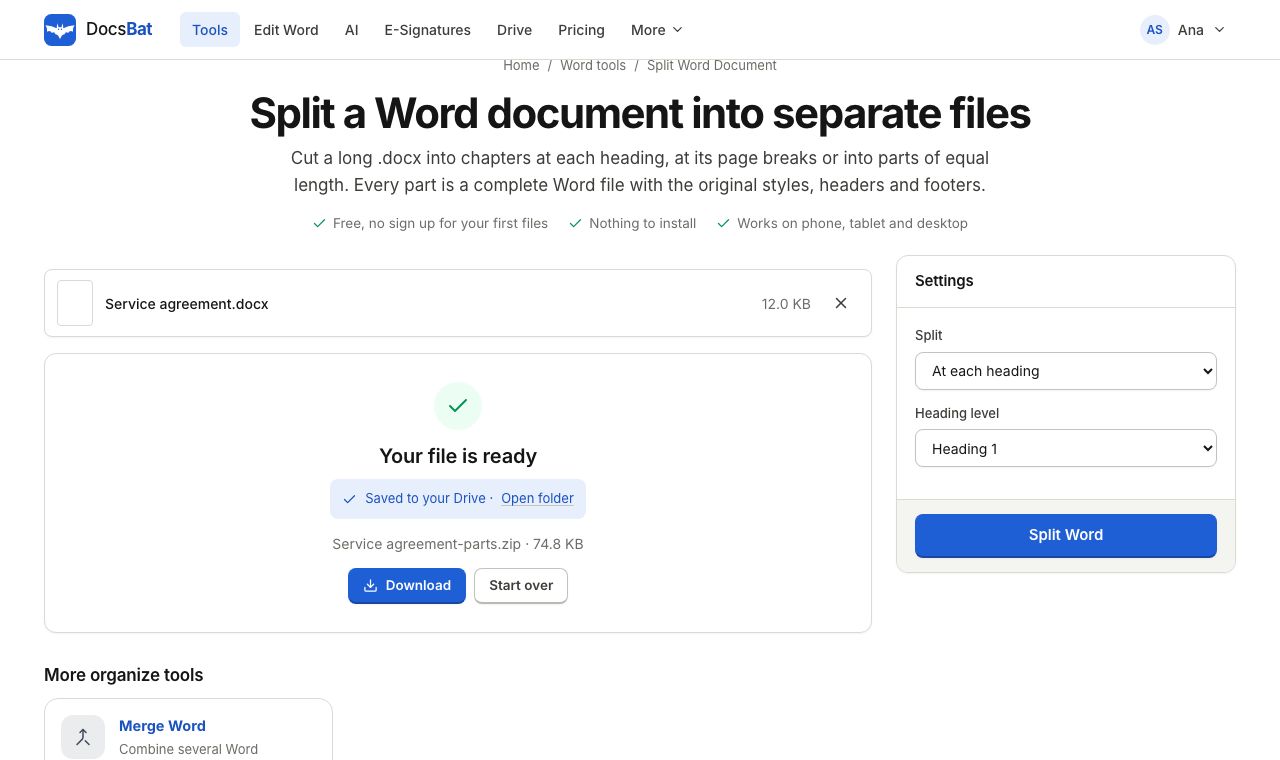 Split Word DocumentSplit a Word document into several .docx files at each heading, at page breaks or into equal parts.
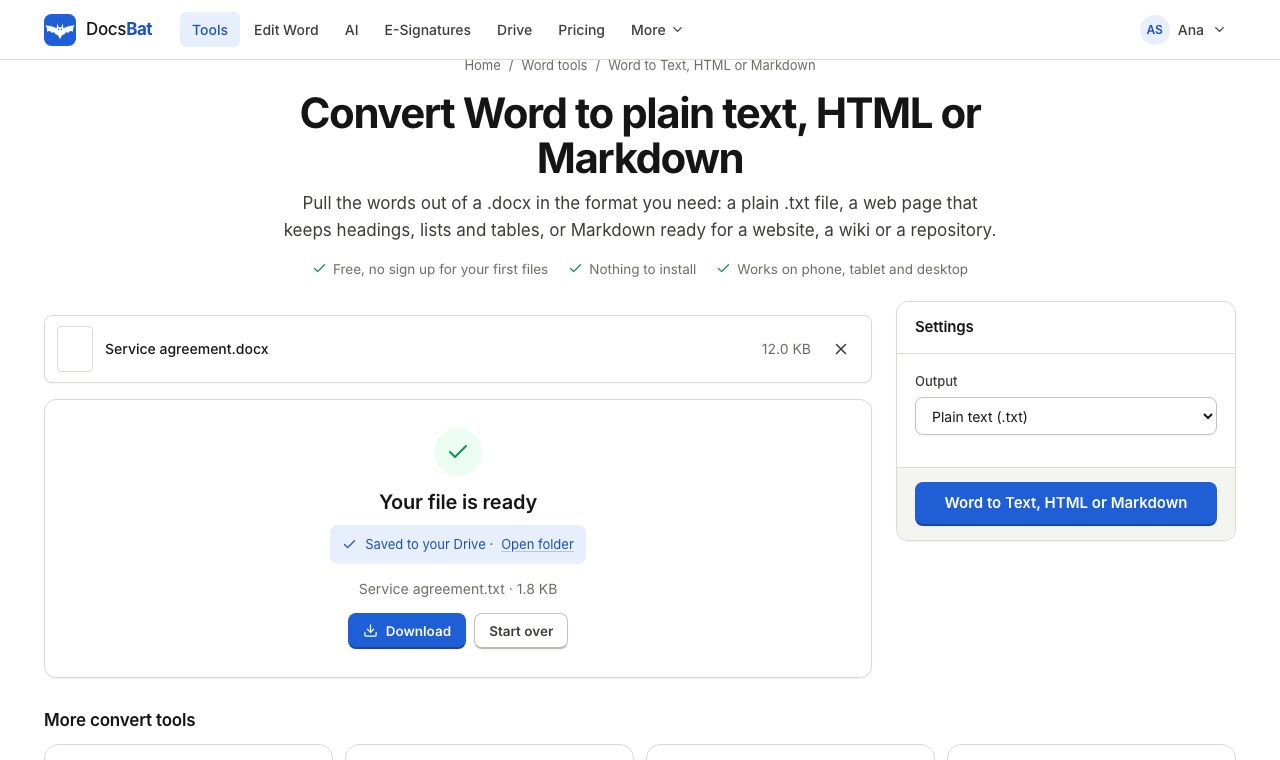 Word to Text, HTML or MarkdownGet the text of a Word document as plain text, a web page or Markdown.
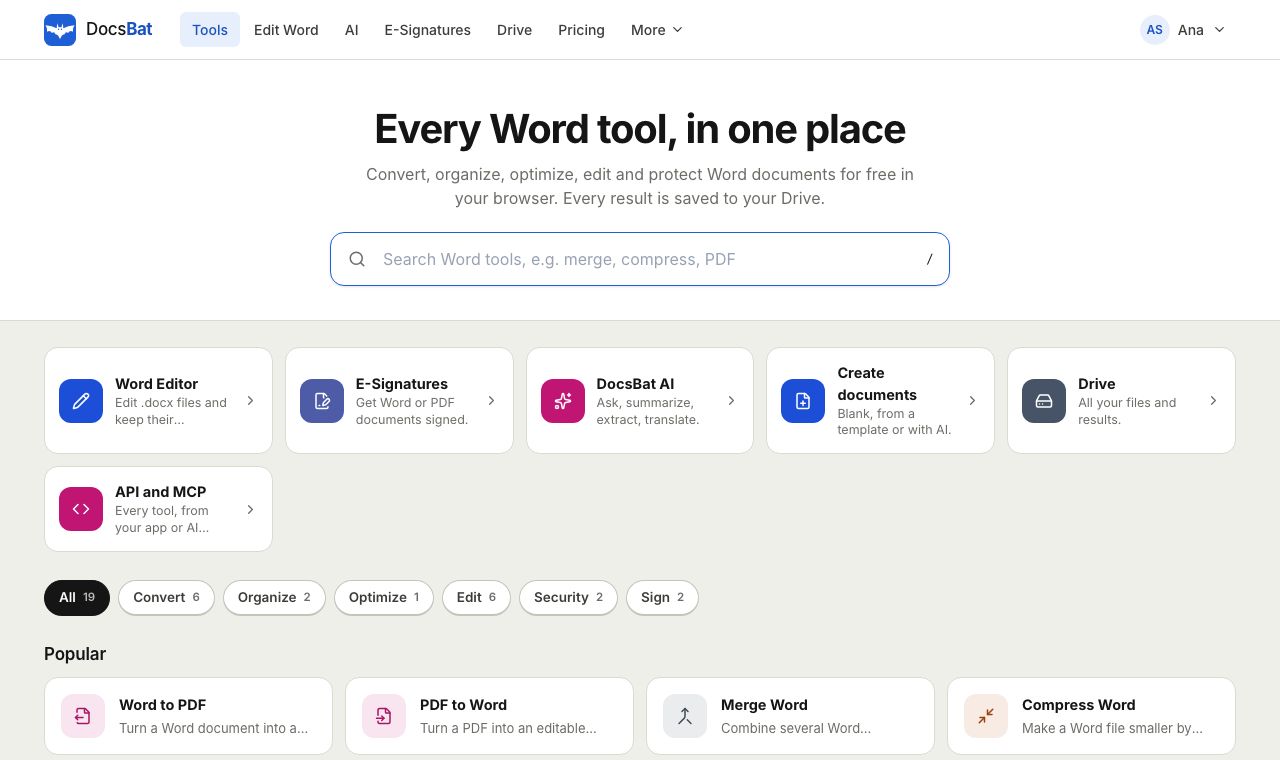 Free Word Tools17 free tools to convert, merge, split, compress, edit and protect Word documents in your browser.
Ready? Your file is one click away
Free, in your browser. Create a free account to get 10 tasks a day and keep every result in your own Drive.