How to Reduce Word File Size (Without Ruining the Pictures)
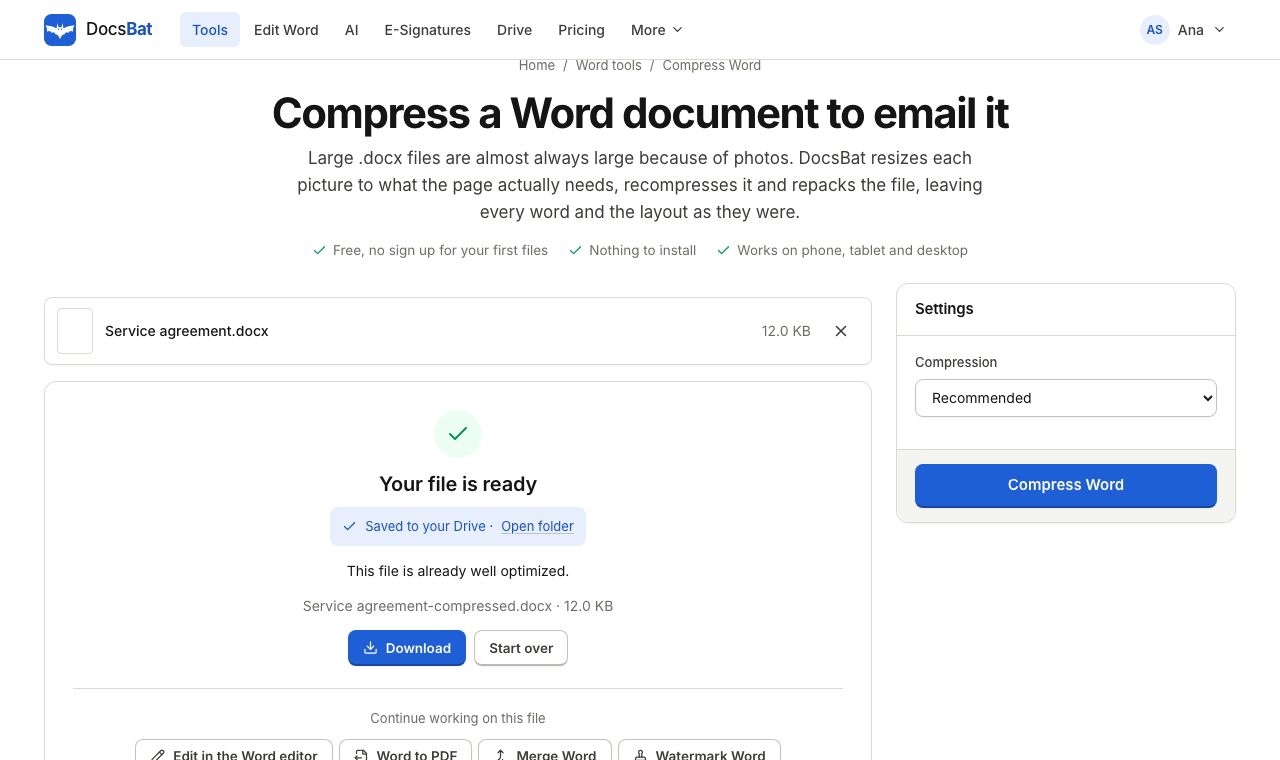
A Word document that is too big to email is one of the most common office annoyances. The good news is that the cause is nearly always the same, pictures, and the fix takes seconds. This guide explains why Word files grow, how to reduce Word file size in your browser with DocsBat, how to do it inside Word itself, and what to try when the file still will not shrink.
Why Word files get so large
A .docx file is a zip archive. Inside it are small XML files for the text and formatting, and a media folder holding every picture at the resolution it was inserted. That last part is where the size lives.
- A photo straight from a phone is typically 3 to 6 MB, at 4,000 pixels wide or more.
- When you drag it into a document and shrink it to a few centimetres, Word still stores the full original.
- Ten such photos make a 40 MB document, even if the text is only two pages.
- Screenshots saved as PNG can also be large, because PNG is not designed for photographic images.
Most email services cap attachments at around 20 to 25 MB, and many upload forms set a lower limit still. So the goal is simple: store each picture at the size it is actually displayed, and no bigger.
How to reduce Word file size with DocsBat
- Open Compress Word.
- Drop in your .docx file, or choose it from your Drive. If it is password protected, enter the password when asked.
- Choose a Compression level:
- Light (best quality) keeps pictures up to 2,400 pixels on their longest side, at high JPEG quality.
- Recommended keeps them up to 1,600 pixels. This is the right choice for most documents.
- Strong (smallest file) keeps them up to 1,100 pixels at a lower quality, for files that only need to look good on screen.
- Click compress and download the smaller file. The result screen shows the size before and after.
If you are signed in, the compressed copy is saved to your Drive as well, so you can share it with a link instead of attaching it at all.
What Compress Word actually does
The tool is careful rather than blunt:
- It looks at how big each picture is shown. A picture is reduced to about twice the size it appears on the page, which stays sharp when printed, and never above the limit of the level you chose.
- It picks the right format. Photos are saved as JPEG. Pictures with transparency stay PNG so their transparent parts are not filled with white.
- It skips what would not help. If re-encoding a picture saves less than five percent, the original is kept. Small GIFs are left alone because they may be animated.
- It repacks the whole file with the strongest zip compression.
- It never makes things worse. If the result would be larger than your original, you get your original back.
Text, styles, tables, lists, headers, footers, comments and tracked changes are not touched.
How to compress pictures inside Word
If you have Word on a desktop computer, it has a built in option:
- Click any picture in the document.
- Open the Picture Format tab and click Compress Pictures.
- Untick Apply only to this picture so every picture is included.
- Tick Delete cropped areas of pictures.
- Choose a resolution such as Web (150 ppi) or E-mail (96 ppi) and click OK.
- Save the document.
You can also stop the problem coming back: in File > Options > Advanced, under Image Size and Quality, choose a lower default resolution and turn off Do not compress images in file.
Word's option works well. DocsBat is useful when you do not have desktop Word, when you are on a phone or Chromebook, or when you want the result saved straight to a Drive.
When the file will not get smaller
If Compress Word reports little or no saving, the size is coming from something other than pictures. Common causes:
- Embedded fonts. In Word, File > Options > Save has Embed fonts in the file. This can add several megabytes. Turn it off unless the reader really needs your exact fonts, or tick Embed only the characters used in the document.
- Embedded objects. A chart or table pasted from Excel can carry the whole workbook with it. Paste it as a picture instead, or link to the file.
- Videos and audio. These are stored inside the document. Replace them with a link.
- A very long history of edits. Saving with File > Save As to a new .docx often drops leftover data.
- An old .doc file. The binary format is not supported by DocsBat, and simply saving it as .docx often makes it much smaller.
Other ways to get the file to its destination
Sometimes the best answer is not a smaller file:
- Convert to PDF. If the reader only needs to read or print it, Word to PDF gives a PDF, and compressing first makes that PDF smaller too.
- Split it. A long manual can be sent in parts with Split Word, which cuts at each heading, at page breaks or into equal parts.
- Send a link. Files in your DocsBat Drive can be shared with a private link, so the size of an attachment stops mattering.
- Take the pictures out. Need the original images for something else? Extract Images from Word saves every picture at full quality before you compress.
Tips to keep Word files small from the start
- Resize photos before inserting them, or insert screenshots as JPEG rather than PNG when they show photos.
- Crop in Word, then use Delete cropped areas of pictures so the hidden parts are really gone.
- Avoid pasting the same large logo on every page; put it in the header once instead.
- Keep a full quality master copy and send a compressed copy, rather than compressing the only version you have.
Honest limits
Compress Word is a picture tool. It will not shrink a document whose size comes from fonts, embedded spreadsheets or media, and Strong compression is a trade: pictures with fine detail, such as scanned contracts or charts with small labels, can lose sharpness. If in doubt, start with Recommended, check the result, and only go further if you need to.
For most oversized documents, though, one pass is enough. A report full of full size phone photos can often shrink to a small fraction of its size, ready to attach to an email.
Frequently asked questions
Why is my Word document so big?
Almost always because of pictures. Photos from a phone or camera are often several megabytes each and are stored at full size even when they are shown small on the page.
Does compressing change my text or layout?
No. Compress Word only re-encodes pictures and repacks the file. Text, styles, tables, headers and footers are left exactly as they are.
Which compression level should I choose?
Recommended suits most documents. Choose Light (best quality) for documents that will be printed with large photos, and Strong (smallest file) when the file only needs to be read on screen.
What if the file does not get smaller?
Then its size comes from something other than pictures, such as embedded fonts, embedded spreadsheets or videos. DocsBat never returns a file larger than the one you uploaded.
Can I compress an old .doc file?
No. Save it as .docx in Word, LibreOffice or Google Docs first. The modern format is usually much smaller on its own.
Is it free?
Yes. You get 3 runs a day without an account and 10 tool tasks a day with a free account. Pro is $4 a month for unlimited tasks and files up to 100 MB.