Merge Word documents into one file
Add two or more .docx files, put them in order and download a single Word document. Each file keeps its styles, pictures, links and numbered lists, and can start on a new page.
- Free, no sign up for your first files
- Nothing to install
- Works on phone, tablet and desktop
One document instead of a folder of chapters
Reports written by several people, a thesis saved chapter by chapter, a proposal with separate appendices, minutes from a year of meetings: sooner or later they need to be one Word file. Copying and pasting between documents mixes up styles, breaks numbered lists and loses pictures.
Merge Word appends each document to the first one at the file level. Styles the first document does not have are brought over, list numbering is copied with fresh ids so each document's lists keep counting correctly, and pictures and links come along. The result is an ordinary .docx you can keep editing in Word, Google Docs, LibreOffice or the DocsBat Word editor.
Why merge with DocsBat
Any order
Drag the files into the order you want. The list is the order of the final document.
Formatting kept
Each document's styles come across, so headings and body text keep their look.
Lists that count right
Numbered lists from different files stay separate instead of continuing each other's numbers.
Pictures and links
Images and web links in every file are carried into the merged document.
Still a Word file
You get an editable .docx, not a PDF. Convert it afterwards if you need one.
How it works
- 1
Add your Word files
Choose two or more .docx files from your device or Drive.
- 2
Set the order
Arrange the files. Leave Start each document on a new page on, or turn it off to run them together.
- 3
Merge and download
Download the merged .docx. A copy is saved to your private Drive.
How merging works
- Start each document on a new page
- On by default. A page break is inserted before each added document so every file begins on a fresh page. Turn it off to continue straight after the previous text.
- The first file sets the page
- Page size, margins, headers and footers of the merged document come from the first file in the list. Put the document whose layout you want first.
- Styles
- Styles from later files that the first file does not have are added. Where both files use a style with the same name, the first file's version is used.
- Numbered and bulleted lists
- List definitions are copied with new ids, so each document's numbering stays independent.
- Pictures and links
- Pictures are copied into the merged file and links keep their addresses.
- Footnotes and comments
- Footnotes, endnotes and comments of the added files are not carried over. The first file keeps its own.
Tips for a clean merge
- Password protected files cannot be merged directly. Remove the password first with Unlock Word.
- Accept tracked changes and remove comments in each file first with Accept Changes and Remove Comments, so nothing is left half reviewed.
- Add page numbers after merging so they run across the whole document.
- Old .doc files must be saved as .docx before merging.
- Need a single PDF to send? Merge first, then use Word to PDF.
Common uses
- Combine thesis or book chapters into one manuscript.
- Build a tender or grant application from sections written by different people.
- Collect monthly reports or meeting minutes into a yearly document.
- Put a contract and its schedules into one file before sending it for e signature.
Frequently asked questions
How do I merge Word documents without copy and paste?
Open Merge Word, add your .docx files, put them in order and click merge. DocsBat joins them into one .docx, keeping formatting, pictures and lists.
Does merging keep the formatting?
Yes. Styles, pictures, links and list numbering of each file are kept. If two files define the same style name differently, the first file's style wins.
Whose headers and page layout are used?
The first file's. Its page size, margins, headers and footers apply to the merged document.
Are footnotes and comments kept?
The first file keeps its own. Footnotes, endnotes and comments from the files added after it are dropped.
Can I merge password protected Word files?
Not directly. Unlock each file with its password using Unlock Word, then merge.
How many files can I merge?
At least two, and as many as your plan's file size allows: 25 MB per file on Free and 100 MB on Pro.
Can I merge into a PDF instead?
Merge gives you a Word file. Run Word to PDF on the result to get one PDF.
Related features and tools
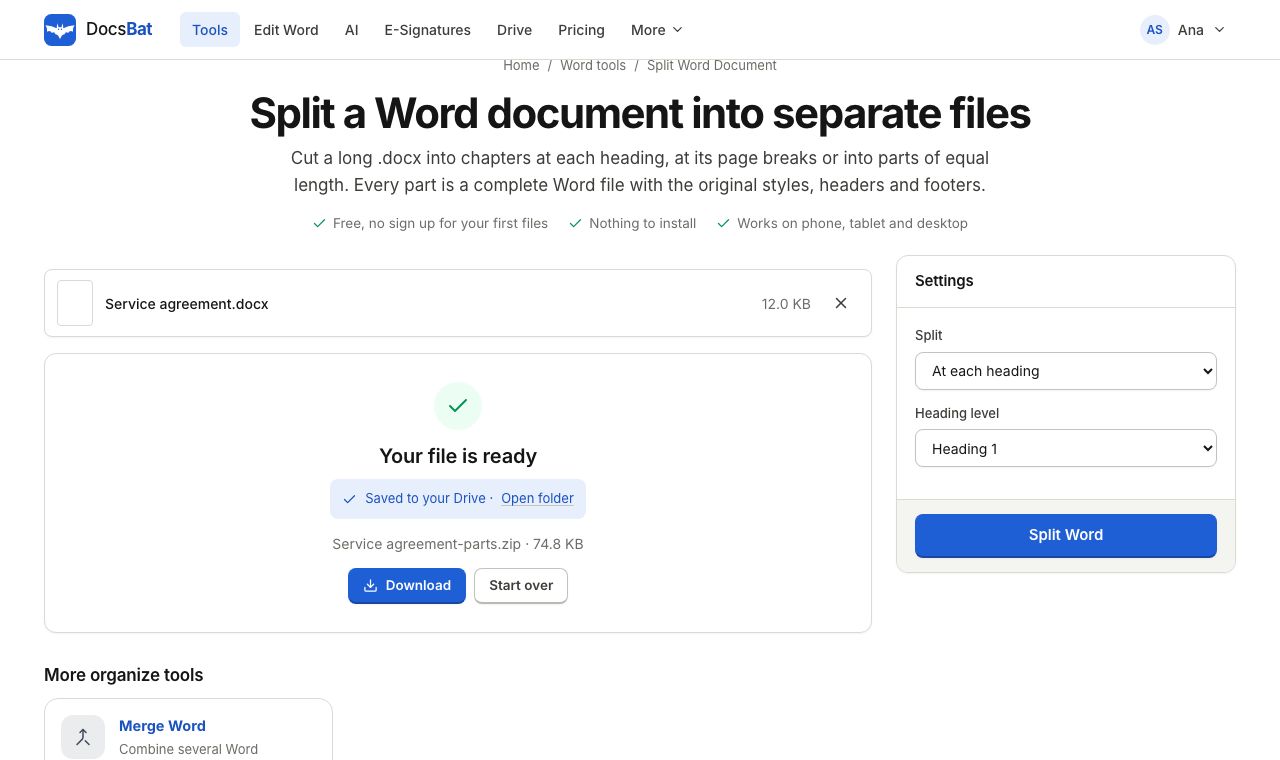 Split Word DocumentSplit a Word document into several .docx files at each heading, at page breaks or into equal parts.
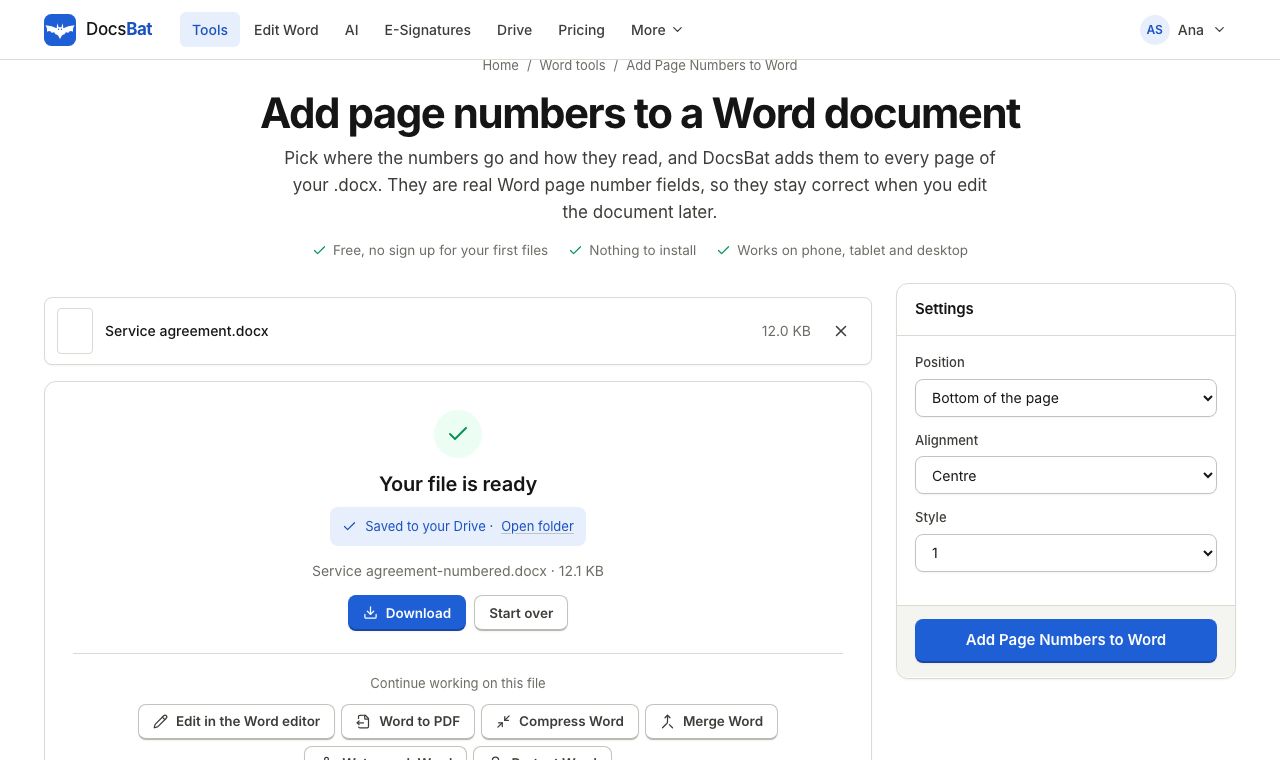 Add Page Numbers to WordNumber the pages of a Word document with real page number fields, top or bottom, left, centre or right.
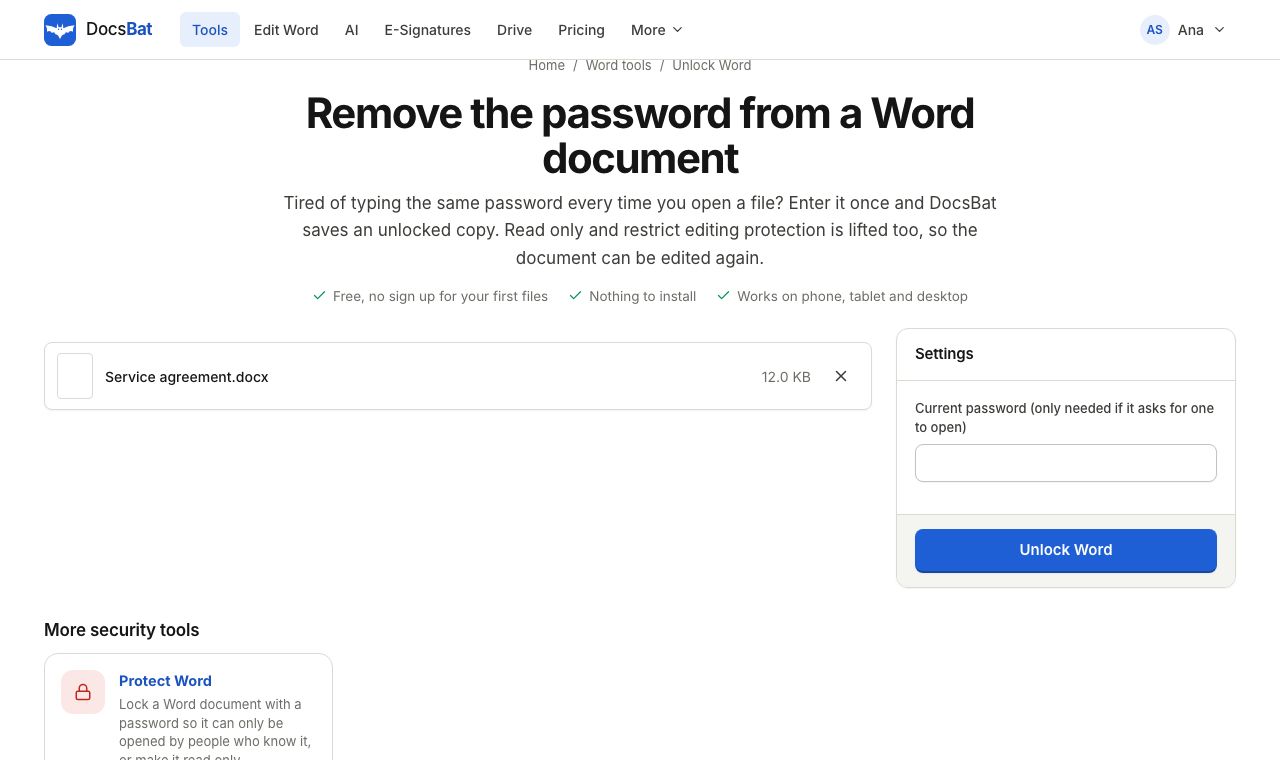 Unlock WordRemove the password from a Word document you can open, and lift read only or restrict editing so anyone can edit it.
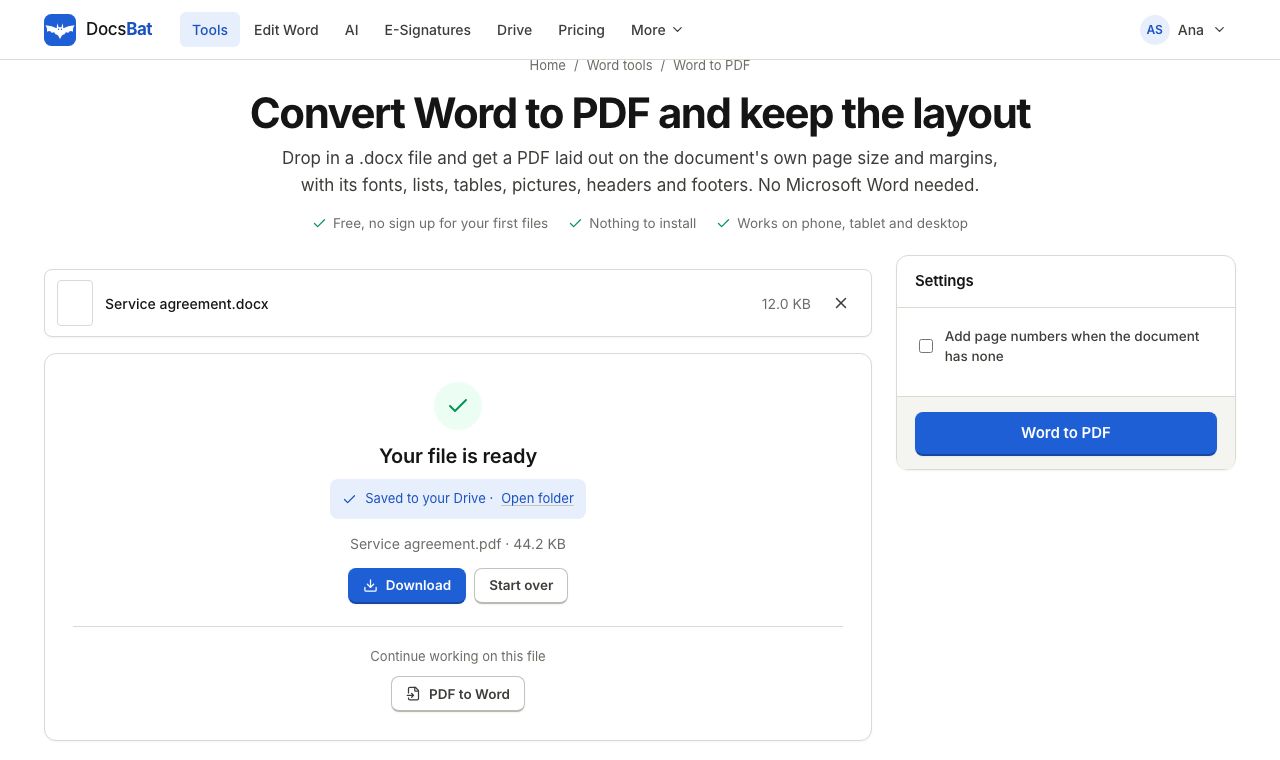 Word to PDFTurn a .docx into a PDF that keeps its fonts, lists, tables, pictures, headers, footers and page numbers.
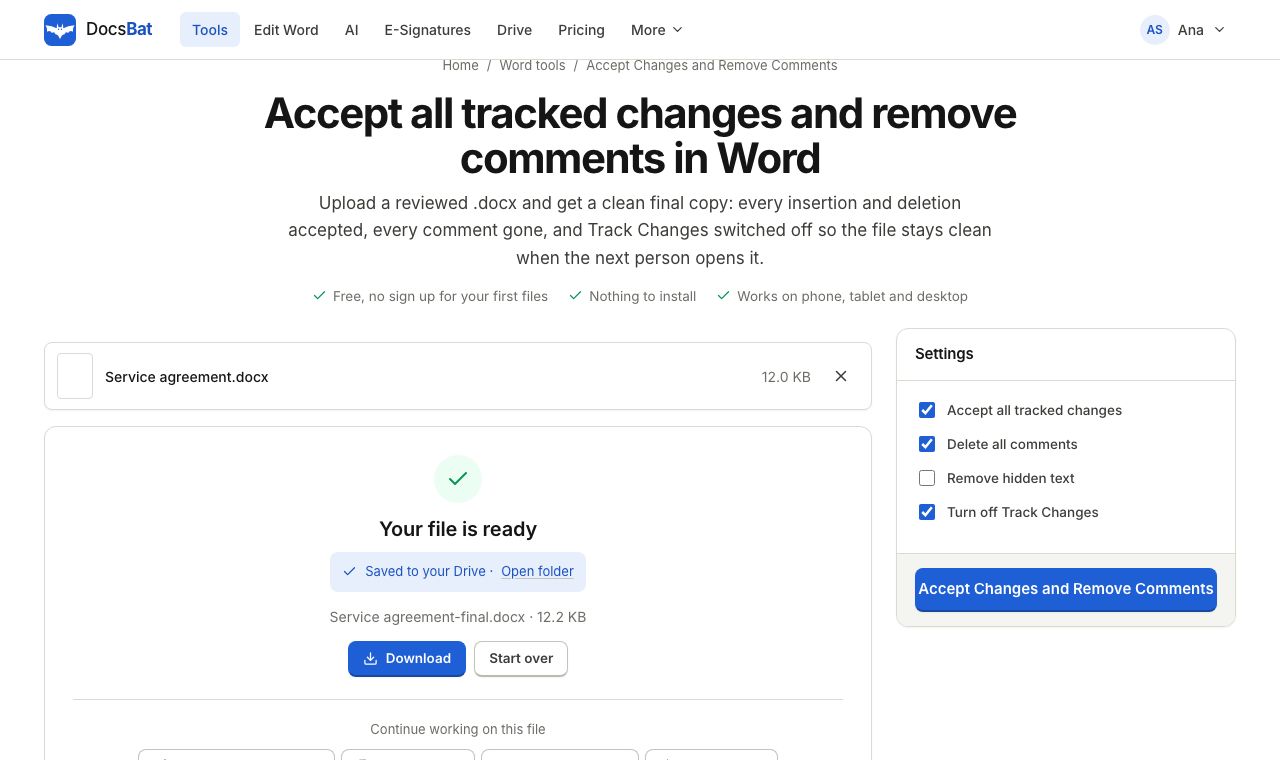 Accept Changes and Remove CommentsFinalise a Word document: accept every tracked change, delete all comments and remove hidden text in one go.
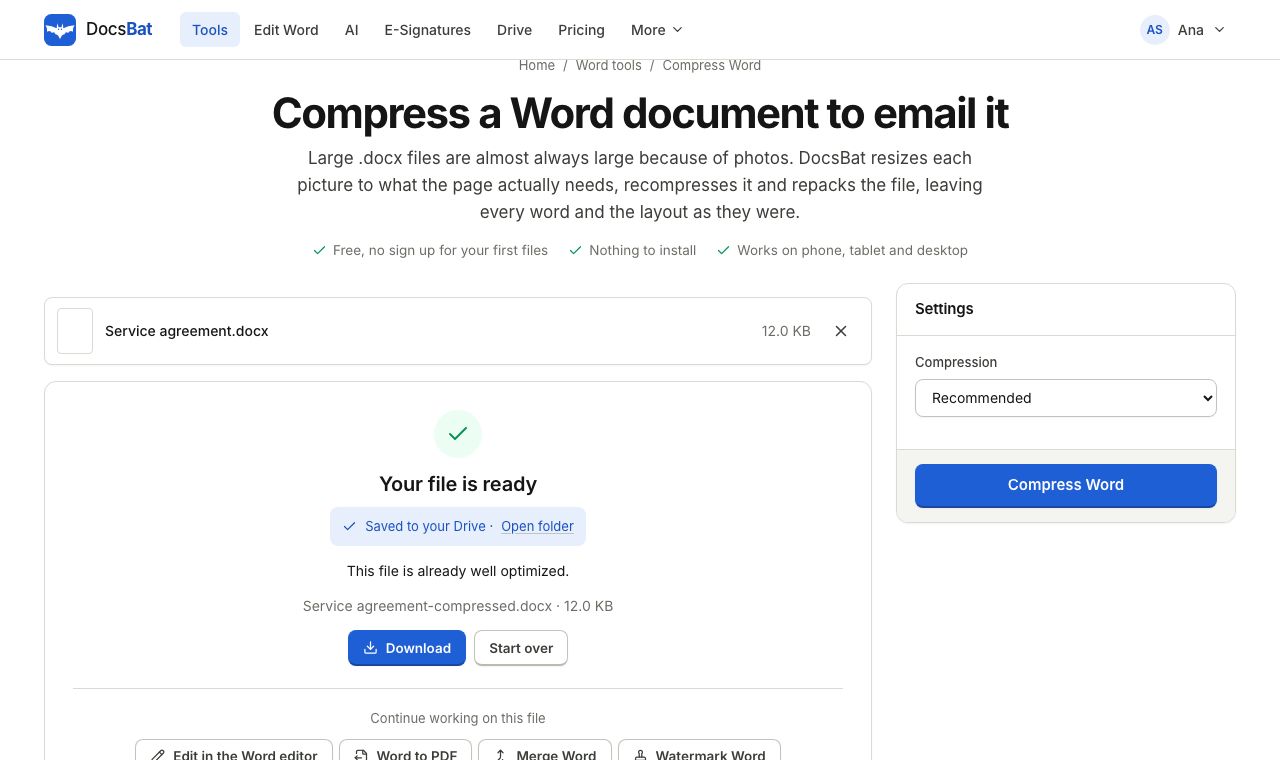 Compress WordMake a Word file smaller by shrinking its pictures to the size they are shown at, without touching the text.
Ready? Your file is one click away
Free, in your browser. Create a free account to get 10 tasks a day and keep every result in your own Drive.