Send a Word document for signature, signed on any device
Upload your .docx, add the people who need to sign, place the signature fields and send. DocsBat turns the Word file into a PDF for signing and returns a sealed PDF with a full audit trail.
- 3 envelopes a month free
- Signers need no account
- Pro unlimited for $4/mo
Why signatures go on a PDF, not the Word file
Contracts, offer letters and agreements are usually written in Word. But a Word file can be changed by anyone who opens it, and the layout can shift between computers. That is why signed documents are almost always PDFs: the pages look the same everywhere, and a signed PDF can be sealed so any later change is visible.
With DocsBat you do not have to convert the file yourself first. Upload the .docx to E-Signatures and DocsBat converts it to a PDF with its fonts, lists, tables, pictures, headers and footers, the same way Word to PDF does. You then place fields for each signer on the pages and send.
Signers get an email with a private link. They review the document, sign by drawing, typing or uploading a signature, and finish, all in the browser on a phone, tablet or computer. They do not need a DocsBat account.
Why sign Word documents with DocsBat
Upload the .docx as it is
No separate conversion step. DocsBat turns the Word file into a PDF for signing.
Signers need no account
Recipients open a secure link from their email and sign in any modern browser.
Signing order
Send to everyone at once, or route the document so each person signs in turn.
Reminders and expiry
Set automatic reminders and an expiry date so documents do not sit unsigned.
Sealed with an audit trail
The final PDF carries a certificate of completion and a digital seal that shows any later change.
Sign a Word document in 3 steps
- 1
Upload and add recipients
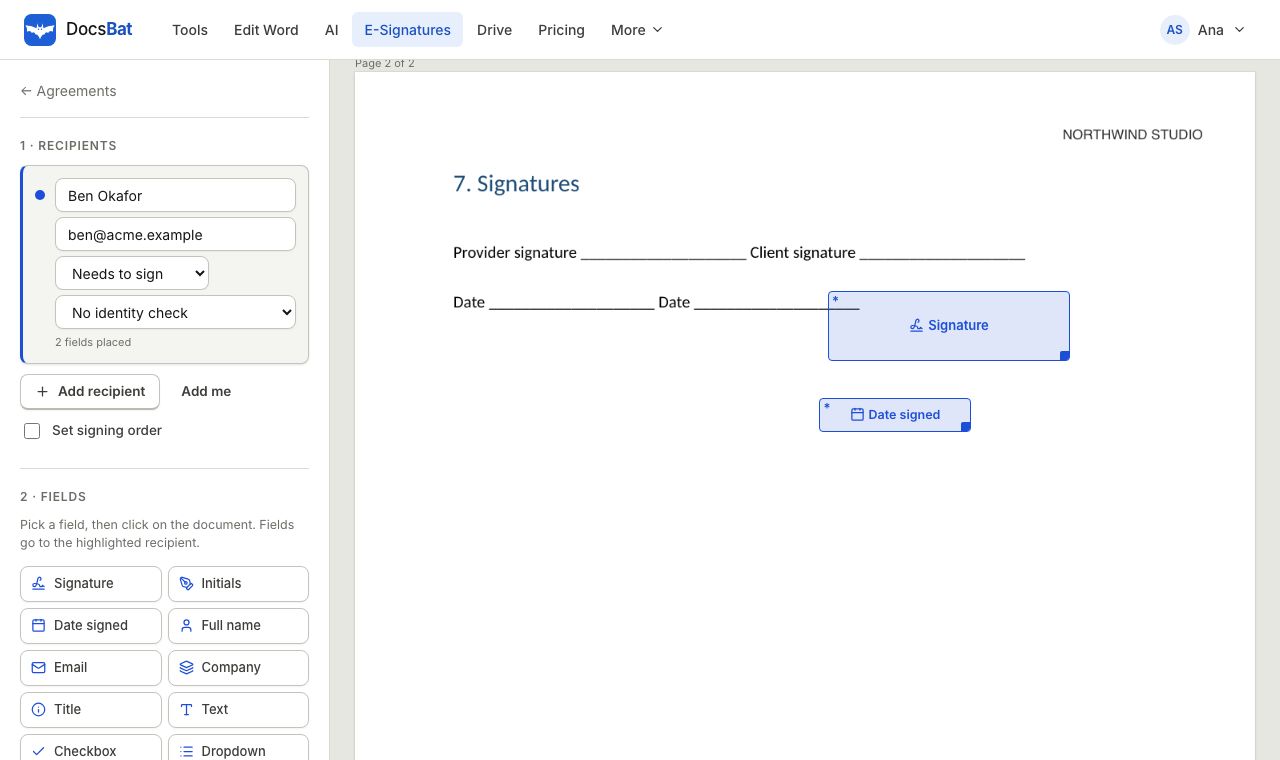
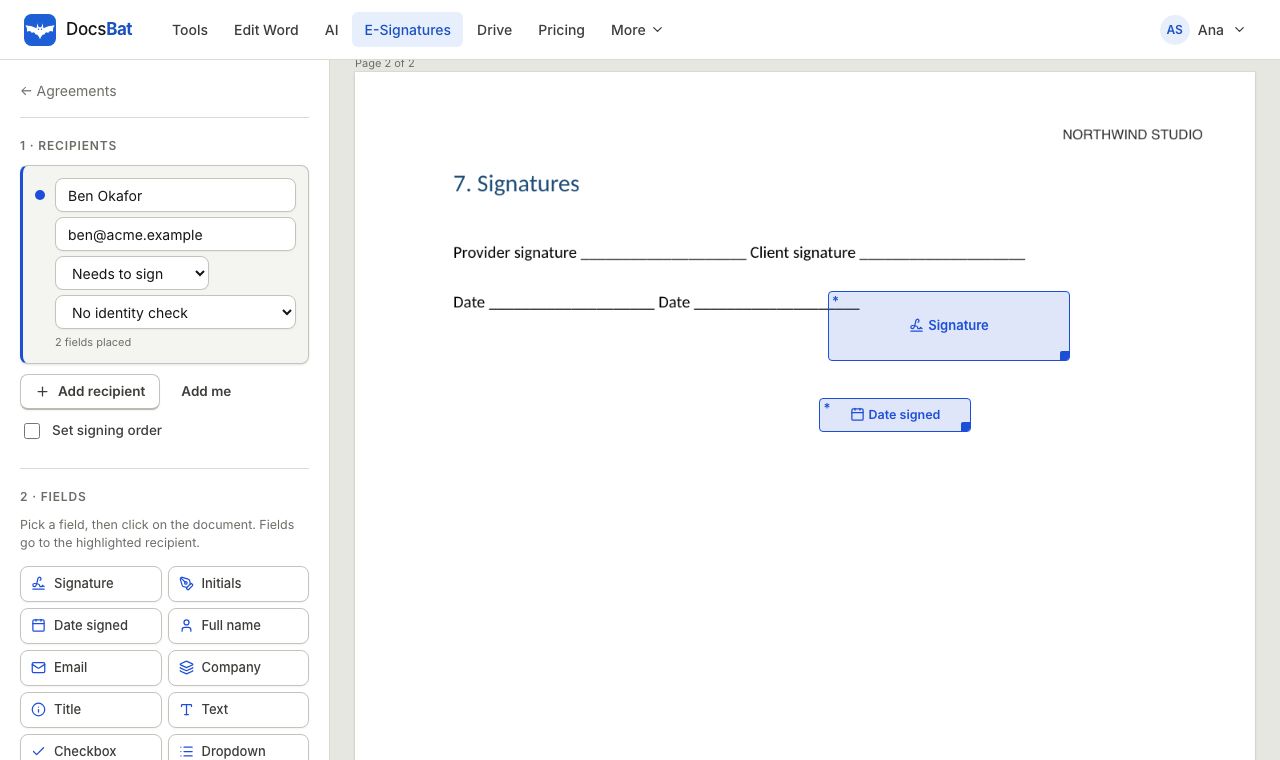
Sign in, open E-Signatures and upload your .docx or pick it from Drive. Add each signer with a name and email, and set the order if it matters.
- 2
Place the fields
Drag signature, initials, date, text, checkbox and other fields onto the pages of the converted document. Each field belongs to one recipient.
- 3
Send and track
Press send. See who has viewed and signed, send a reminder in one click, and download the sealed PDF when everyone has signed.
What is included
- Signers and CC recipients
- Signers complete their fields; CC recipients receive the finished, sealed PDF without signing.
- Field types
- Signature, initials, date, text, name, email, company, title, checkbox, dropdown and file attachment. Any field can be required.
- Draw, type or upload
- Signers draw with a finger or mouse, type their name in a handwriting style, or upload a picture of their signature.
- Identity checks
- Ask for an access code you share separately, or a 6 digit code DocsBat emails to the signer.
- Certificate of completion
- Lists each signer, their signature, view and sign times, IP address and the original file's SHA-256 hash, with every audit event.
- Saved to Drive
- The completed PDF is emailed to you and every recipient and saved in the Signed folder of your Drive.
Get the Word file ready before you send
- Fill in names, dates and prices in the Word editor, or use Find and Replace to update a template.
- Finalise a reviewed draft with Accept All Changes so no tracked changes or comments end up in the signed copy.
- Want to check the layout first? Run Word to PDF and look at the result, since signing uses the same conversion.
- Sending the same document to many people? Save it as a template and use templates and bulk send.
Is an electronic signature on a Word document legal?
Electronic signatures are accepted for most everyday business documents under laws such as ESIGN in the United States and eIDAS in the European Union. DocsBat records each step, including views, identity checks, IP addresses and timestamps, in an audit trail attached to the signed PDF. Some documents, such as certain wills or court filings, have special rules, so check what applies to yours.
Just need to add your own signature?
If nobody else needs to sign, you can still send the document to yourself as the only signer. It takes one envelope and gives you a sealed PDF with your signature and an audit trail.
Frequently asked questions
Can I send a Word document for signature?
Yes. Upload the .docx to DocsBat E-Signatures. It is converted to a PDF for signing, and the signed result is a sealed PDF.
Do signers need Word or a DocsBat account?
No. Signers open a link in their email and sign in the browser on any device. Only the sender needs a free account.
Will the signed document still be a Word file?
No. The signed copy is a PDF, which keeps the layout fixed and carries a digital seal and audit trail. Keep your .docx if you want to edit the text later.
How many documents can I send for free?
3 envelopes a month on the free plan. Pro is $4 a month for unlimited envelopes.
Does the conversion keep my formatting?
It keeps fonts (using metric compatible twins such as Carlito for Calibri), lists, tables, pictures, headers and footers. Old .doc files need to be saved as .docx first.
Can I see when someone opened the document?
Yes. Each recipient moves from sent to viewed to signed, and every view is logged in the audit trail.
Related features and tools
 E-SignaturesSend Word and PDF documents for legally binding e signatures with signing order, identity checks, reminders and a sealed final PDF.
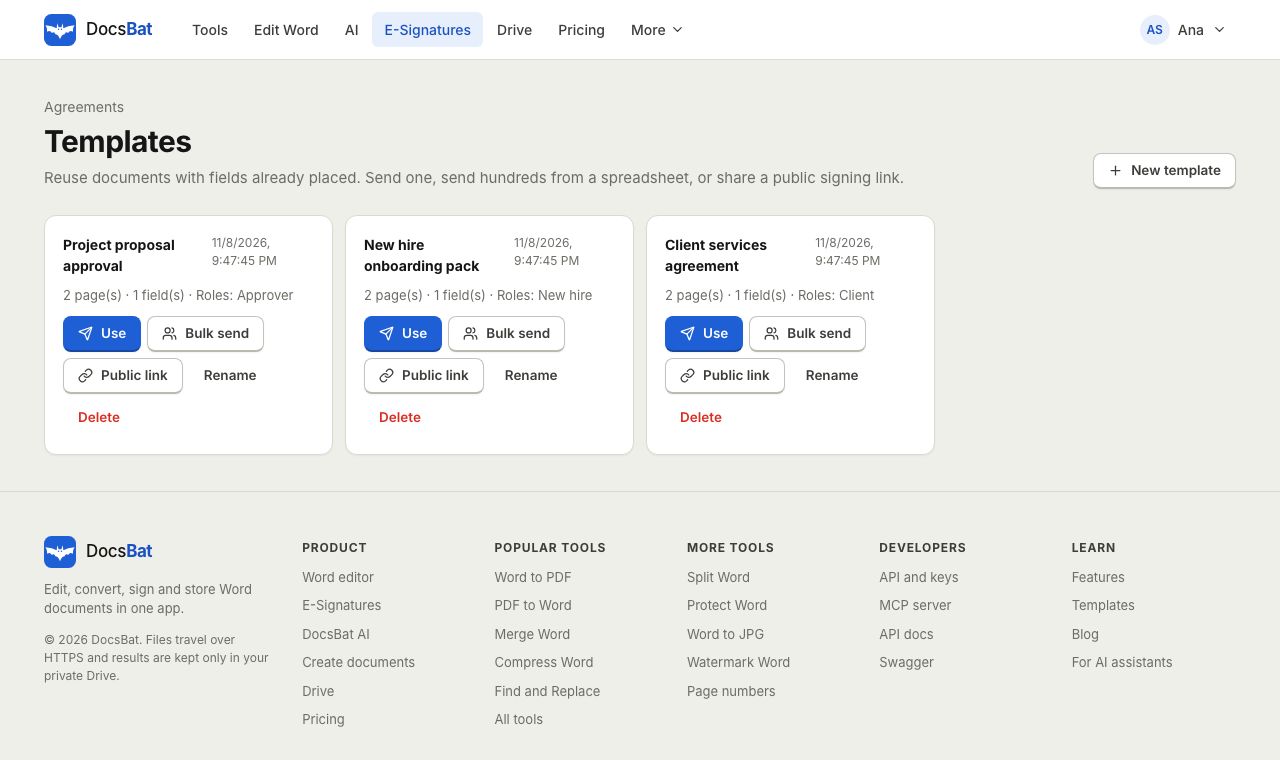 Templates and Bulk SendSave any envelope as a reusable template, send it to hundreds of people from a CSV, or publish a public signing link.
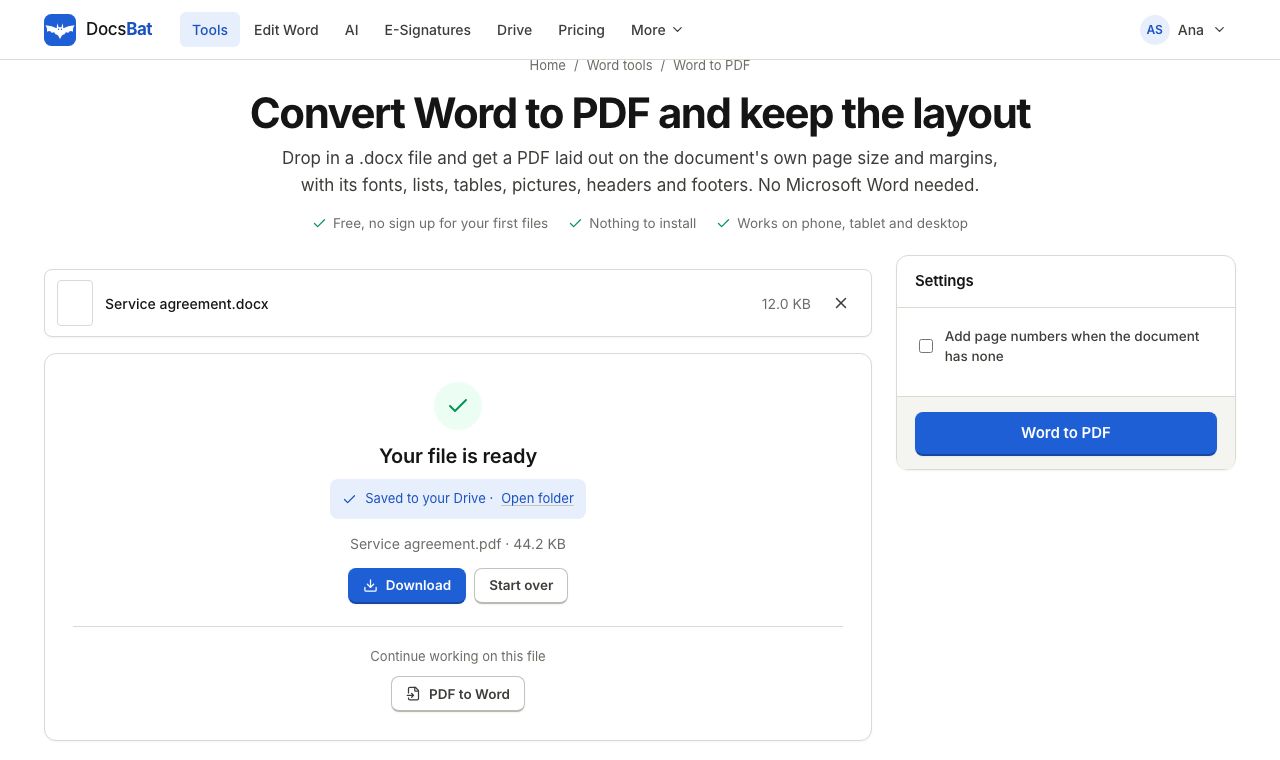 Word to PDFTurn a .docx into a PDF that keeps its fonts, lists, tables, pictures, headers, footers and page numbers.
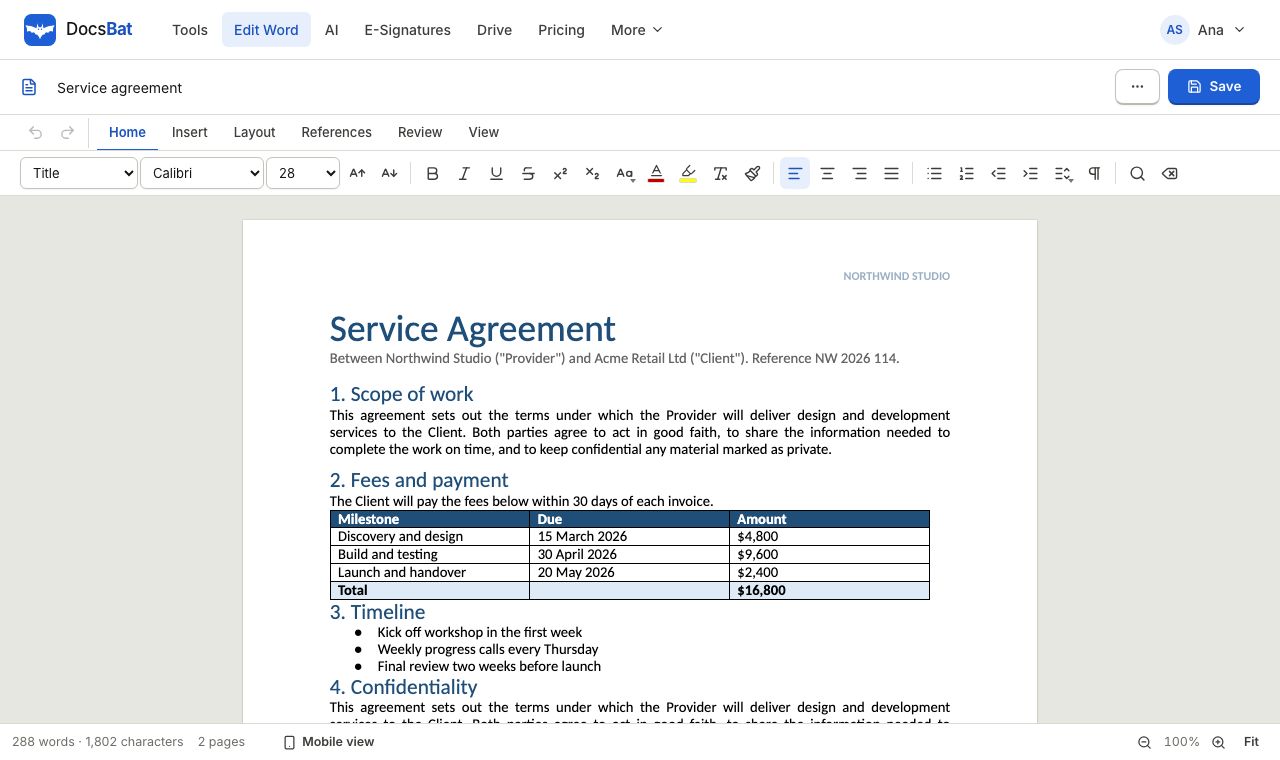 Word EditorOpen a .docx in your browser, edit text, lists, tables and pictures, and save it back as Word or PDF.
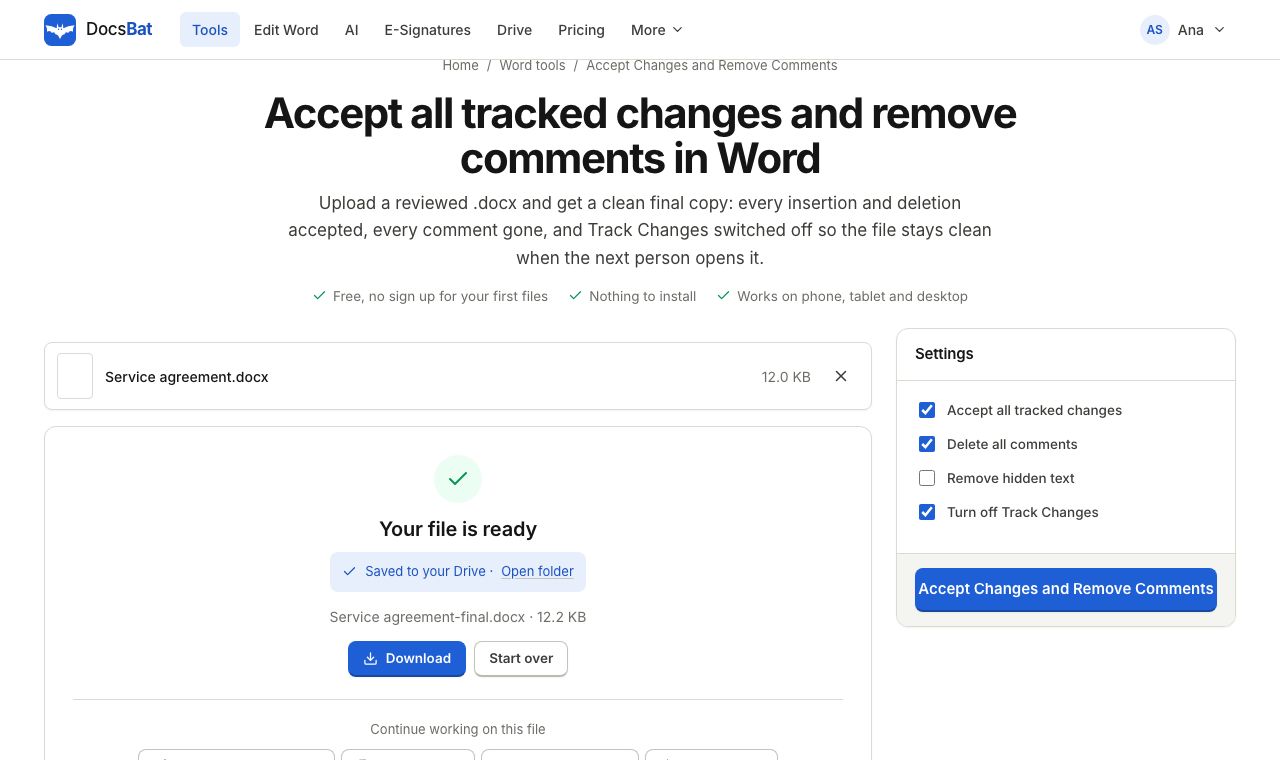 Accept Changes and Remove CommentsFinalise a Word document: accept every tracked change, delete all comments and remove hidden text in one go.
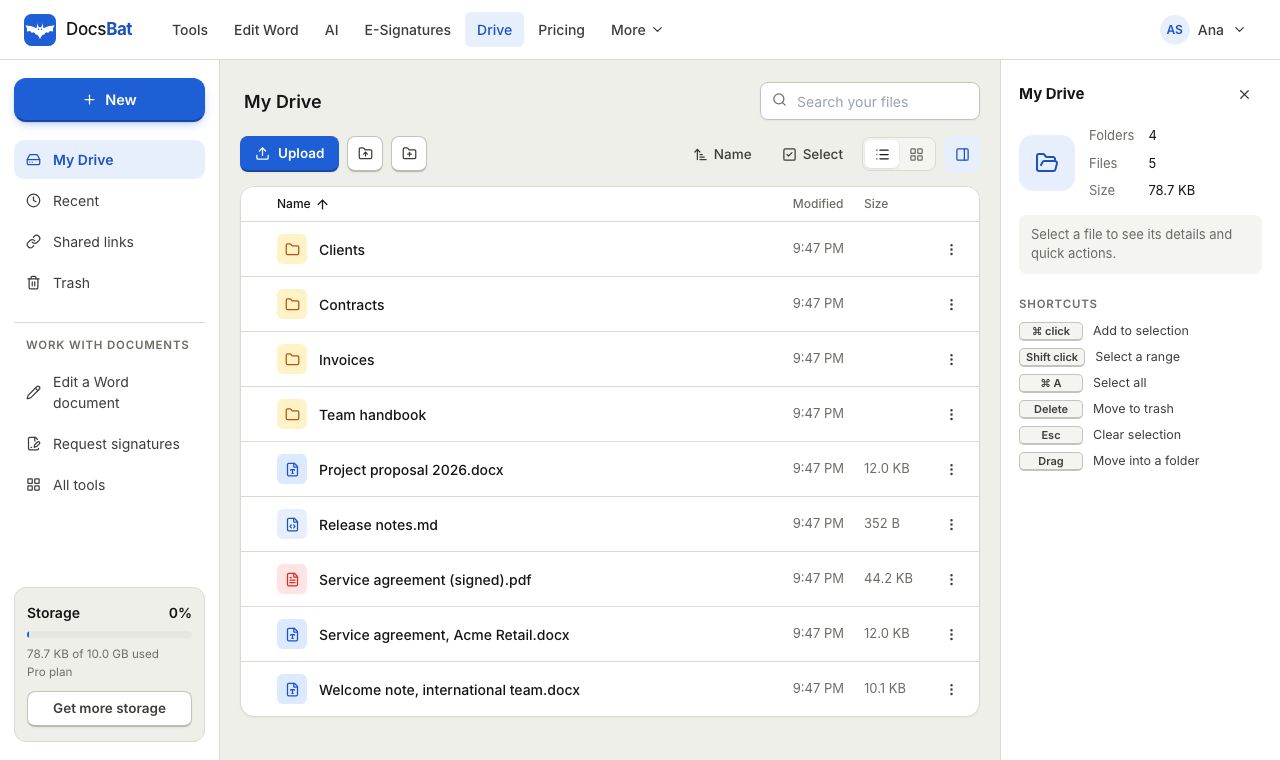 Cloud DrivePrivate cloud storage for Word documents and PDFs, with folders, share links and every tool result saved automatically.
Send your Word document for signature
Create a free account and send up to 3 envelopes a month. Upgrade to Pro for unlimited signing at $4 a month.