Word documents in any language, converted and edited correctly
Turn a Word file in Arabic, Hindi, Japanese or any other script into a PDF where every letter shows up, or edit it in the browser. No missing glyphs, no empty boxes.
- Fonts for every script
- Right to left supported
- Free to start
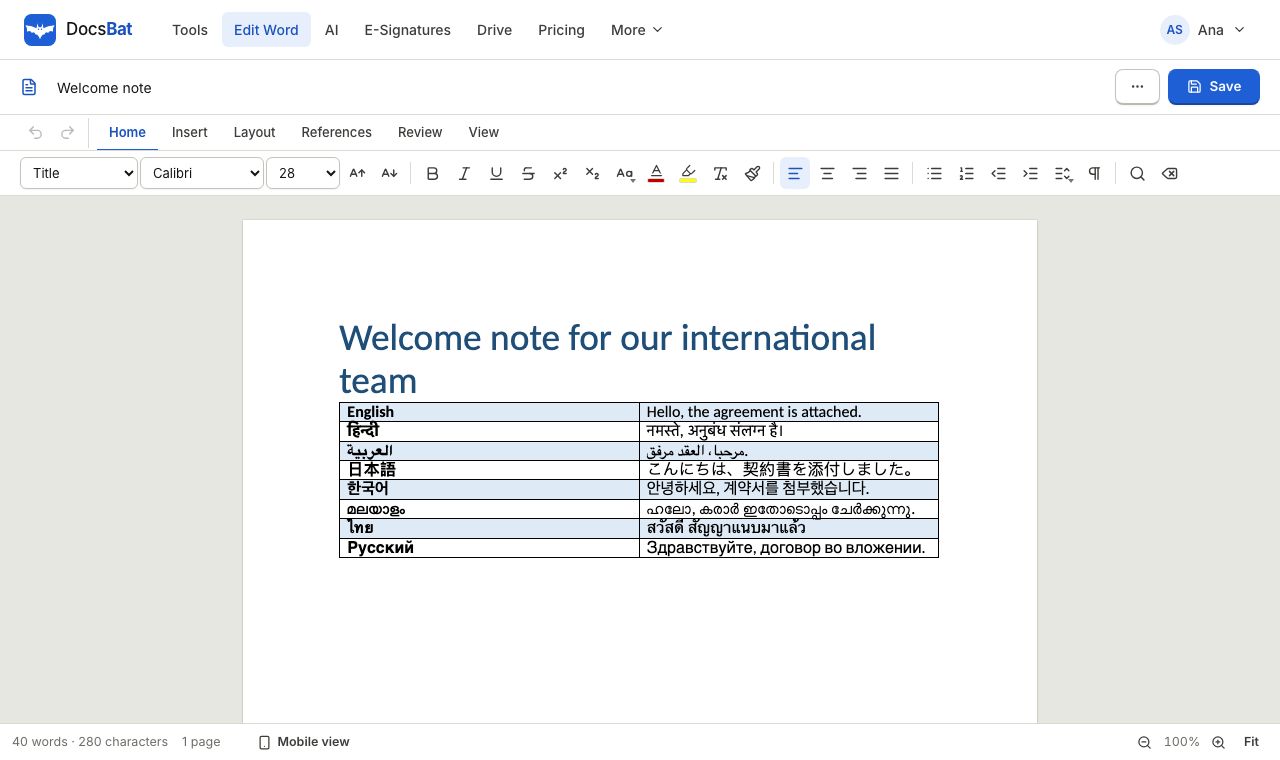
Why Word files in other scripts so often break
A Word file stores text, not pictures of letters. When another program opens it, that program has to find a font that contains the characters. If the computer does not have the font the author used, the result is a row of empty boxes, letters that do not join, or vowel signs in the wrong place. This happens a lot with Arabic, Persian, Urdu, Hindi, Tamil, Bengali, Thai, Chinese, Japanese and Korean documents.
DocsBat solves this when it converts a Word file to PDF. It uses the fonts your document names when it has them, swaps common Office fonts for free twins with the same letter widths (Calibri becomes Carlito and Cambria becomes Caladea), and falls back to the Noto font family for any script those fonts do not cover. Noto was made to cover every writing system in Unicode, so text in any language has a font that can draw it.
The fonts are embedded in the PDF, so the reader does not need them installed. The text in the PDF also stays real text, so it can be searched and copied.
What you get for documents in any language
Every writing system
Latin, Cyrillic, Greek, Arabic, Hebrew, Devanagari, Tamil, Bengali, Thai, Chinese, Japanese, Korean and more.
Correct letter shapes
Joined Arabic letters and Indic vowel signs are shaped by the layout engine, not drawn as separate pieces.
Right to left text
Arabic, Hebrew, Persian and Urdu paragraphs read from right to left, including when they mix with numbers or English words.
Fonts embedded in the PDF
The reader sees the same letters you do, on any device, without installing fonts.
Text stays searchable
The PDF keeps real text, so people can search it, copy it and read it with assistive tools.
Convert a Word file in any language
- 1
Upload the .docx
Open Word to PDF and choose your file. You can try it 3 times a day without an account.
- 2
Choose your option
Tick Add page numbers when the document has none if you want numbered pages. Everything else is read from the Word file.
- 3
Download the PDF
DocsBat lays out each page with fonts for every script and gives you a PDF to download. With an account it is also saved to your Drive.
Language support across DocsBat
- Word to PDF
- Mixed language documents convert with the right font for each part of the text, including headers and footers.
- Word editor
- Type and edit text in the Word editor using your device keyboard for any language your system supports.
- Word to JPG
- Word to JPG renders pages with the same fonts, so images of the pages show every script correctly.
- Find and Replace
- Find and Replace in Word matches letters in any script, and the whole word option understands letters beyond English.
- Word to Text
- Word to Text exports UTF 8 text, HTML or Markdown, so no characters are lost.
- Text to Word
- Text to Word reads UTF 8 text, Markdown and HTML in any language and builds a Word document.
Who this helps
- Students and researchers submitting theses and papers in Arabic, Hindi or Chinese as PDF.
- Translators and agencies who receive Word files in many languages and deliver PDFs.
- Businesses in the Middle East, South Asia and East Asia sending quotes, contracts and letters.
- Families and migrants converting documents in their own language for official applications.
Honest limits
- If your document uses a rare decorative font that DocsBat does not have, the PDF uses a close Noto or twin font instead. The letters are correct, but the look may differ slightly.
- Old .doc files from Word 97 to 2003 are not supported. Save them as .docx first.
- Vertical Japanese or Chinese text layouts may be shown as horizontal text.
- DocsBat does not translate Word files with these tools. For that, see AI for documents, which needs an account and AI credits.
More on languages
For the full picture of how DocsBat handles scripts, fonts and right to left text in the editor and tools, see Every language.
Frequently asked questions
Why does my Arabic or Hindi Word file show boxes in the PDF?
The program that made the PDF did not have a font with those letters. DocsBat falls back to Noto fonts, which cover every script, so the letters appear correctly.
Does it support right to left languages?
Yes. Arabic, Hebrew, Persian and Urdu paragraphs are laid out right to left, including mixed text with numbers and English words.
Will the PDF look exactly like my Word document?
Very close. Layout, lists, tables, pictures, headers and footers are kept. If a font you used is not available, a twin or Noto font is used, which can change the look slightly.
Can I copy text from the PDF?
Yes. The PDF contains real text, so it can be searched, copied and read aloud.
Is it free?
Yes. Word to PDF works 3 times a day without an account and 10 times a day with a free account. Pro is $4 a month for unlimited use.
Can I edit text in my language in the browser?
Yes, in the Word editor with a free account. You type with your device keyboard, so any language your phone or computer supports works.
Related features and tools
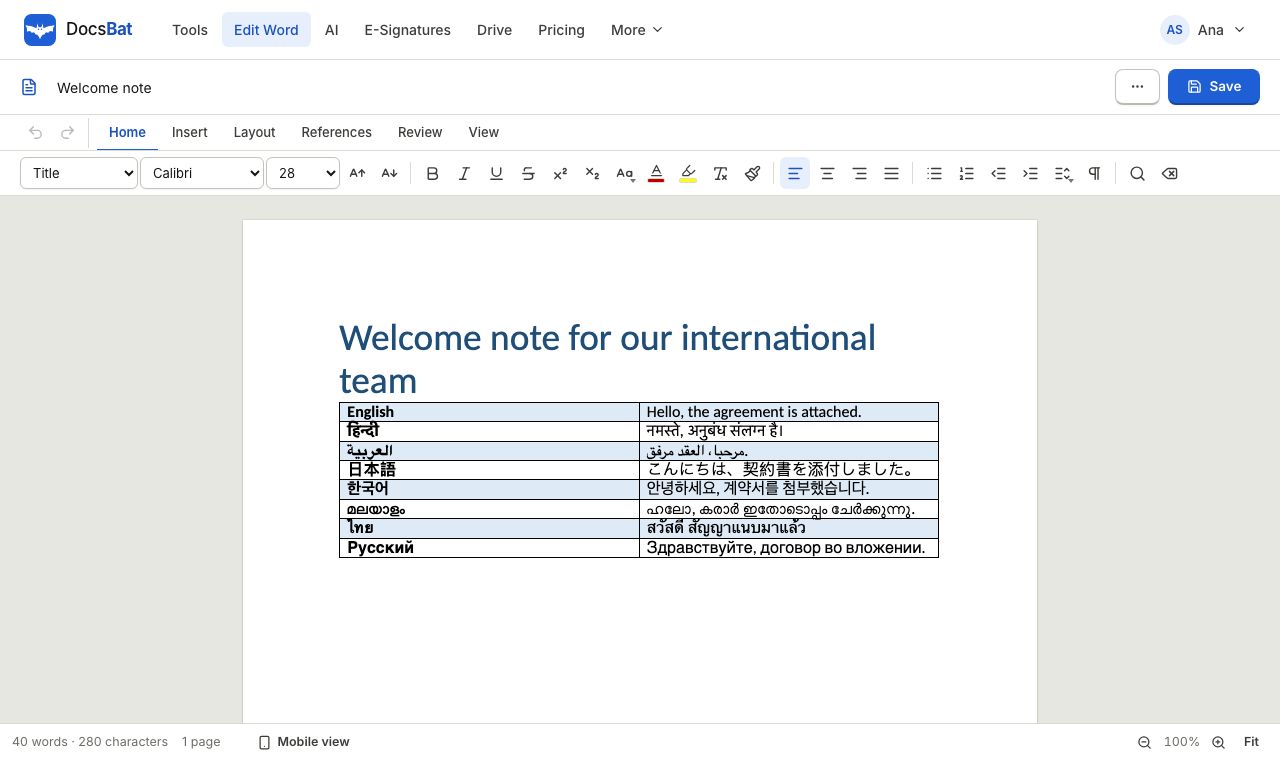 Every LanguageWord documents in Hindi, Arabic, Chinese, Tamil, Thai and more display, edit and convert to PDF with the right fonts.
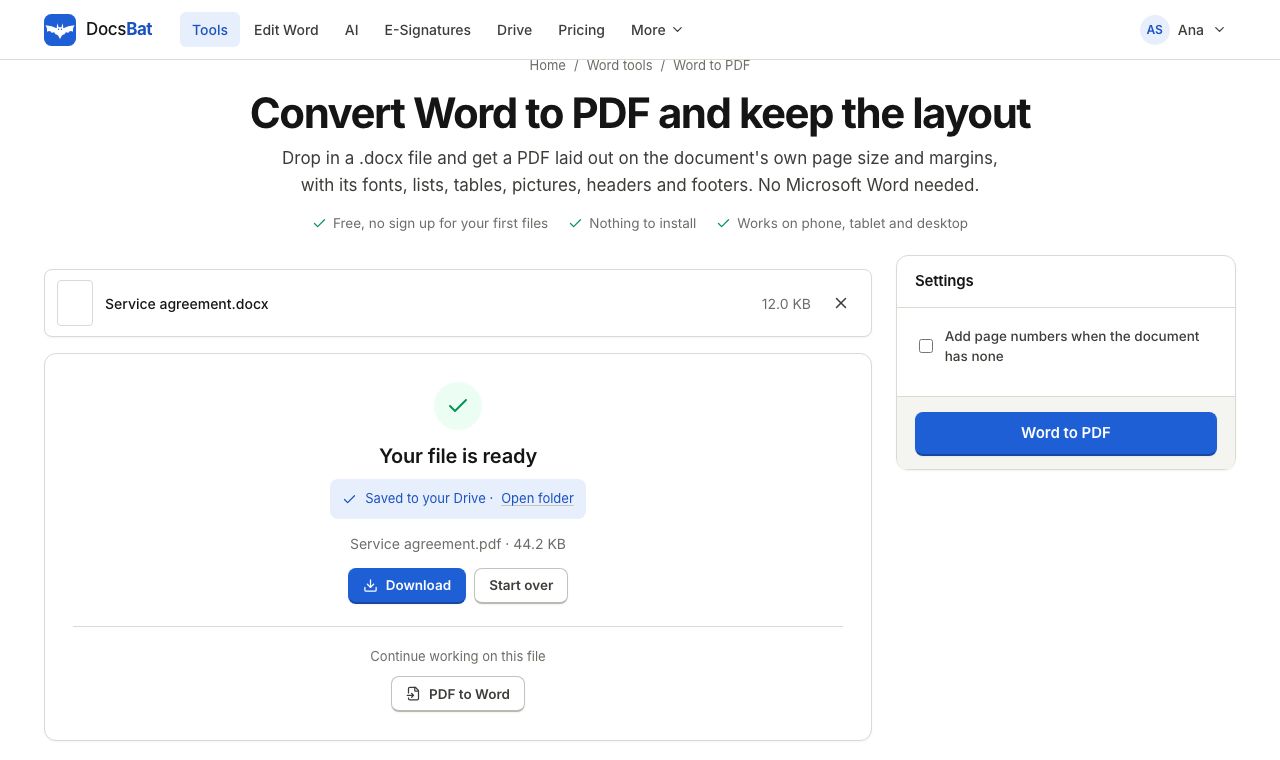 Word to PDFTurn a .docx into a PDF that keeps its fonts, lists, tables, pictures, headers, footers and page numbers.
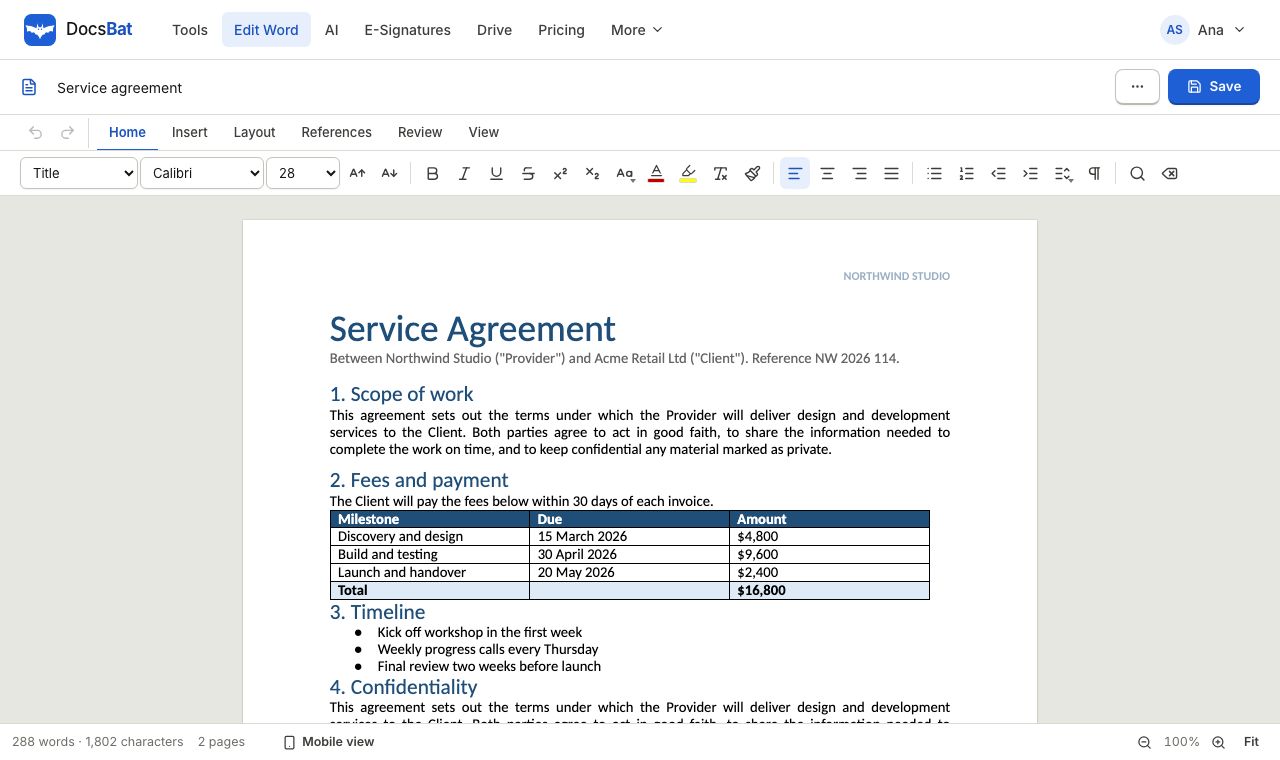 Word EditorOpen a .docx in your browser, edit text, lists, tables and pictures, and save it back as Word or PDF.
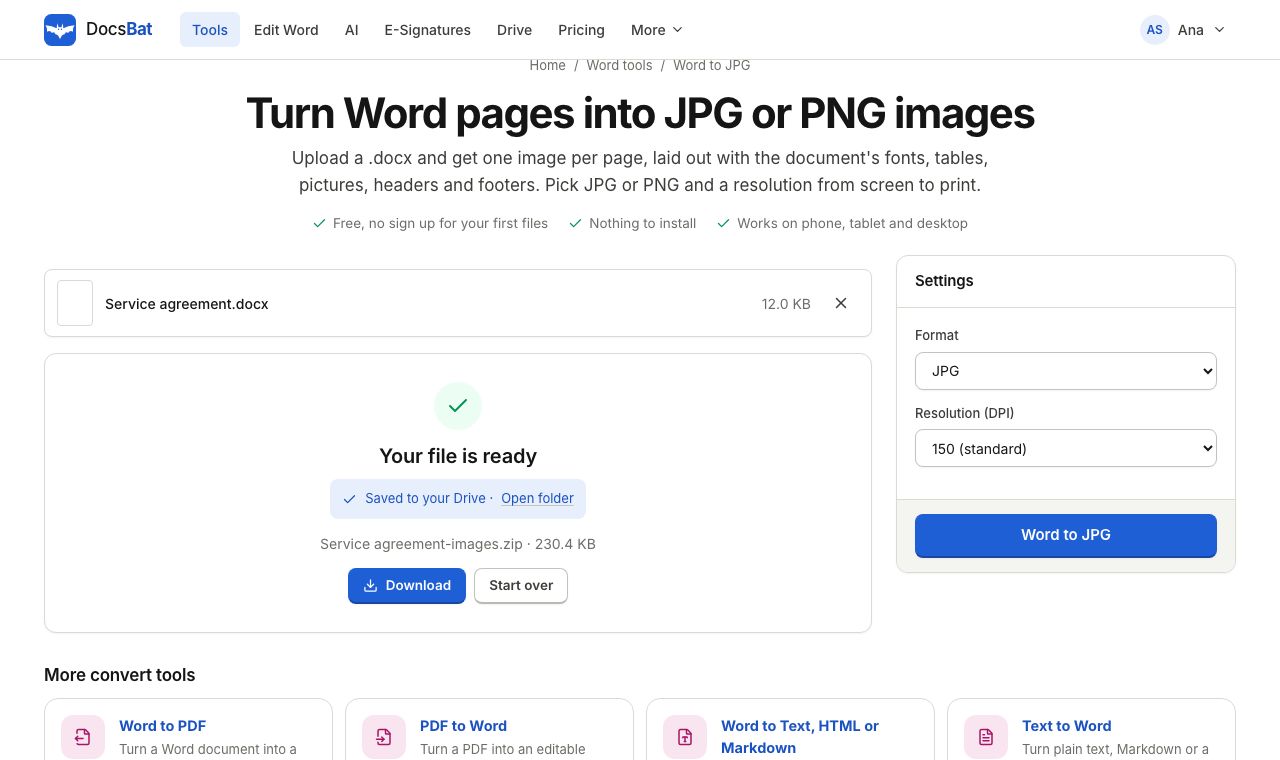 Word to JPGSave every page of a Word document as a JPG or PNG image at 72, 150 or 300 DPI.
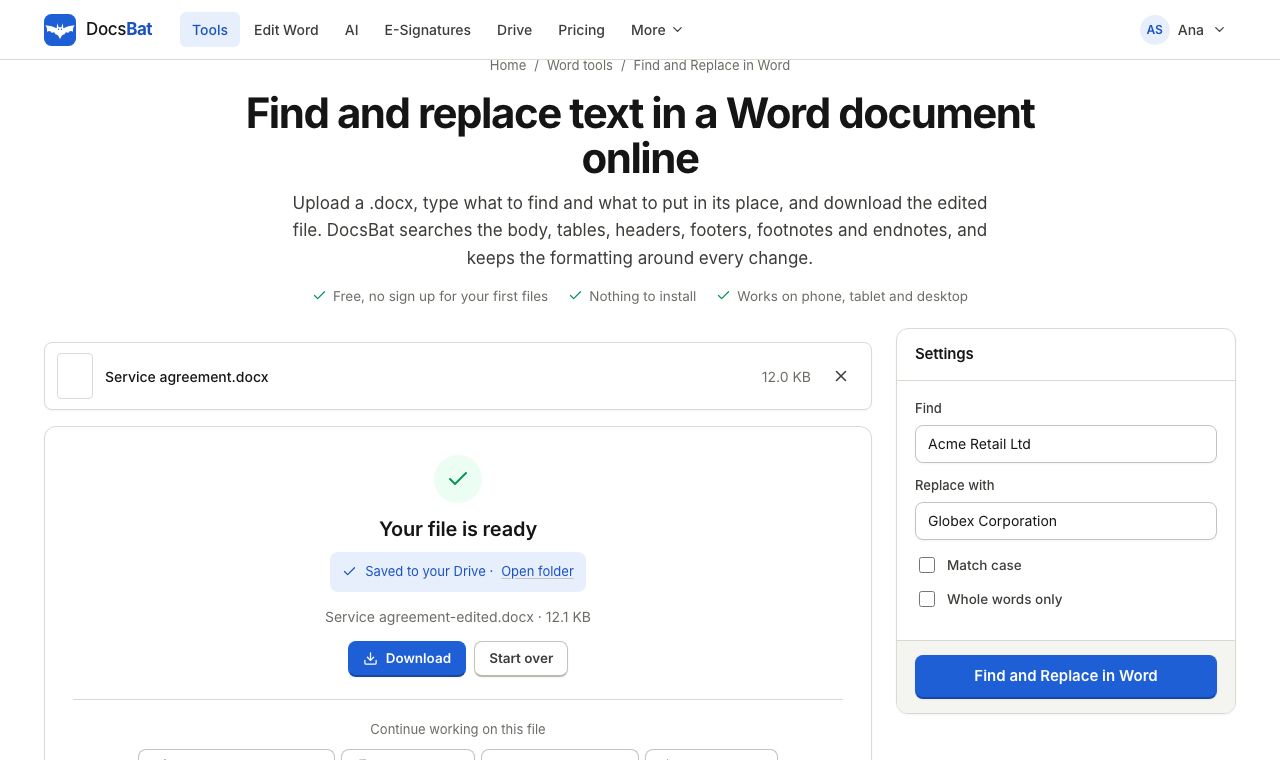 Find and Replace in WordReplace a word or phrase everywhere in a Word file, including headers, footers, tables and footnotes, keeping the formatting.
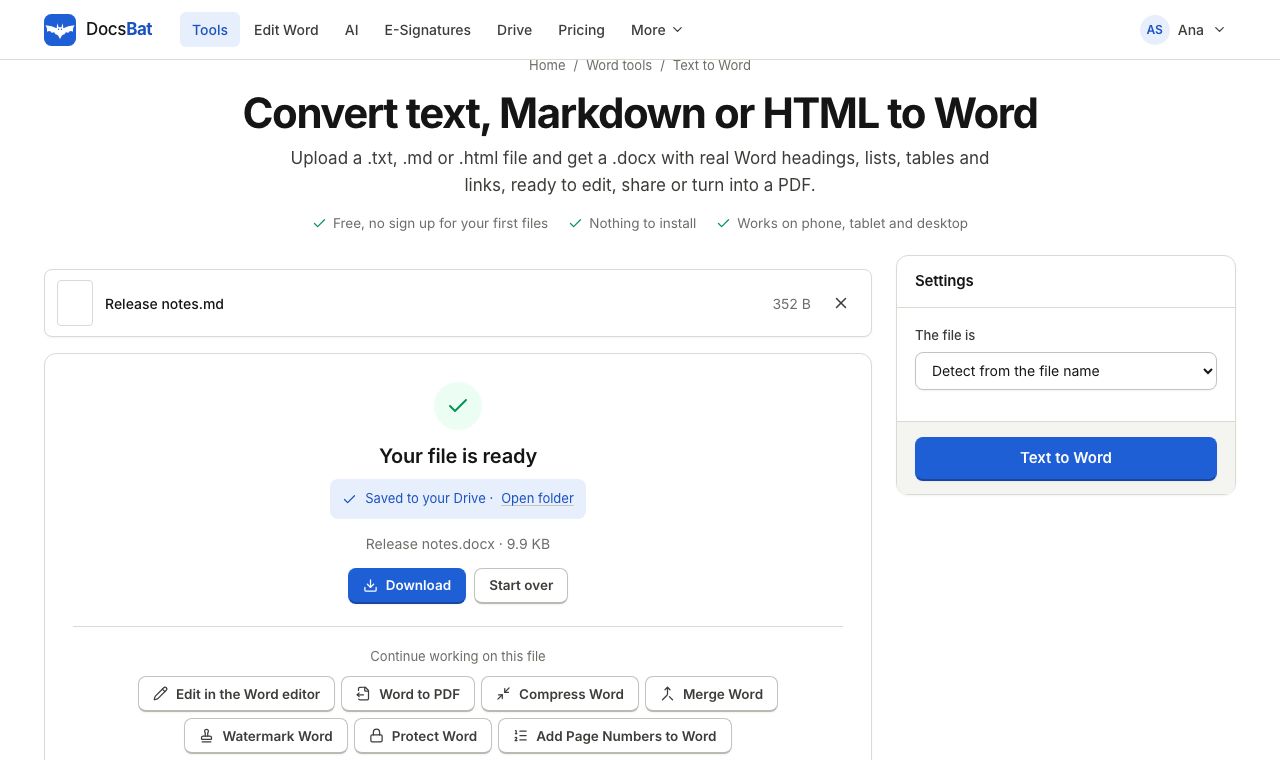 Text to WordTurn plain text, Markdown or an HTML page into a formatted Word document.
Convert your document now
Upload a Word file in any language and get a PDF where every letter shows. Free, in your browser.