Word documents in any language, shown and converted correctly
Hindi, Malayalam, Arabic, Hebrew, Chinese, Japanese, Korean, Thai, Amharic and many more. DocsBat finds a font for every character in your .docx, so pages look right in the editor and in the PDFs you make.
- Noto fonts for every script
- Nothing to install
- Text stays real text
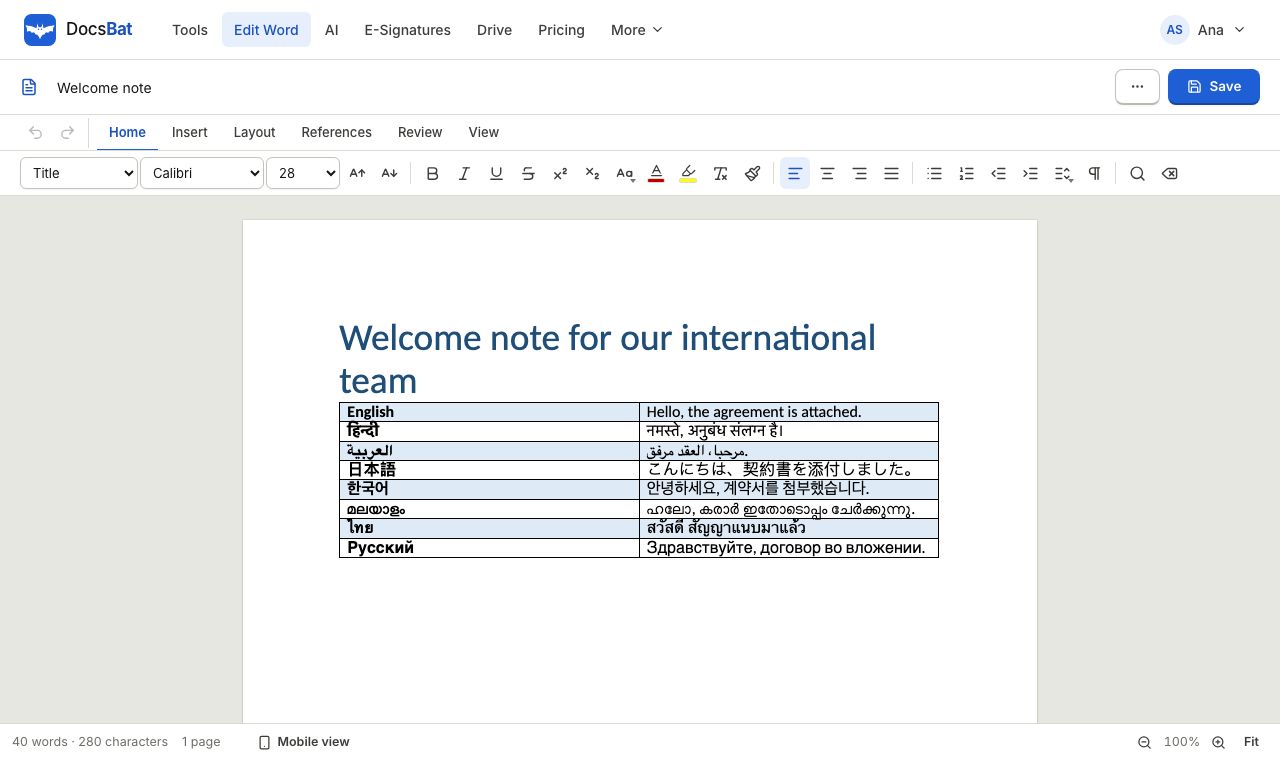
Why Word files in other languages often break online
A Word document does not carry its fonts. It only names them. When you open a .docx written in Tamil, Bengali or Thai on a computer or a web service that lacks those fonts, you get empty boxes, the wrong letters, or vowel signs in the wrong place. Convert that document to PDF and the problem is frozen into the file.
DocsBat handles this on the server, so your device does not need any fonts installed. The fonts the document names are used when available. Common Office fonts are replaced with free metric compatible twins, such as Carlito for Calibri and Caladea for Cambria, so lines break in nearly the same places. Any character those fonts cannot show is drawn with the Noto font for its script.
Noto is a font family designed to cover every writing system in Unicode. DocsBat ships Noto families for Indic, Arabic, Hebrew, CJK, Southeast Asian, African and many other scripts, plus symbols, and loads only the ones a document actually needs.
What this means for your documents
Every major script
Devanagari, Bengali, Tamil, Telugu, Malayalam, Arabic, Hebrew, Chinese, Japanese, Korean, Thai, Ethiopic, Cyrillic, Greek and many more.
A font for every character
When the document's font lacks a character, the matching Noto font fills in, so you never get empty boxes in the output.
Mixed languages on one page
An English contract with names in Arabic, or a Hindi letter with English terms, displays each script with a suitable font.
Real text in your PDF
Word to PDF keeps text as text, not pictures, so the PDF can be searched and copied in any reader.
No font installs
Fonts live on the DocsBat server. It works the same on a phone, a Chromebook or a shared computer.
How to work with a Word document in your language
- 1
Open or upload the .docx
Open the file in the Word editor, or drop it into a tool such as Word to PDF. Nothing to install.
- 2
Edit or convert
Type in any language in the editor, or run a tool. DocsBat picks fonts for every script in the document.
- 3
Save the result
Download the .docx or the PDF. A copy is saved to your Drive automatically.
Scripts covered by the bundled fonts
These are the writing systems DocsBat has fonts for when a document's own font cannot show a character.
- Indic scripts
- Devanagari (Hindi, Marathi, Sanskrit, Nepali), Bengali and Assamese, Gurmukhi (Punjabi), Gujarati, Odia, Tamil, Telugu, Kannada, Malayalam and Sinhala.
- Arabic script
- Arabic, Urdu, Persian and other languages written in Arabic script.
- Hebrew and other right to left scripts
- Hebrew, plus Syriac and Thaana.
- Chinese, Japanese and Korean
- Noto Sans CJK for Simplified and Traditional Chinese, Japanese and Korean.
- Southeast Asian scripts
- Thai, Lao, Khmer, Myanmar and other scripts of the region.
- African scripts
- Ethiopic (Amharic, Tigrinya), Tifinagh, N'Ko, Adlam and more.
- Europe, Caucasus and Central Asia
- Latin, Greek and Cyrillic, plus Armenian, Georgian and Mongolian.
- Symbols
- Symbol fonts for arrows, technical signs and other special characters, and Word's Symbol and Wingdings bullets shown as ordinary bullet characters.
- Bold text
- Bold versions are used where the font family publishes one, so headings stay bold in every script.
Where multilingual Word documents work in DocsBat
- The Word editor: open a .docx in any language, edit it and save it back as Word or PDF.
- Word to PDF: convert documents in any script to a PDF that looks right on every device.
- Word to JPG: save pages as images with the correct fonts for sharing in chat apps.
- Word to Text: export the original characters as plain text, HTML or Markdown.
- Find and Replace: replace words in any language across the body, headers, footers and footnotes.
- AI for documents: summarize or ask questions about a document in any language, with AI credits.
Tips for multilingual documents
- If you need an exact typeface, such as a house font for a brand, use it in Word and check the PDF. DocsBat uses the named font where it has it and a close free font where it does not.
- Old .doc files are not supported. Save them as .docx first, which also fixes many old encoding problems.
- Line breaks in a converted PDF can differ slightly from Word when a substitute font is used. Check long tables and forms before you send them.
- Keep the .docx as your editable master and send the PDF. See Word documents in any language for a step by step guide.
Frequently asked questions
Which languages work in DocsBat?
Any language written in a script covered by the bundled Noto fonts, which includes every major writing system: Latin, Cyrillic, Greek, Arabic, Hebrew, the Indic scripts, Chinese, Japanese, Korean, Thai and many more.
Will Hindi and Tamil look correct in the PDF?
DocsBat uses the Noto fonts for those scripts, which are built for correct joining of letters and vowel signs. Check the result if your document uses an unusual font, since a substitute is used when the original is not available.
Does Arabic text stay right to left?
Yes. Arabic and Hebrew text is laid out right to left, and the letters are joined using the Noto fonts for those scripts.
Do I need to install fonts on my computer?
No. All fonts are on the DocsBat server, so it works the same on any device.
Why does my PDF use a different font from Word?
Many fonts in Word are licensed only for Microsoft Office. DocsBat uses free fonts with the same character widths where they exist, such as Carlito for Calibri, so the layout stays close.
Can I mix several languages in one document?
Yes. Each character is drawn with a font that supports it, so a single paragraph can mix English, Hindi and Arabic.
Is it free?
Yes. Every Word tool runs on the free plan, with 3 runs a day without an account and 10 a day with a free account. The editor needs a free account.
Related features and tools
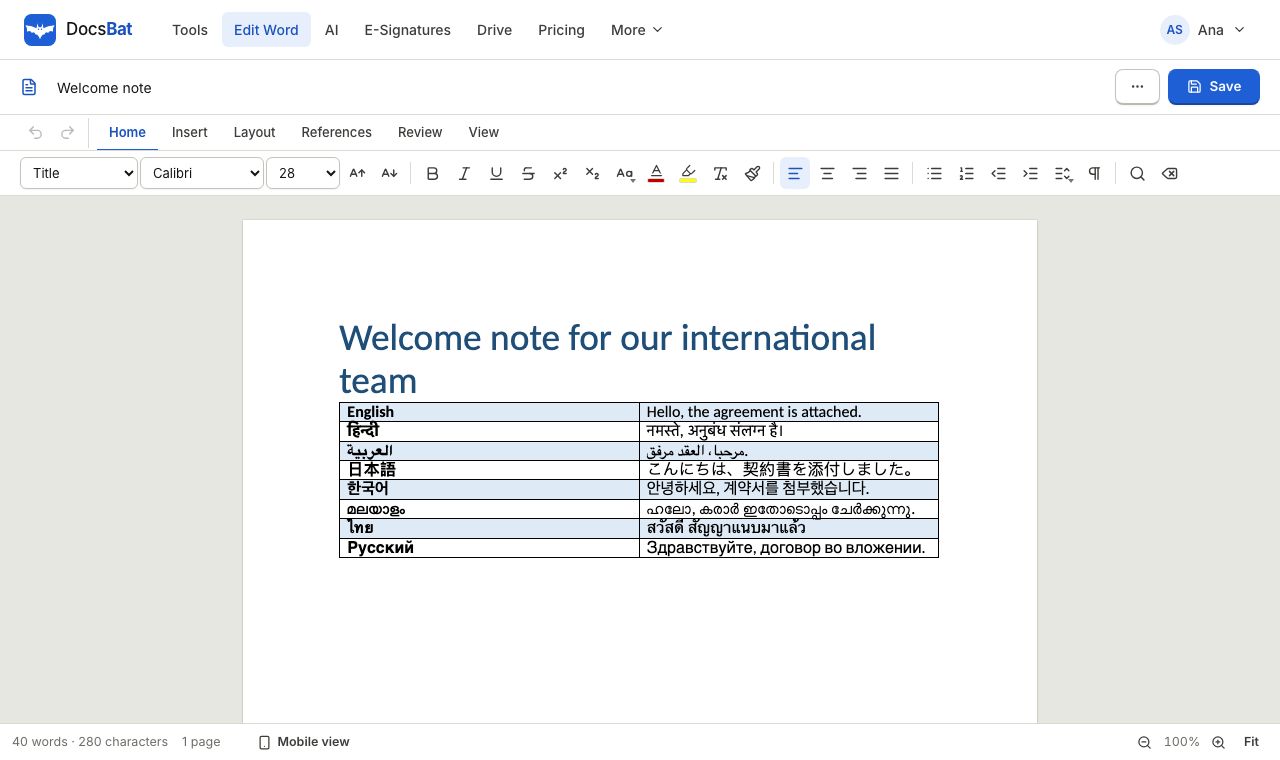 Word documents in any languageConvert and edit Word files in Arabic, Hindi, Chinese, Thai and every other script, with fonts that display correctly in the PDF.
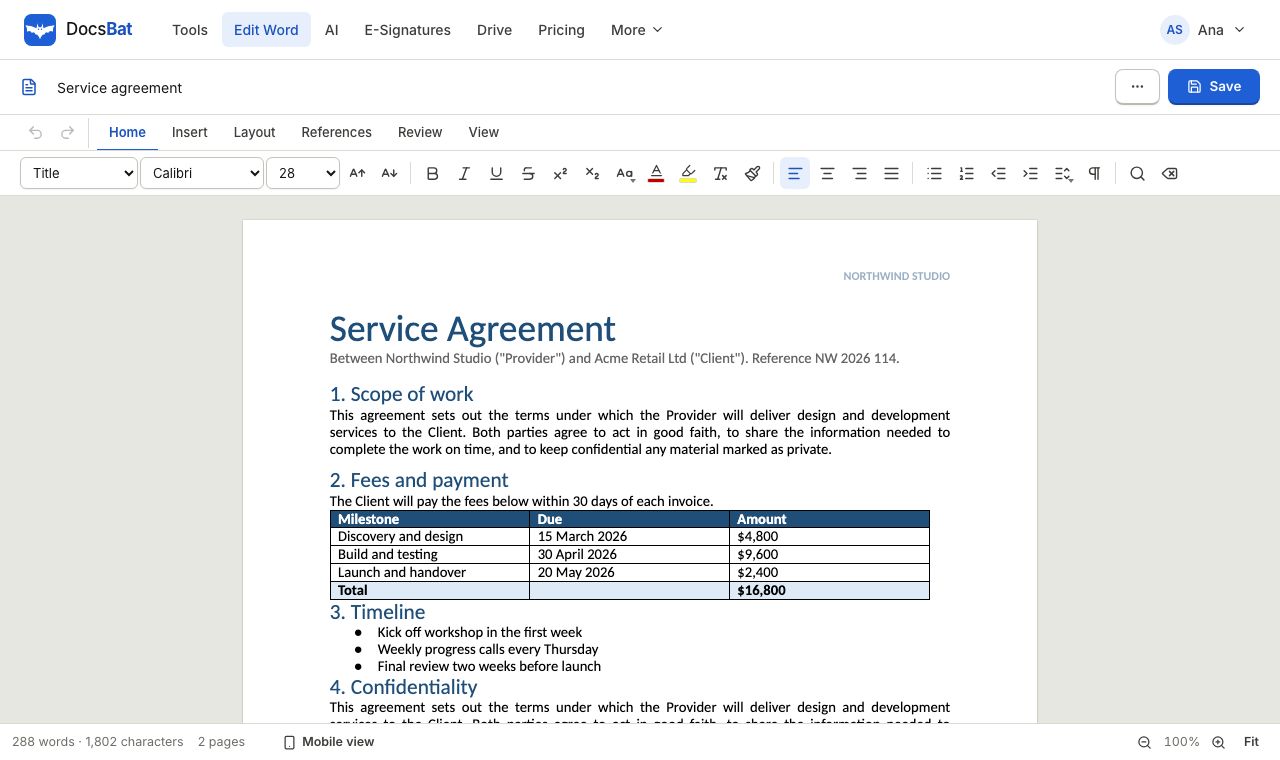 Word EditorOpen a .docx in your browser, edit text, lists, tables and pictures, and save it back as Word or PDF.
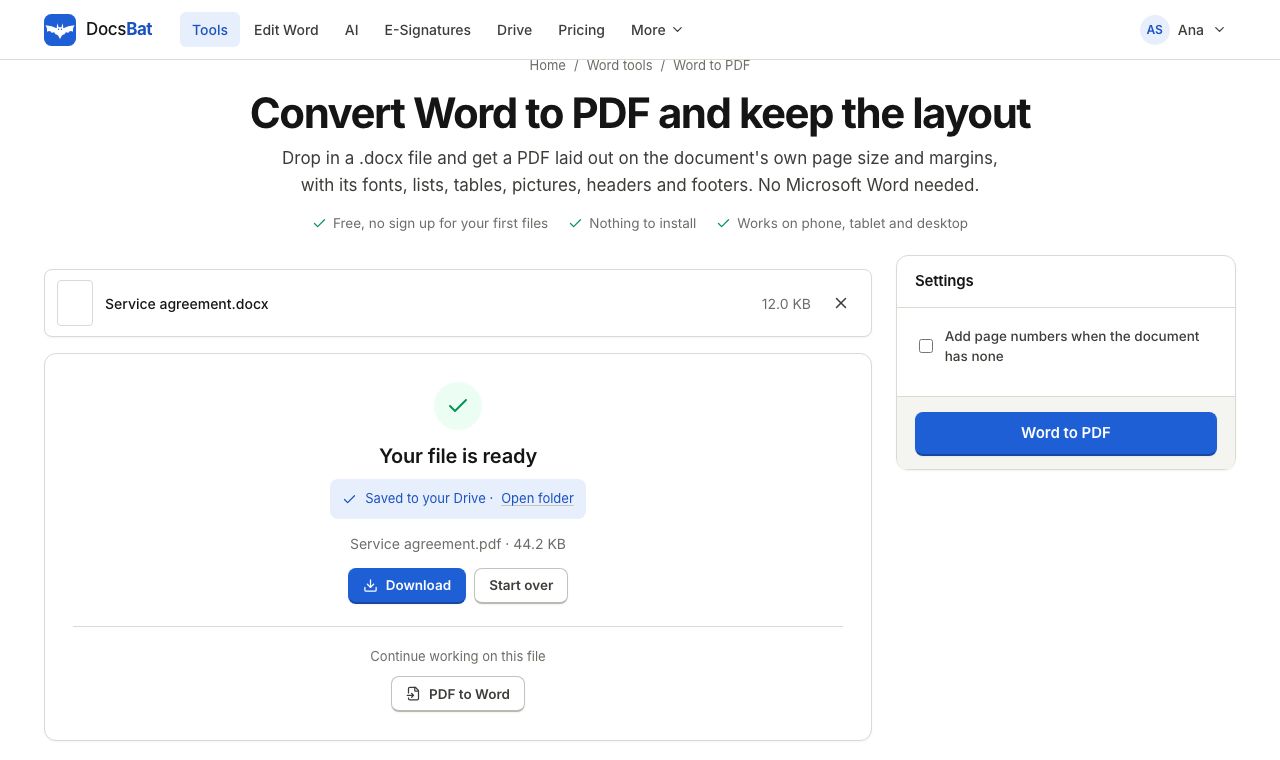 Word to PDFTurn a .docx into a PDF that keeps its fonts, lists, tables, pictures, headers, footers and page numbers.
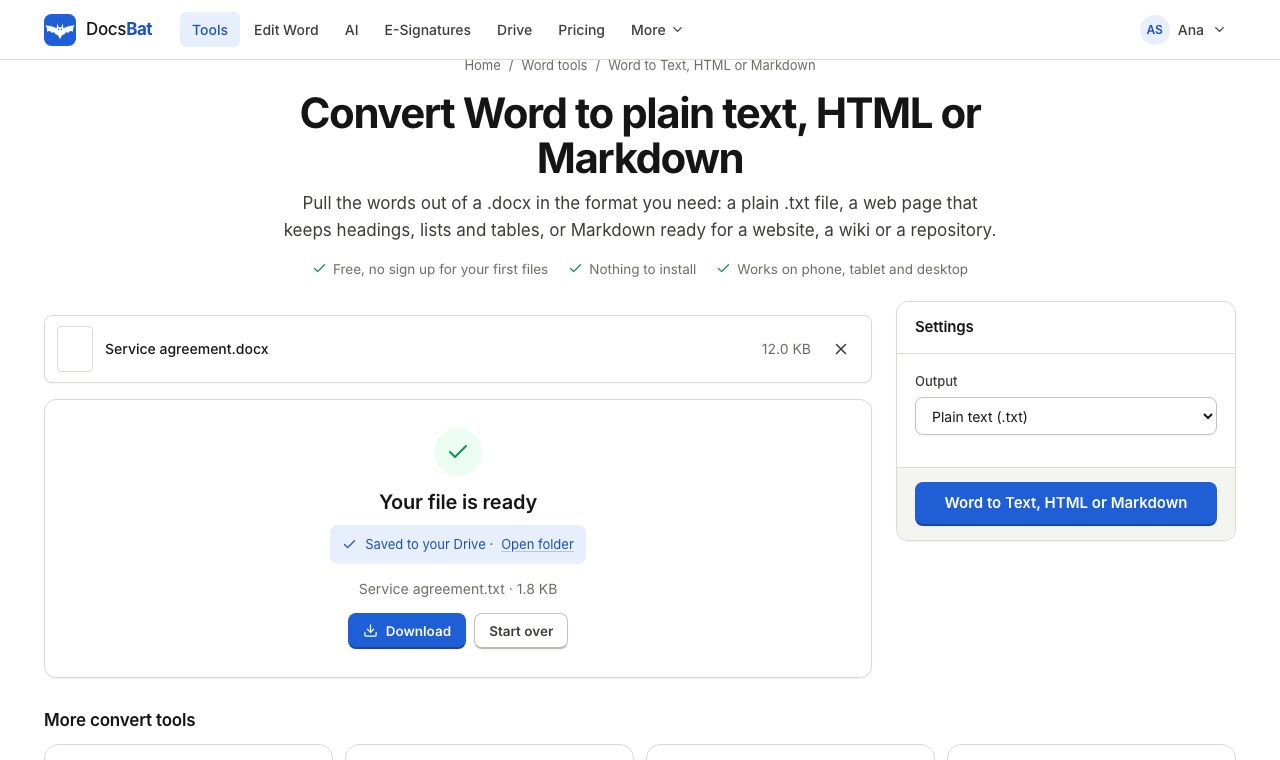 Word to Text, HTML or MarkdownGet the text of a Word document as plain text, a web page or Markdown.
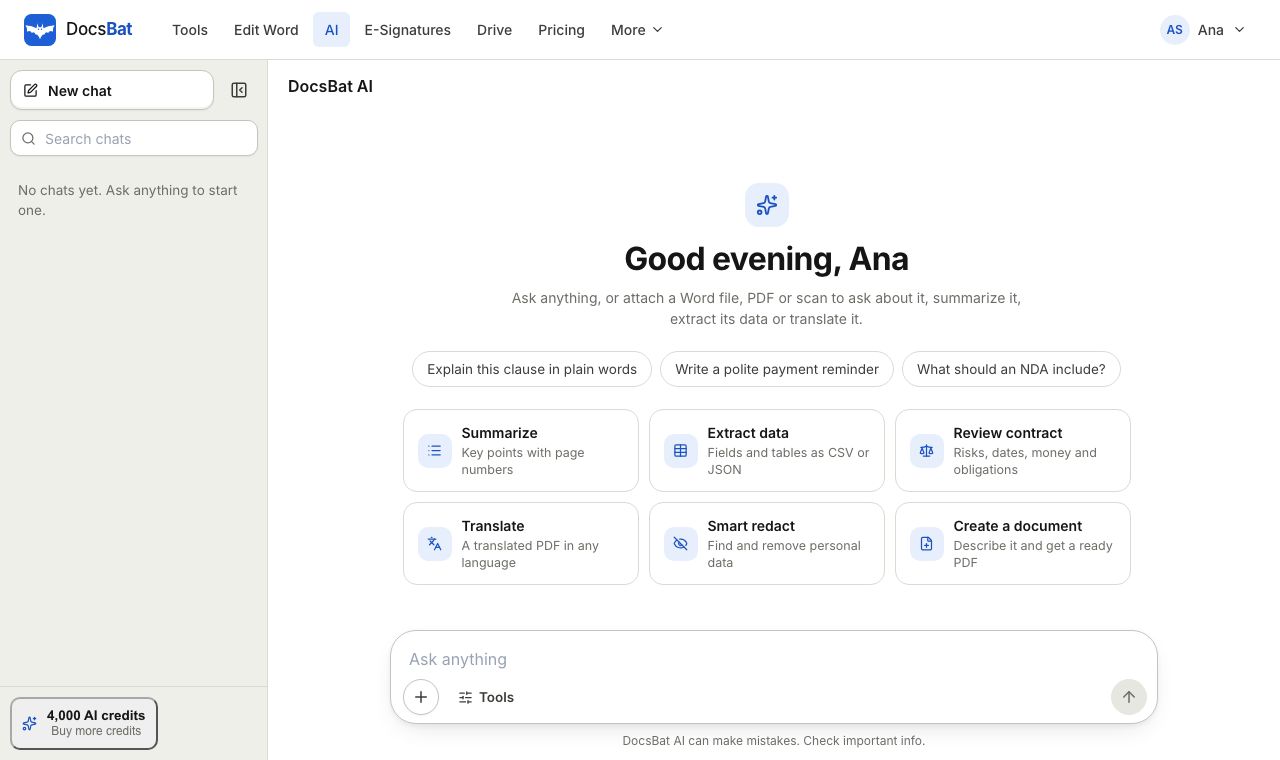 AI for DocumentsSummarize Word and PDF documents, ask questions with page citations, extract data, review contracts, translate and write.
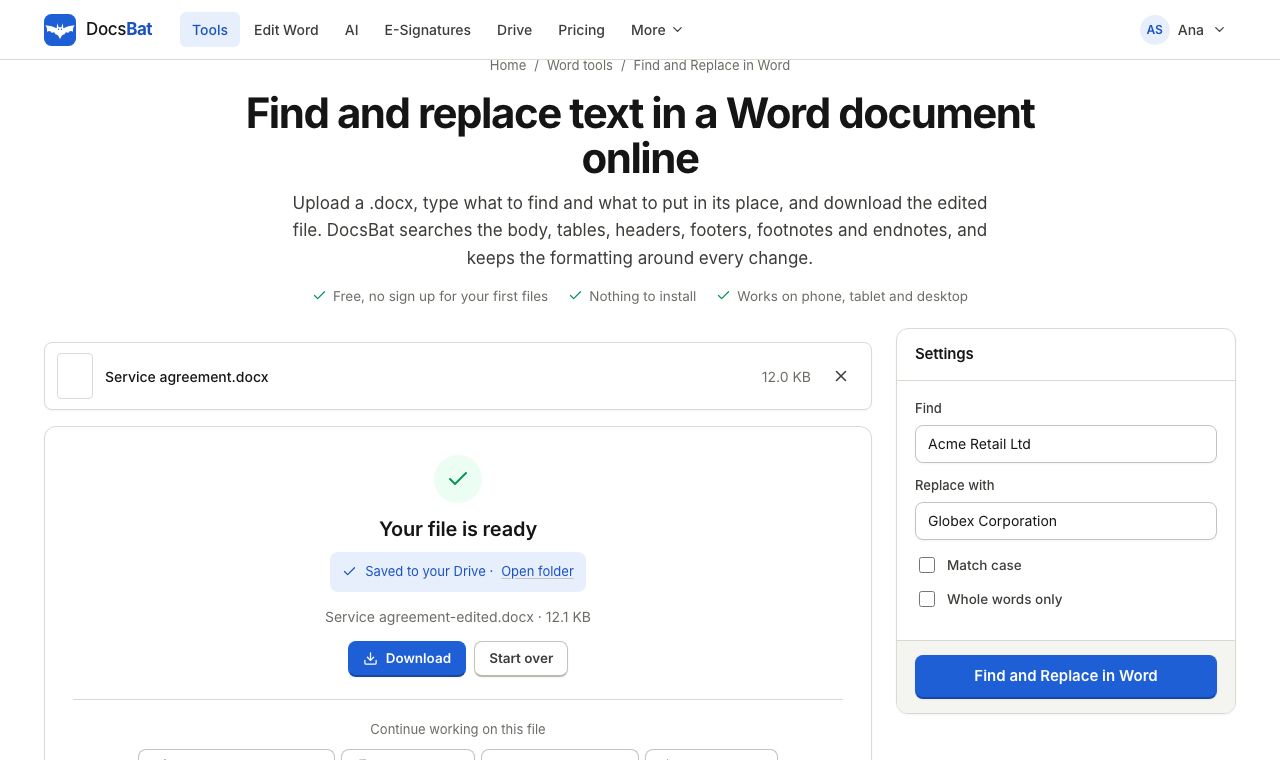 Find and Replace in WordReplace a word or phrase everywhere in a Word file, including headers, footers, tables and footnotes, keeping the formatting.
Work on Word documents in your own language
Open the editor or convert a .docx, in any script, and get pages that look right on every device.