Extract all images from a Word document
Get every photo, logo and picture out of a .docx as the original files, at the resolution they were inserted, without copying them out one by one.
- Free, no sign up for your first files
- Nothing to install
- Works on phone, tablet and desktop
The originals, not screenshots
Right clicking pictures in Word one at a time is slow, and copying them often gives you a smaller, recompressed version. A Word file actually stores every picture as a separate image file inside it. Extract Images from Word takes those files out exactly as they are.
That means a photo inserted at full camera resolution comes out at full camera resolution, a PNG logo keeps its transparency and a vector SVG stays a vector. Each image is named after your document with a number, and when there is more than one you get them all in a single zip.
Why use DocsBat to extract images
Every picture at once
All images stored in the document are saved in one go, in a single zip.
Full original quality
Nothing is resized or recompressed. You get the same bytes that were inserted into the document.
Original formats
JPG, PNG, GIF, SVG, BMP, TIFF and the other formats Word stores keep their type and extension.
Any device
Works in the browser on phones, tablets and computers. No Word needed.
How it works
- 1
Choose a Word file
Drop a .docx, .docm or .dotx onto the page or pick it from Drive.
- 2
Extract
There are no settings. DocsBat collects every image stored in the document.
- 3
Download
Get one image directly, or a zip when there are several. A copy is saved to your Drive.
How it works
- Original files
- Images are taken from the document's media folder, the place Word keeps inserted pictures, without any processing.
- Real file types
- The type of each image is detected from its contents, so the extension matches what the file really is.
- Ordered names
- Files are named like report-image-001.png, report-image-002.jpg, so they are easy to sort.
- Password protected documents
- If the Word file needs a password to open, enter it when asked.
- No pictures found
- If the document holds no images, DocsBat tells you instead of giving you an empty zip.
Good to know
- The tool saves images stored in the document, including pictures used in headers and footers. Charts, shapes and SmartArt drawn by Word are not stored as image files, so they are not extracted. Use Word to JPG to capture whole pages instead.
- If a picture was cropped in Word, you get the full uncropped original.
- Old .doc files are not supported. Save them as .docx first.
- Want a smaller document rather than the pictures? Compress Word shrinks the images inside the file.
Common uses
- Recover product photos or a logo someone only sent you inside a Word file.
- Reuse pictures from a report in a presentation or website.
- Collect photos from a site visit report or inspection document.
- Archive the images from old documents separately.
Frequently asked questions
How do I save all pictures from a Word document?
Upload the .docx to Extract Images from Word and click extract. You get every image in a zip, at original quality.
Is the image quality reduced?
No. The files are copied out exactly as stored in the document.
Why is a chart or shape missing?
Charts, shapes and SmartArt are drawn by Word rather than stored as image files. Convert the page with Word to JPG to get them as pictures.
I cropped a picture in Word. Will it be cropped?
No. Word keeps the whole original and only shows part of it, so the extracted file is the uncropped picture.
Does it work with .doc files?
No. Save the document as .docx first.
Is it free?
Yes. 3 runs a day without an account, 10 tasks a day with a free account and unlimited on Pro for $4 a month.
Related features and tools
 Word to JPGSave every page of a Word document as a JPG or PNG image at 72, 150 or 300 DPI.
 Compress WordMake a Word file smaller by shrinking its pictures to the size they are shown at, without touching the text.
 Word to Text, HTML or MarkdownGet the text of a Word document as plain text, a web page or Markdown.
 Word to PDFTurn a .docx into a PDF that keeps its fonts, lists, tables, pictures, headers, footers and page numbers.
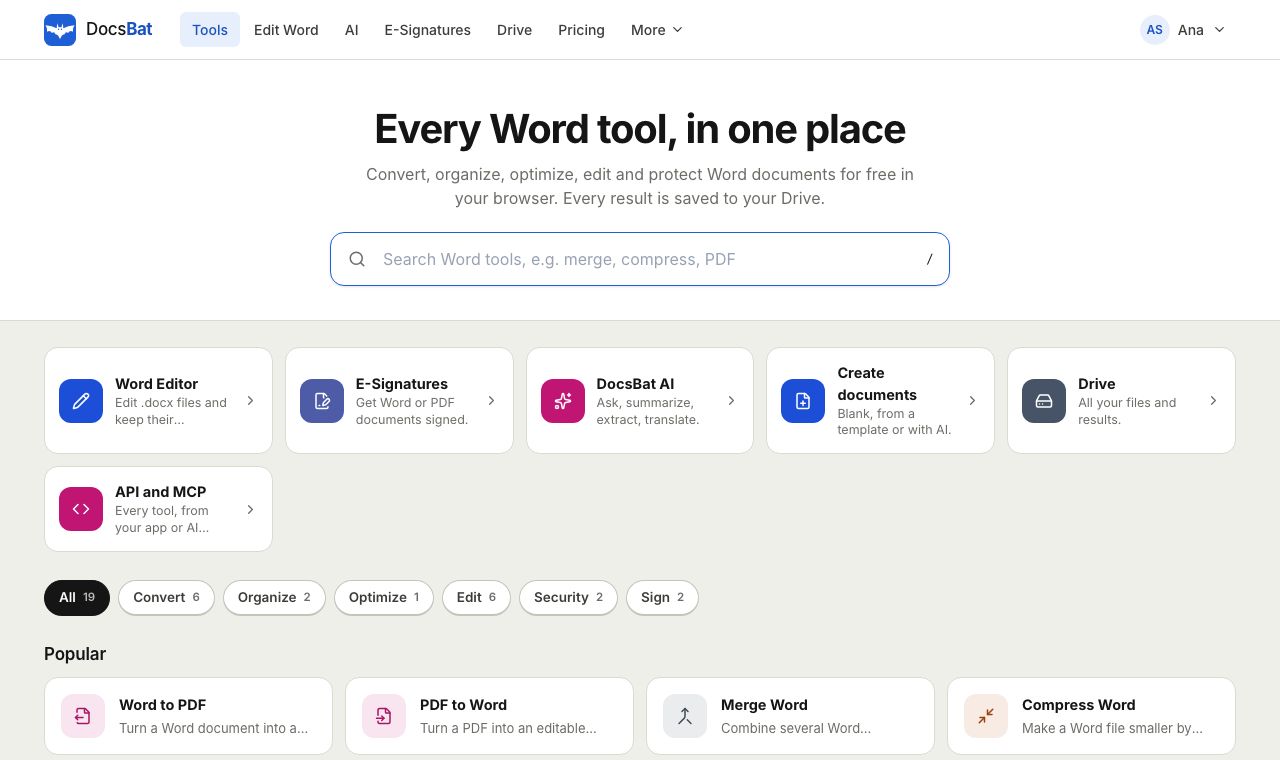 Free Word Tools17 free tools to convert, merge, split, compress, edit and protect Word documents in your browser.
Ready? Your file is one click away
Free, in your browser. Create a free account to get 10 tasks a day and keep every result in your own Drive.